20 min to read
Automating File Uploads to Google Drive with GitLab CI and rclone
Streamlining team collaboration by automatically backing up build artifacts and documents to Google Workspace
Overview
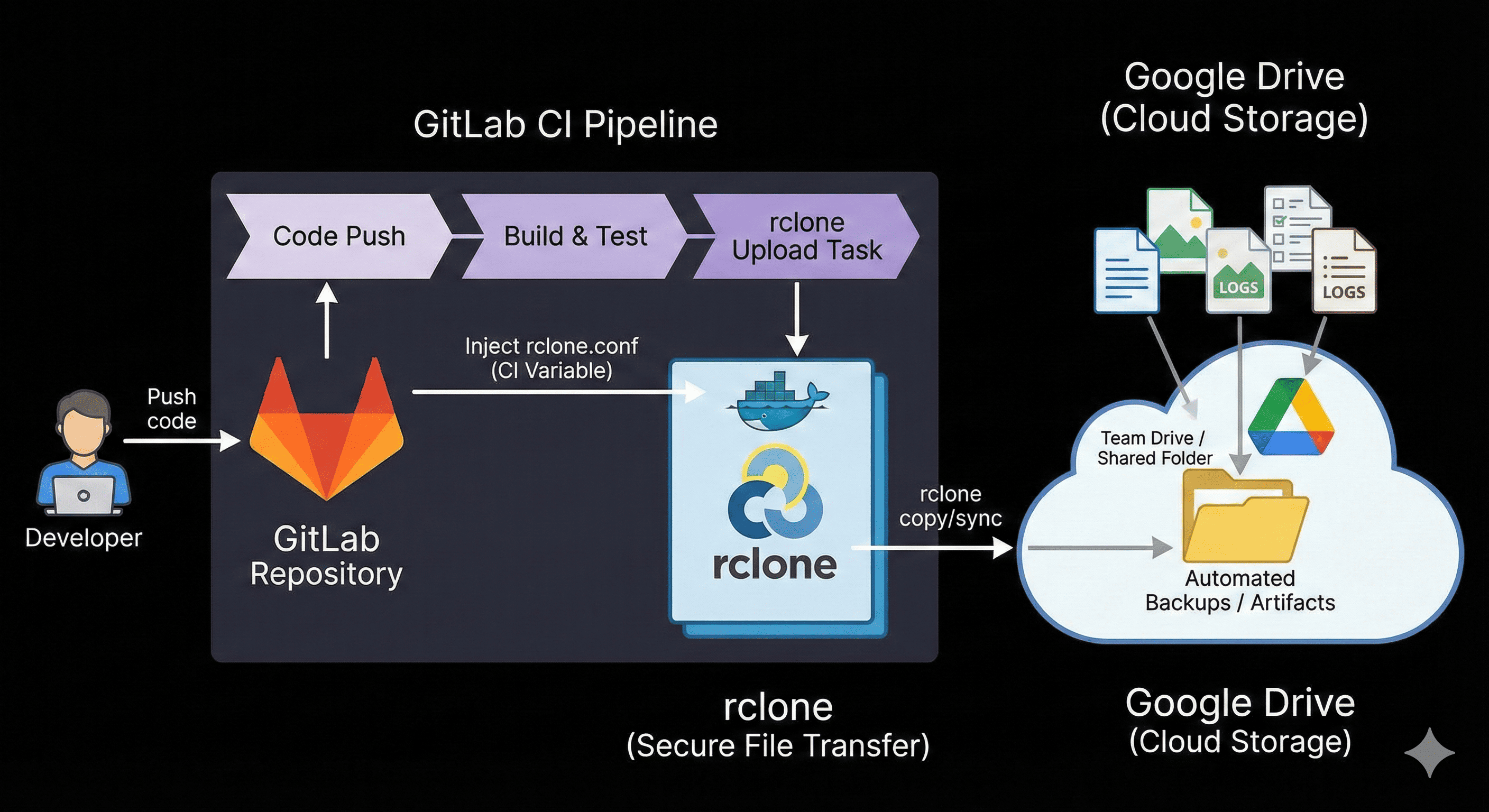
Continuous Integration (CI) is more than just building and testing—it’s a powerful tool for automating various workflows. One particularly useful application is automatically uploading files to Google Drive using GitLab CI.
This approach proves valuable in several scenarios:
- Automatic Backup: Save build artifacts to team-shared Google Drive
- Report Archiving: Upload test reports and log files for backup purposes
- Artifact Distribution: Deliver and store artifacts at specific points without manual intervention
This article demonstrates how to leverage rclone in GitLab CI to upload files to a company’s Google Workspace shared account, making it especially suitable for projects requiring automatic uploads of design documents and deliverables to team Drives.
Why This Matters
In collaborative environments, manually uploading files to shared drives is time-consuming and error-prone. Team members often forget to upload the latest version, leading to confusion about which files are current.
Common Pain Points:
- Manual Upload Burden: Developers must remember to upload files after each build
- Version Confusion: Multiple versions scattered across different locations
- Missing Documentation: Build artifacts get lost when local machines are cleaned
- Delayed Sharing: Time lag between build completion and team access
By automating this process through GitLab CI, you eliminate these issues entirely. Every successful build automatically uploads artifacts to the designated Google Drive location, ensuring your team always has access to the latest files.
Technology Stack
- CI/CD Platform: GitLab CI/CD
- Cloud Sync Tool: rclone
- Cloud Storage: Google Workspace Drive (Shared Drives)
- Authentication: OAuth 2.0 / Service Account
- Container: rclone/rclone:latest Docker image
Implementation Process
1. Preparing Google Workspace Account
Before setting up rclone, prepare your Google Workspace environment.
Steps:
- Login to Google Workspace: Use your company’s Google Workspace account
- Create Shared Drive: Set up a shared drive or specific folder in Google Drive
- Configure Access: Ensure the account has appropriate permissions for the target folder
Note: For team-wide access, using Google Workspace Shared Drives is recommended over personal My Drive folders.
2. Installing rclone
Install rclone on your local machine to configure authentication.
Linux:
curl https://rclone.org/install.sh | sudo bash
macOS:
brew install rclone
Windows:
Download the installer from rclone.org
3. Configuring rclone
Run the interactive configuration to set up Google Drive authentication.
rclone config
Configuration Walkthrough:
Client ID and Secret:
Google Application Client Id
Setting your own is recommended.
See https://rclone.org/drive/#making-your-own-client-id for how to create your own.
If you leave this blank, it will use an internal key which is low performance.
Enter a string value. Press Enter for the default ("").
client_id>

OAuth Client Secret
Leave blank normally.
Enter a string value. Press Enter for the default ("").
client_secret>
Recommendation: For production use, create your own OAuth credentials at Google Cloud Console for better performance and reliability.
Scope Selection:
Select drive for full access to upload and manage files.
Service Account (Optional):
Service Account Credentials JSON file path
Leave blank normally.
Needed only if you want use SA instead of interactive login.
Enter a string value. Press Enter for the default ("").
service_account_file>
For CI/CD automation, service accounts are recommended for non-interactive authentication.
OAuth Authentication:
Remote config
Use auto config?
 * Say Y if not sure
 * Say N if you are working on a remote or headless machine
y) Yes (default)
n) No
y/n> y
This opens a browser window for Google authentication. Complete the authorization process.
Team Drive Configuration:
Configure this as a team drive?
y) Yes
n) No (default)
y/n> y
Important: Select y if you’re using Google Workspace Shared Drives. This setting is crucial for accessing team drives.
Final Configuration:
--------------------
[somaz]
type = drive
scope = drive
token = {"access_token": "ya29.a0AfB_...","token_type":"Bearer","expiry":"2025-07-08T16:48:22.410283+09:00"}
team_drive = 0AH...
--------------------
y) Yes this is OK (default)
e) Edit this remote
d) Delete this remote
y/e/d> y
4. Understanding rclone.conf
After configuration, rclone creates ~/.config/rclone/rclone.conf:
[somaz]
type = drive
scope = drive
token = {"access_token":"ya29.a0AfB_...","token_type":"Bearer","refresh_token":"1//0gX...","expiry":"2025-07-08T16:48:22.410283+09:00"}
team_drive = 0AHw8m9xK...
root_folder_id =
Key Parameters:
- type: Storage provider (drive for Google Drive)
- scope: Access level (drive for full access)
- token: OAuth authentication token with refresh capability
- team_drive: Shared Drive ID (required for team drives, omit for personal My Drive)
- root_folder_id: Optional specific folder ID to use as root
Security Note: This file contains sensitive credentials. Never commit it directly to version control.
5. Testing rclone Configuration
Before integrating with GitLab CI, verify your configuration works locally.
List Remote Drives:
rclone listremotes
Expected output:
somaz:
List Files in Drive:
rclone ls somaz:
Test Upload:
echo "Test file" > test.txt
rclone copy test.txt somaz:TestFolder
Verify Upload:
rclone ls somaz:TestFolder
If you see your test file, the configuration is working correctly.
GitLab CI Integration
Now that rclone is configured, integrate it into your GitLab CI/CD pipeline.
1. Registering rclone Configuration in GitLab
Store the rclone configuration securely in GitLab CI/CD variables.
Steps:
- Navigate to your GitLab project
- Go to Settings > CI/CD > Variables
- Click Add Variable
Variable Configuration:
| Setting | Value |
|---|---|
| Key | RCLONE_CONFIG |
| Type | File (Important!) |
| Value | Paste entire contents of ~/.config/rclone/rclone.conf |
| Flags | ✅ Expand variable reference (Required) |
| Flags | ✅ Mask variable (Recommended for security) |
| Protected | ✅ (If only protected branches should access) |
Critical: Set Type to File, not Environment variable. This creates a temporary file that rclone can read during pipeline execution.
2. Creating .gitlab-ci.yml
Create or update .gitlab-ci.yml in your project root:
stages:
  - gdrive-upload

variables:
  CONFIG: $RCLONE_CONFIG

.change_files: &change_files
  changes:
    - SomazDocs/**/*
    - "!.gitlab-ci.yml"
    - "!.gitignore"

gdrive-upload:
  stage: gdrive-upload
  image: rclone/rclone:latest
  script:
    - rclone config show --config $CONFIG
    - rclone copy ./SomazDocs "somaz:SomazDocs" --progress --config $CONFIG
  tags:
    - build-image
  rules:
    - if: '$CI_PIPELINE_SOURCE == "web"'
    - if: '$CI_PIPELINE_SOURCE == "push"'
      <<: *change_files
3. Understanding the Pipeline Configuration
Let’s break down each section:
Variables Section:
variables:
  CONFIG: $RCLONE_CONFIG
References the file variable created in GitLab CI/CD settings.
Change Detection:
.change_files: &change_files
  changes:
    - SomazDocs/**/*
    - "!.gitlab-ci.yml"
    - "!.gitignore"
Defines which file changes trigger the upload job. The ! prefix excludes files.
Job Definition:
gdrive-upload:
  stage: gdrive-upload
  image: rclone/rclone:latest
Uses the official rclone Docker image, eliminating need for manual installation.
Script Section:
script:
  - rclone config show --config $CONFIG
  - rclone copy ./SomazDocs "somaz:SomazDocs" --progress --config $CONFIG
- config show: Verifies configuration loaded correctly (passwords masked in logs)
- copy: Uploads files from local
./SomazDocsto Drive’sSomazDocsfolder
Rules Section:
rules:
  - if: '$CI_PIPELINE_SOURCE == "web"'
  - if: '$CI_PIPELINE_SOURCE == "push"'
    <<: *change_files
Job runs when:
- Manually triggered from GitLab UI
- Files in
SomazDocs/change on push (excluding .gitlab-ci.yml and .gitignore)
4. rclone Commands Explained
copy vs sync:
copy (Recommended):
rclone copy ./SomazDocs "somaz:SomazDocs" --config $CONFIG
- Uploads new and modified files
- Does NOT delete files from destination
- Safe for incremental backups
sync (Use with Caution):
rclone sync ./SomazDocs "somaz:SomazDocs" --config $CONFIG
- Makes destination identical to source
- Deletes files from destination not present in source
- Use only when you want exact mirroring
Useful Options:
# Show detailed progress
rclone copy ./SomazDocs "somaz:SomazDocs" --progress --config $CONFIG

# Verbose logging for debugging
rclone copy ./SomazDocs "somaz:SomazDocs" -v --config $CONFIG

# Dry run (preview without uploading)
rclone copy ./SomazDocs "somaz:SomazDocs" --dry-run --config $CONFIG

# Include filters
rclone copy ./SomazDocs "somaz:SomazDocs" --include "*.pdf" --config $CONFIG

# Exclude filters
rclone copy ./SomazDocs "somaz:SomazDocs" --exclude "*.tmp" --config $CONFIG

# Transfer only newer files
rclone copy ./SomazDocs "somaz:SomazDocs" --update --config $CONFIG
Advanced Use Cases
1. Multi-Folder Upload
Upload different folders to different destinations:
gdrive-upload-multi:
  stage: gdrive-upload
  image: rclone/rclone:latest
  script:
    - rclone copy ./docs "somaz:Documentation" --progress --config $CONFIG
    - rclone copy ./builds "somaz:Builds" --progress --config $CONFIG
    - rclone copy ./reports "somaz:Reports" --progress --config $CONFIG
  rules:
    - if: '$CI_PIPELINE_SOURCE == "push"'
2. Conditional Upload Based on Branch
Upload to different folders based on git branch:
3. Timestamped Backups
Create timestamped backup folders:
gdrive-backup:
  stage: gdrive-upload
  image: rclone/rclone:latest
  script:
    - TIMESTAMP=$(date +%Y%m%d_%H%M%S)
    - rclone copy ./artifacts "somaz:Backups/${CI_PROJECT_NAME}/${TIMESTAMP}" --config $CONFIG
  rules:
    - if: '$CI_PIPELINE_SOURCE == "schedule"'
4. Upload with Notifications
Combine with Slack notifications:
5. Selective File Upload
Upload only specific file types:
gdrive-upload-pdf:
  stage: gdrive-upload
  image: rclone/rclone:latest
  script:
    - rclone copy ./documents "somaz:PDFs" --include "*.pdf" --config $CONFIG
  rules:
    - if: '$CI_PIPELINE_SOURCE == "push"'
      changes:
        - documents/**/*.pdf
Troubleshooting
1. Authentication Errors
Error: Failed to configure token: failed to get token
Solutions:
- Verify
RCLONE_CONFIGvariable is set as File type - Check token hasn’t expired (refresh tokens usually last 7 days)
- Re-run
rclone configlocally and update GitLab variable - Ensure OAuth consent screen is approved for production use
2. Team Drive Access Issues
Error: directory not found
Solutions:
- Verify
team_drive = ywas selected during configuration - Check the team drive ID in
rclone.conf - Ensure the authenticated account has access to the team drive
- Try listing available drives:
rclone lsd somaz:
3. Upload Failures
Error: googleapi: Error 403: Rate Limit Exceeded
Solutions:
- Implement retry logic with
--retries 3 - Add delays between operations:
--tpslimit 10 - Use your own OAuth client ID for higher quotas
- Split large uploads into smaller batches
4. Configuration Not Loading
Error: Config file not found
Solutions:
- Verify GitLab variable type is File, not Environment variable
- Check
--config $CONFIGis included in all rclone commands - Add debug logging:
rclone config show --config $CONFIGbefore operations - Ensure
Expand variable referenceis enabled in GitLab
5. Permission Denied
Error: Failed to copy: googleapi: Error 403: Insufficient Permission
Solutions:
- Verify scope is set to
drivefor full access - Check OAuth token hasn’t been revoked
- Ensure the target folder allows write access
- For service accounts, verify domain-wide delegation is configured
Performance Optimization
1. Parallel Transfers
Enable parallel file transfers for faster uploads:
--transfers: Number of parallel file transfers (default: 4)--checkers: Number of parallel file checkers (default: 8)
2. Bandwidth Control
Limit bandwidth usage during business hours:
3. Caching
Use caching to avoid re-uploading unchanged files:
4. Compression
Enable compression for faster transfers:
Security Best Practices
1. Use Service Accounts for CI/CD
For production pipelines, service accounts are more secure than user OAuth:
- Create a service account in Google Cloud Console
- Enable Google Drive API
- Download JSON key file
- Configure rclone with service account:
rclone config

...
service_account_file> /path/to/service-account-key.json
2. Scope Limitations
Use minimal required scopes:
# Read-only access
scope = drive.readonly

# File-specific access
scope = drive.file

# Full access (use cautiously)
scope = drive
3. Protect GitLab Variables
- ✅ Enable Mask variable to hide values in logs
- ✅ Enable Protected for production credentials
- ✅ Use Environment scope to limit variable access
- ✅ Regularly rotate OAuth tokens and service account keys
4. Audit Logging
Enable Google Drive audit logs to track file operations:
- Go to Google Admin Console
- Navigate to Reports > Audit > Drive
- Review file access and modifications
Monitoring and Logging
1. GitLab Pipeline Logs
Monitor upload success in GitLab CI logs:
script:
  - echo "Starting upload to Google Drive..."
  - rclone copy ./SomazDocs "somaz:SomazDocs" --progress -v --config $CONFIG
  - echo "Upload completed successfully"
2. rclone Logging Levels
# Minimal logging
rclone copy source destination --quiet

# Normal logging (default)
rclone copy source destination

# Verbose logging
rclone copy source destination -v

# Very verbose (debug)
rclone copy source destination -vv

# Log to file
rclone copy source destination --log-file=/tmp/rclone.log
3. Upload Statistics
Get detailed transfer statistics:
Output example:
Transferred: 512.50 MiB / 1.00 GiB, 50%, 51.25 MiB/s, ETA 10s
Real-World Examples
Example 1: Design Team Workflow
Automatically upload Figma exports and design specifications:
stages:
  - export
  - upload

export-designs:
  stage: export
  script:
    - npm install -g figma-export
    - figma-export --token $FIGMA_TOKEN --output ./designs
  artifacts:
    paths:
      - designs/
    expire_in: 1 day

upload-designs:
  stage: upload
  image: rclone/rclone:latest
  script:
    - DATE=$(date +%Y-%m-%d)
    - rclone copy ./designs "somaz:Design-Specs/${DATE}" --config $CONFIG
  dependencies:
    - export-designs
Example 2: Build Artifacts Archive
Archive APK builds with metadata:
archive-build:
  stage: gdrive-upload
  image: rclone/rclone:latest
  script:
    - VERSION=$(grep versionName app/build.gradle | awk '{print $2}' | tr -d '"')
    - mkdir -p archive
    - cp app/build/outputs/apk/release/*.apk archive/
    - echo "Version: $VERSION" > archive/build-info.txt
    - echo "Build Date: $(date)" >> archive/build-info.txt
    - echo "Git Commit: ${CI_COMMIT_SHORT_SHA}" >> archive/build-info.txt
    - rclone copy ./archive "somaz:APK-Archive/v${VERSION}" --config $CONFIG
  rules:
    - if: '$CI_COMMIT_TAG =~ /^v[0-9]+/'
Example 3: Documentation Sync
Keep documentation synchronized with latest builds:
sync-docs:
  stage: gdrive-upload
  image: rclone/rclone:latest
  script:
    - npm run docs:build
    - rclone sync ./docs/dist "somaz:Documentation/Latest" --config $CONFIG
  rules:
    - if: '$CI_COMMIT_BRANCH == "main"'
      changes:
        - docs/**/*
Cost Considerations
Google Drive Storage Limits
| Account Type | Storage | Cost |
|---|---|---|
| Google Workspace Business Starter | 30 GB/user | $6/user/month |
| Google Workspace Business Standard | 2 TB/user | $12/user/month |
| Google Workspace Business Plus | 5 TB/user | $18/user/month |
| Google Workspace Enterprise | Unlimited* | Custom pricing |
*Subject to fair use policy
API Quotas
| Quota Type | Limit | Reset Period |
|---|---|---|
| Queries per day | 1 billion | Daily |
| Queries per 100 seconds | 10,000 | Rolling |
| Queries per user per 100 seconds | 100 | Rolling |
For CI/CD workflows, default quotas are usually sufficient. For high-frequency uploads, consider requesting quota increases.
Comparison with Alternatives
rclone vs gdrive CLI
| Feature | rclone | gdrive |
|---|---|---|
| Cloud Support | 40+ providers | Google Drive only |
| Performance | Excellent | Good |
| Team Drive Support | ✅ Yes | ✅ Yes |
| Sync Capabilities | Advanced | Basic |
| Configuration | Complex | Simple |
| Maintenance | Active | Less active |
Verdict: rclone wins for production CI/CD due to robust features and reliability.
rclone vs Google Drive API
| Aspect | rclone | Direct API |
|---|---|---|
| Setup Complexity | Medium | High |
| Code Required | Minimal | Extensive |
| Error Handling | Built-in | Manual |
| Rate Limiting | Automatic | Manual |
| Updates | Community-driven | Self-maintained |
Verdict: rclone is ideal for CI/CD scripts; direct API better for custom applications.
Conclusion
Integrating Google Drive with GitLab CI using rclone creates a powerful automated workflow for managing build artifacts and documentation. This setup provides several key benefits:
Key Achievements:
- Zero Manual Effort: Files automatically upload on every commit
- Team Collaboration: Centralized access to latest artifacts
- Version History: Google Drive maintains file versions
- Reliability: Built-in retry logic and error handling
- Flexibility: Supports various workflows and file types
- Security: OAuth authentication with proper access controls
Implementation Impact:
- Time Savings: Eliminates 5-10 minutes of manual upload per build
- Error Reduction: No more forgotten uploads or wrong versions
- Consistency: All team members see identical, synchronized files
- Audit Trail: Complete history of uploads in GitLab and Drive logs
Best Practices Recap:
- ✅ Use service accounts for production pipelines
- ✅ Store credentials as File-type variables in GitLab
- ✅ Choose
copyoversyncto prevent accidental deletions - ✅ Implement conditional uploads based on file changes
- ✅ Monitor pipeline logs for upload success
- ✅ Set appropriate retention policies in Google Drive
- ✅ Document your rclone remote names and folder structure
Future Enhancements:
- Smart Cleanup: Automatically delete old artifacts after N days
- Notification System: Send alerts on upload failures
- Metadata Tagging: Add custom properties to uploaded files
- Cross-Platform Support: Extend to Azure Blob, AWS S3, etc.
- Download Integration: Fetch files from Drive in downstream jobs
This automation exemplifies the DevOps principle of “automate everything.” What was once a tedious manual task now happens seamlessly in the background, allowing your team to focus on building great products.
Whether you’re managing design documents, build artifacts, test reports, or any other files, this rclone + GitLab CI setup provides a robust, scalable solution that grows with your team.

Comments