11 min to read
Installing AWS DynamoDB Local on Kubernetes Cluster
A guide to setting up DynamoDB locally for development and testing
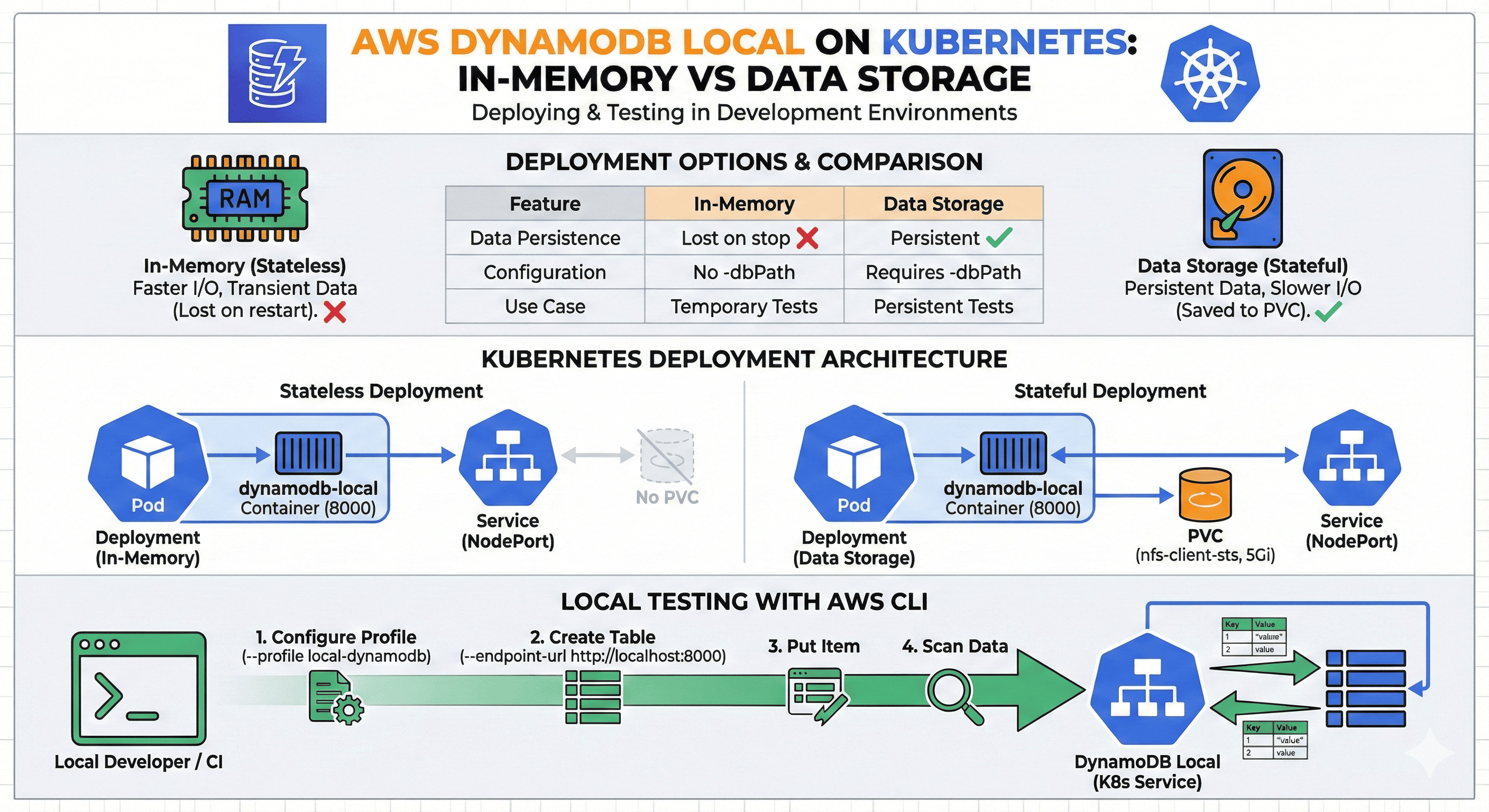
Overview
Following our previous exploration of AWS DynamoDB, this guide focuses on installing DynamoDB locally in a Kubernetes cluster.
The source Docker image can be found at: dynamodb-local
Installation Methods
DynamoDB can be installed in two ways:
- In-Memory (Stateless)
- Data Storage (Stateful)
Comparison of Installation Methods
| Feature | In-Memory Method | Data Storage Method |
|---|---|---|
| Data Persistence | Data is lost when DynamoDB Local stops | Data persists on disk |
| Configuration | No -dbPath parameter needed | Requires -dbPath parameter |
| Performance | Faster due to no disk I/O | Slightly slower due to disk writes |
| Use Case | Temporary testing | Persistent data testing |
In-Memory Installation
Deployment configuration:
apiVersion: apps/v1
kind: Deployment
metadata:
  labels:
    app: stateless-dynamodb
  name: stateless-dynamodb
spec:
  replicas: 1
  selector:
    matchLabels:
      app: stateless-dynamodb
  template:
    metadata:
      labels:
        app: stateless-dynamodb
    spec:
      containers:
      - image: amazon/dynamodb-local:2.5.3
        name: dynamodb-local
        ports:
        - containerPort: 8000
        volumeMounts:
        - name: dynamodb-data
          mountPath: /home/dynamodblocal/data
      volumes:
      - name: dynamodb-data
        persistentVolumeClaim:
          claimName: stateless-dynamodb-pvc
Pod logs for In-Memory setup:
Initializing DynamoDB Local with the following configuration:
Port: 8000
InMemory: true
Version: 2.5.3
DbPath: null
SharedDb: false
shouldDelayTransientStatuses: false
CorsParams: null
Data Storage Installation
Deployment configuration:
apiVersion: apps/v1
kind: Deployment
metadata:
  labels:
    app: stateful-dynamodb
  name: stateful-dynamodb
spec:
  replicas: 1
  selector:
    matchLabels:
      app: stateful-dynamodb
  template:
    metadata:
      labels:
        app: stateful-dynamodb
    spec:
      containers:
      - image: amazon/dynamodb-local:2.5.3
        name: dynamodb-local
        command: ["java", "-jar", "DynamoDBLocal.jar", "-sharedDb", "-dbPath", "/home/dynamodblocal/data"]
        ports:
        - containerPort: 8000
        volumeMounts:
        - name: dynamodb-data
          mountPath: /home/dynamodblocal/data
      volumes:
      - name: dynamodb-data
        persistentVolumeClaim:
          claimName: stateful-dynamodb-pvc
Pod logs for Data Storage setup:
Initializing DynamoDB Local with the following configuration:
Port: 8000
InMemory: false
Version: 2.5.3
DbPath: /home/dynamodblocal/data
SharedDb: true
shouldDelayTransientStatuses: false
CorsParams: null
Accessing DynamoDB Local
Once you’ve installed DynamoDB Local, you’ll need to access it to create tables and perform operations.
Service Configuration
Create a Kubernetes service to expose DynamoDB Local:
apiVersion: v1
kind: Service
metadata:
  name: dynamodb-local
  labels:
    app: dynamodb-local
spec:
  ports:
  - port: 8000
    targetPort: 8000
    protocol: TCP
  selector:
    app: stateful-dynamodb  # or stateless-dynamodb depending on your installation
  type: ClusterIP
AWS CLI Access
You can use AWS CLI to interact with your local DynamoDB by specifying the endpoint URL:
Accessing from Applications
Python Example (boto3)
import boto3

# Create a DynamoDB client
dynamodb = boto3.resource('dynamodb',
                         endpoint_url='http://dynamodb-local:8000',
                         region_name='us-west-2',
                         aws_access_key_id='dummy',
                         aws_secret_access_key='dummy')

# Create a table
table = dynamodb.create_table(
    TableName='Users',
    KeySchema=[
        {
            'AttributeName': 'username',
            'KeyType': 'HASH'  # Partition key
        },
        {
            'AttributeName': 'last_login',
            'KeyType': 'RANGE'  # Sort key
        }
    ],
    AttributeDefinitions=[
        {
            'AttributeName': 'username',
            'AttributeType': 'S'
        },
        {
            'AttributeName': 'last_login',
            'AttributeType': 'S'
        },
    ],
    ProvisionedThroughput={
        'ReadCapacityUnits': 5,
        'WriteCapacityUnits': 5
    }
)

# Wait until the table exists
table.meta.client.get_waiter('table_exists').wait(TableName='Users')

# Add an item
table.put_item(
   Item={
        'username': 'johndoe',
        'last_login': '2022-01-01',
        'first_name': 'John',
        'last_name': 'Doe',
        'age': 25,
        'account_type': 'standard'
    }
)

# Query the table
response = table.query(
    KeyConditionExpression=boto3.dynamodb.conditions.Key('username').eq('johndoe')
)

for item in response['Items']:
    print(item)
Node.js Example (AWS SDK)
const AWS = require('aws-sdk');

// Configure the DynamoDB client
const dynamodb = new AWS.DynamoDB({
  endpoint: 'http://dynamodb-local:8000',
  region: 'us-west-2',
  accessKeyId: 'dummy',
  secretAccessKey: 'dummy'
});

const docClient = new AWS.DynamoDB.DocumentClient({
  endpoint: 'http://dynamodb-local:8000',
  region: 'us-west-2',
  accessKeyId: 'dummy',
  secretAccessKey: 'dummy'
});

// Create a table
const params = {
  TableName: 'Products',
  KeySchema: [
    { AttributeName: 'id', KeyType: 'HASH' }, // Partition key
    { AttributeName: 'created_at', KeyType: 'RANGE' } // Sort key
  ],
  AttributeDefinitions: [
    { AttributeName: 'id', AttributeType: 'S' },
    { AttributeName: 'created_at', AttributeType: 'S' }
  ],
  ProvisionedThroughput: {
    ReadCapacityUnits: 5,
    WriteCapacityUnits: 5
  }
};

dynamodb.createTable(params, (err, data) => {
  if (err) {
    console.error('Error creating table:', err);
  } else {
    console.log('Table created successfully:', data);

    // Add an item to the table
    const itemParams = {
      TableName: 'Products',
      Item: {
        'id': 'prod-1',
        'created_at': new Date().toISOString(),
        'name': 'Awesome Product',
        'price': 29.99,
        'categories': ['electronics', 'gadgets'],
        'inventory': 100
      }
    };

    docClient.put(itemParams, (err, data) => {
      if (err) {
        console.error('Error adding item:', err);
      } else {
        console.log('Item added successfully');

        // Query the table
        const queryParams = {
          TableName: 'Products',
          KeyConditionExpression: 'id = :id',
          ExpressionAttributeValues: {
            ':id': 'prod-1'
          }
        };

        docClient.query(queryParams, (err, data) => {
          if (err) {
            console.error('Error querying:', err);
          } else {
            console.log('Query results:', data.Items);
          }
        });
      }
    });
  }
});
Advanced Configuration
Persistent Volume Claim
For the stateful installation, you need a PVC to store data:
apiVersion: v1
kind: PersistentVolumeClaim
metadata:
  name: stateful-dynamodb-pvc
spec:
  accessModes:
    - ReadWriteOnce
  resources:
    requests:
      storage: 1Gi
  storageClassName: standard
Container Resource Limits
To ensure DynamoDB Local has sufficient resources:
resources:
  limits:
    cpu: "1"
    memory: "1Gi"
  requests:
    cpu: "0.5"
    memory: "512Mi"
Health Check Configuration
Add health checks to your deployment:
livenessProbe:
  httpGet:
    path: /shell/
    port: 8000
  initialDelaySeconds: 30
  periodSeconds: 15
readinessProbe:
  httpGet:
    path: /shell/
    port: 8000
  initialDelaySeconds: 5
  periodSeconds: 10
Troubleshooting
1. Connection Refused Errors:
- Check if the DynamoDB Local pod is running
- Verify the service name and port in your endpoint URL
- Ensure network policies allow traffic to port 8000
- For stateful installation, verify PVC is correctly mounted
- Check pod logs for file permission errors
- Ensure sufficient disk space on the node
- Consider increasing resource limits for the container
- For heavy workloads, adjust Java heap settings with:
-Xmx1G - Reduce logging level with:
-Djava.library.path=./DynamoDBLocal_lib
- Ensure dummy credentials are provided when using SDKs
- Verify endpoint URL is correctly formatted
- Check for any network connectivity issues
DynamoDB Local vs. Real DynamoDB Differences
There are some differences between DynamoDB Local and the AWS DynamoDB service:
- Authentication: DynamoDB Local accepts any credentials
- Latency: Local version has lower latency with no throttling
- Features: Some features like global tables, backups, and auto-scaling are unavailable locally
- Consistency: DynamoDB Local doesn’t fully replicate eventual consistency behaviors
Best Practices for Development
- Data Modeling: Test your data access patterns before deploying to production
- Migration Path: Establish a clear process for migrating schemas to production
- Integration Testing: Use DynamoDB Local in CI/CD pipelines for integration tests
- Local Development: Configure profiles in your IDE and applications for local development
- Backup Strategy: For long-running development, consider backing up the data directory

Comments