14 min to read
Harbor SSO Configuration Guide: OIDC with Azure AD and GitLab
Setting up Single Sign-On for Harbor container registry using OpenID Connect authentication
Overview
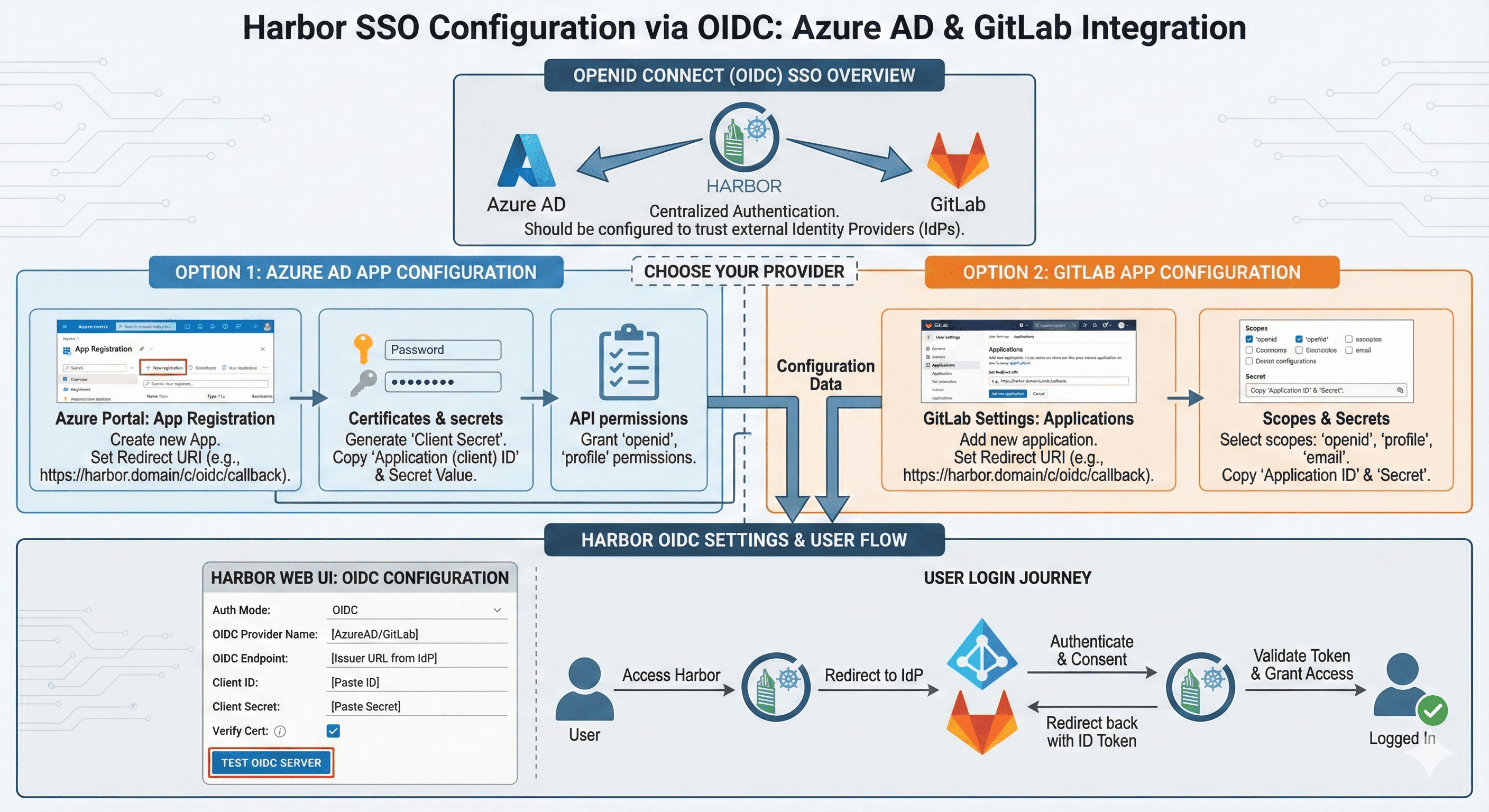
This post covers how to configure Harbor SSO (Single Sign-On). We’ll use OIDC (OpenID Connect) Auth Mode and explore configurations for both Azure AD and GitLab separately.
What is Harbor?
Harbor is an open-source container registry that secures artifacts with policies and role-based access control, ensures images are scanned and free from vulnerabilities, and signs images as trusted.
Why SSO for Harbor?
Benefits of SSO Integration:
- Centralized Authentication: Single source of truth for user credentials
- Improved Security: No need to manage separate passwords
- Better Compliance: Unified audit trail across systems
- User Experience: One login for all services
- Simplified Management: User provisioning/deprovisioning in one place
Azure AD App Configuration
Step 1: Create App Registration
Navigate to Azure Portal:
- Go to Azure Active Directory → App registrations
- Click New registration
Registration Details:
Name: Harbor SSO
Supported account types: Accounts in this organizational directory only (Single tenant)
Redirect URI:
  - Platform: Web
  - URL: https://[HARBOR_URL]/c/oidc/callback
- Click Register
Step 2: Configure App Settings
Collect Application Information:
Navigate to the Overview page and note:
- Application (client) ID:
12345678-1234-1234-1234-123456789abc - Directory (tenant) ID:
87654321-4321-4321-4321-cba987654321
Create Client Secret:
- Go to Certificates & secrets
- Click New client secret
- Add description: “Harbor OIDC Secret”
- Select expiration: 24 months (or as per policy)
- Click Add
- Immediately copy the secret value (you cannot view it again!)
Example Secret: abcdefgh123456789IJKLMNOP_QRSTuvwxyz
Step 3: Configure Token Claims
Add Optional Claims:
- Navigate to Token configuration
- Click Add optional claim
- Select ID token type
- Add these claims:
emailpreferred_usernamename
- Click Add
Step 4: Configure API Permissions
Add Microsoft Graph Permissions:
- Go to API permissions
- Click Add a permission
- Select Microsoft Graph → Delegated permissions
- Add these permissions:
emailopenidprofileUser.Read
- Click Add permissions
- Click Grant admin consent (requires admin privileges)
Step 5: Note Important Endpoints
Azure AD OIDC Endpoints (replace {tenant_id} with your actual tenant ID):
Authorization Endpoint:
https://login.microsoftonline.com/{tenant_id}/oauth2/v2.0/authorize

Token Endpoint:
https://login.microsoftonline.com/{tenant_id}/oauth2/v2.0/token

JWKS Endpoint:
https://login.microsoftonline.com/{tenant_id}/discovery/v2.0/keys

User Info Endpoint:
https://graph.microsoft.com/oidc/userinfo

OpenID Configuration:
https://login.microsoftonline.com/{tenant_id}/v2.0/.well-known/openid-configuration
GitLab App Configuration
Step 1: Create Application
Navigate to GitLab:
- Go to Admin Area → Applications (requires admin access)
- Or: User Settings → Applications (for user-level apps)
- Click New application
Application Details:
Name: Harbor
Redirect URI: https://[HARBOR_URL]/c/oidc/callback
Confidential: ✓ (checked)
Step 2: Select Scopes
Required Scopes:
- ☑️
read_user- Read user profile information - ☑️
openid- OpenID Connect authentication - ☑️
profile- User profile information - ☑️
email- User email address
Step 3: Save and Note Credentials
After clicking Save application:
Application ID (Client ID):
abcdef1234567890abcdef1234567890abcdef1234567890abcdef1234567890

Secret (Client Secret):
1234567890abcdef1234567890abcdef1234567890abcdef1234567890abcd
⚠️ Important: Copy the secret immediately—you cannot retrieve it later!
Step 4: Note GitLab OIDC Endpoints
GitLab OIDC Endpoints:
Authorization Endpoint:
https://gitlab.example.com/oauth/authorize

Token Endpoint:
https://gitlab.example.com/oauth/token

User Info Endpoint:
https://gitlab.example.com/oauth/userinfo

OpenID Configuration:
https://gitlab.example.com/.well-known/openid-configuration
Harbor OIDC Configuration
Important: Auth Mode Change Restrictions
⚠️ Before Changing Auth Mode:
If you cannot change auth mode, you must:
- Delete all users except admin and anonymous
- Remove any foreign key connections
- Ensure no active sessions exist
Azure AD OIDC Settings in Harbor
Navigate to Harbor Admin Portal:
- Login as admin
- Go to Configuration → Authentication
- Select OIDC as Auth Mode
Configuration Parameters:
Auth Mode: OIDC

OIDC Provider Name: Azure AD

OIDC Endpoint: https://login.microsoftonline.com/{tenant_id}/v2.0

OIDC Client ID: [Application (client) ID from Azure]

OIDC Client Secret: [Client Secret from Azure]

Group Claim Name: groups

OIDC Scope: openid,profile,email

Verify Certificate: ✓ (checked)

Automatic onboarding: ✓ (checked)

Username Claim: preferred_username
Example Configuration:
Auth Mode: OIDC
OIDC Provider Name: Azure AD
OIDC Endpoint: https://login.microsoftonline.com/87654321-4321-4321-4321-cba987654321/v2.0
OIDC Client ID: 12345678-1234-1234-1234-123456789abc
OIDC Client Secret: abcdefgh123456789IJKLMNOP_QRSTuvwxyz
OIDC Scope: openid,profile,email
Group Claim Name: groups
Verify Certificate: ✓
Automatic onboarding: ✓
Username Claim: preferred_username
GitLab OIDC Settings in Harbor
Configuration Parameters:
Auth Mode: OIDC

OIDC Provider Name: GitLab

OIDC Endpoint: https://gitlab.example.com

OIDC Client ID: [Application ID from GitLab]

OIDC Client Secret: [Secret from GitLab]

Group Claim Name: groups

OIDC Scope: openid,profile,email,read_user

Verify Certificate: ✓ (checked)

Automatic onboarding: ✓ (checked)

Username Claim: preferred_username
Example Configuration:
Auth Mode: OIDC
OIDC Provider Name: GitLab
OIDC Endpoint: https://gitlab.somaz.link
OIDC Client ID: abcdef1234567890abcdef1234567890abcdef1234567890abcdef1234567890
OIDC Client Secret: 1234567890abcdef1234567890abcdef1234567890abcdef1234567890abcd
OIDC Scope: openid,profile,email,read_user
Group Claim Name: groups
Verify Certificate: ✓
Automatic onboarding: ✓
Username Claim: preferred_username
Testing SSO Integration
Step 1: Logout from Harbor
Clear any existing sessions:
# Clear browser cookies for Harbor domain
# Or use incognito/private browsing mode
Step 2: Access Harbor Login Page
Navigate to:
https://[HARBOR_URL]
You should see:
- Username/Password fields (for local admin)
- “Login via OIDC Provider” button
Step 3: Test OIDC Login
- Click “Login via OIDC Provider”
- You’ll be redirected to Azure AD or GitLab login page
- Enter your credentials
- Authorize Harbor application (first time only)
- You’ll be redirected back to Harbor and logged in
Step 4: Verify User Information
After successful login, check:
- Username is correctly populated
- Email address is visible
- Groups are assigned (if configured)
Advanced Configuration
Group Mapping for Azure AD
Configure Azure AD Groups:
- In Azure AD, create security groups:
harbor-admins harbor-developers harbor-guests - Add the
groupsclaim to your app:- Token configuration → Add groups claim
- Select Security groups
-
Note Group Object IDs from Azure AD
- In Harbor, create corresponding groups with matching names or IDs
Group Mapping for GitLab
GitLab automatically includes groups in the OIDC token:
{
  "sub": "1234567",
  "name": "John Doe",
  "email": "john.doe@example.com",
  "groups": ["developers", "admins"]
}
Harbor will automatically map these to Harbor groups.
Custom Claims Configuration
Azure AD Custom Claims (/etc/harbor/harbor.yml):
oidc_name: Azure AD
oidc_endpoint: https://login.microsoftonline.com/{tenant_id}/v2.0
oidc_client_id: {client_id}
oidc_client_secret: {client_secret}
oidc_groups_claim: groups
oidc_admin_group: harbor-admins
oidc_scope: openid,profile,email
oidc_user_claim: preferred_username
oidc_verify_cert: true
oidc_auto_onboard: true
Troubleshooting
Issue 1: “Invalid Redirect URI”
Symptoms:
- Error after clicking OIDC login
- “redirect_uri_mismatch” error
Solutions:
- Verify redirect URI in Azure AD/GitLab matches exactly:
https://[HARBOR_URL]/c/oidc/callback - Check for trailing slashes
- Ensure protocol matches (https)
- Verify domain spelling
Issue 2: “Unable to Verify Token”
Symptoms:
- Login succeeds at IdP but fails at Harbor
- “Failed to verify ID token” error
Solutions:
- Check certificate verification:
oidc_verify_cert: false # Only for testing! - Verify OIDC endpoint:
curl https://login.microsoftonline.com/{tenant_id}/v2.0/.well-known/openid-configuration - Check system time:
date  # Ensure server time is accurate
ntpdate -q pool.ntp.org  # Check NTP sync
Issue 3: User Cannot Login
Symptoms:
- OIDC flow completes but user not created
- “User not found” error
Solutions:
- Enable automatic onboarding:
oidc_auto_onboard: true - Check username claim:
# Try different claim names oidc_user_claim: preferred_username # or oidc_user_claim: email # or oidc_user_claim: sub - Verify scopes:
oidc_scope: openid,profile,email
Issue 4: Groups Not Syncing
Symptoms:
- User logs in successfully
- Groups not assigned in Harbor
Solutions:
- Azure AD - Add groups claim:
- Token configuration → Add groups claim
- Select security groups
- Verify group claim name:
oidc_groups_claim: groups - Check token contents:
# Decode JWT token to verify claims # Use jwt.io or similar tool - Match group names:
- Create groups in Harbor with exact same names as in IdP
Issue 5: SSL Certificate Errors
Symptoms:
- “x509: certificate signed by unknown authority”
- Connection fails during OIDC handshake
Solutions:
- Add CA certificate to Harbor:
# Copy CA cert cp ca.crt /etc/harbor/ssl/ # Update harbor.yml # internal_tls: # enabled: true # dir: /etc/harbor/ssl - Temporarily disable verification (testing only):
oidc_verify_cert: false - Update system CA bundle:
sudo cp custom-ca.crt /usr/local/share/ca-certificates/
sudo update-ca-certificates
Security Best Practices
1. Client Secret Management
Rotate secrets regularly:
# Azure AD: Set expiration
# Certificate validity: 12-24 months

# GitLab: Regenerate periodically
# Update Harbor configuration accordingly
2. Scope Minimization
Only request necessary scopes:
# Minimal scopes
oidc_scope: openid,profile,email

# Avoid requesting:
# - User.ReadWrite.All
# - Directory.ReadWrite.All
# - Group.ReadWrite.All
3. Use HTTPS Everywhere
Enforce HTTPS:
# harbor.yml
hostname: harbor.example.com
http:
  port: 80
  # Redirect HTTP to HTTPS
https:
  port: 443
  certificate: /path/to/cert.crt
  private_key: /path/to/cert.key
4. Audit Logging
Enable comprehensive logging:
# harbor.yml
log:
  level: info
  local:
    rotate_count: 50
    rotate_size: 200M
Monitor for suspicious activity:
- Failed login attempts
- Unauthorized access attempts
- Group membership changes
Role-Based Access Control
Harbor Project Roles
| Role | Permissions |
|---|---|
| Project Admin | Full control over project |
| Developer | Push/pull images, view logs |
| Guest | Pull images only |
| Limited Guest | Pull images from whitelisted repositories |
Mapping IdP Groups to Harbor Roles
Example mapping:
# IdP Group → Harbor Role mapping

Azure AD/GitLab Group          Harbor Project Role
---------------------------------------------------
harbor-admins                  → Project Admin
harbor-developers              → Developer
harbor-users                   → Guest
Configure Group Permissions
- Create Project in Harbor
- Go to Members tab
- Click + User/Group
- Select Group (from OIDC)
- Assign appropriate role
Docker Login with SSO
Using CLI with OIDC
Generate CLI Secret in Harbor:
- Login to Harbor web UI via OIDC
- Go to User Profile → User Settings
- Copy CLI secret (or generate new one)
Docker login:
# Use username and CLI secret
docker login harbor.example.com

Username: john.doe@example.com
Password: [paste CLI secret]

Login Succeeded
Alternative: Robot Accounts
For automation, use robot accounts instead of user credentials:
# Create robot account in Harbor UI
# Project → Robot Accounts → New Robot Account

# Use robot account credentials
docker login harbor.example.com

Username: robot$project+robotname
Password: [robot account token]
Monitoring and Maintenance
Health Checks
Regular checks:
# Check Harbor components
docker-compose ps

# Check OIDC endpoint connectivity
curl https://login.microsoftonline.com/{tenant}/v2.0/.well-known/openid-configuration

# Check Harbor logs
docker-compose logs -f core
Metrics to Monitor
| Metric | Description | Alert Threshold |
|---|---|---|
| Failed SSO Logins | Authentication failures | > 10/hour |
| Token Expiry Errors | Expired/invalid tokens | > 5/hour |
| Group Sync Failures | Group mapping issues | > 0 |
| API Response Time | OIDC endpoint latency | > 2 seconds |
Migration from Database Auth
Migration Steps
1. Document Current Users:
-- Connect to Harbor database
SELECT username, email FROM harbor_user WHERE deleted = false;
2. Create Matching Users in IdP:
- Ensure email addresses match
- Create corresponding groups
3. Test OIDC with Test Users:
- Create test project
- Test OIDC login
- Verify permissions
4. Switch Auth Mode:
# Backup harbor.yml
cp /data/harbor/harbor.yml /data/harbor/harbor.yml.backup

# Update auth mode
auth_mode: oidc_auth
5. Migrate Existing Users:
- Users login once via OIDC to link accounts
- Or manually merge accounts in Harbor DB
Summary
Key Configuration Steps
✅ Azure AD / GitLab Setup:
- Issue
clientId(Application ID) andclientSecret(Secret) - Configure scopes:
openid,profile,email - Set redirect URI:
https://[HARBOR_URL]/c/oidc/callback
✅ Harbor OIDC Configuration:
- Enable OIDC authentication mode
- Input OAuth credentials from Azure AD or GitLab
- Configure group claim and username claim
- Enable automatic user onboarding
✅ Group Mapping:
- Map IdP groups to Harbor project roles
- Configure group claim name (
groups)
✅ Azure AD Specific Endpoints:
Authorization: https://login.microsoftonline.com/{tenant_id}/oauth2/v2.0/authorize
Token: https://login.microsoftonline.com/{tenant_id}/oauth2/v2.0/token
JWKS: https://login.microsoftonline.com/{tenant_id}/discovery/v2.0/keys
UserInfo: https://graph.microsoft.com/oidc/userinfo
Benefits Achieved
- 🔐 Centralized Authentication: Single source of truth
- 👥 Simplified User Management: Automatic provisioning
- 🔒 Enhanced Security: No password sprawl
- 📊 Unified Audit Trail: Consistent logging
- ⚡ Better UX: Single sign-on experience

Comments