17 min to read
Cutting CI/CD Time in Half with Git Sparse Checkout: A Practical Guide
Optimizing large repository clones using sparse checkout and blob filtering in GitLab CI/CD
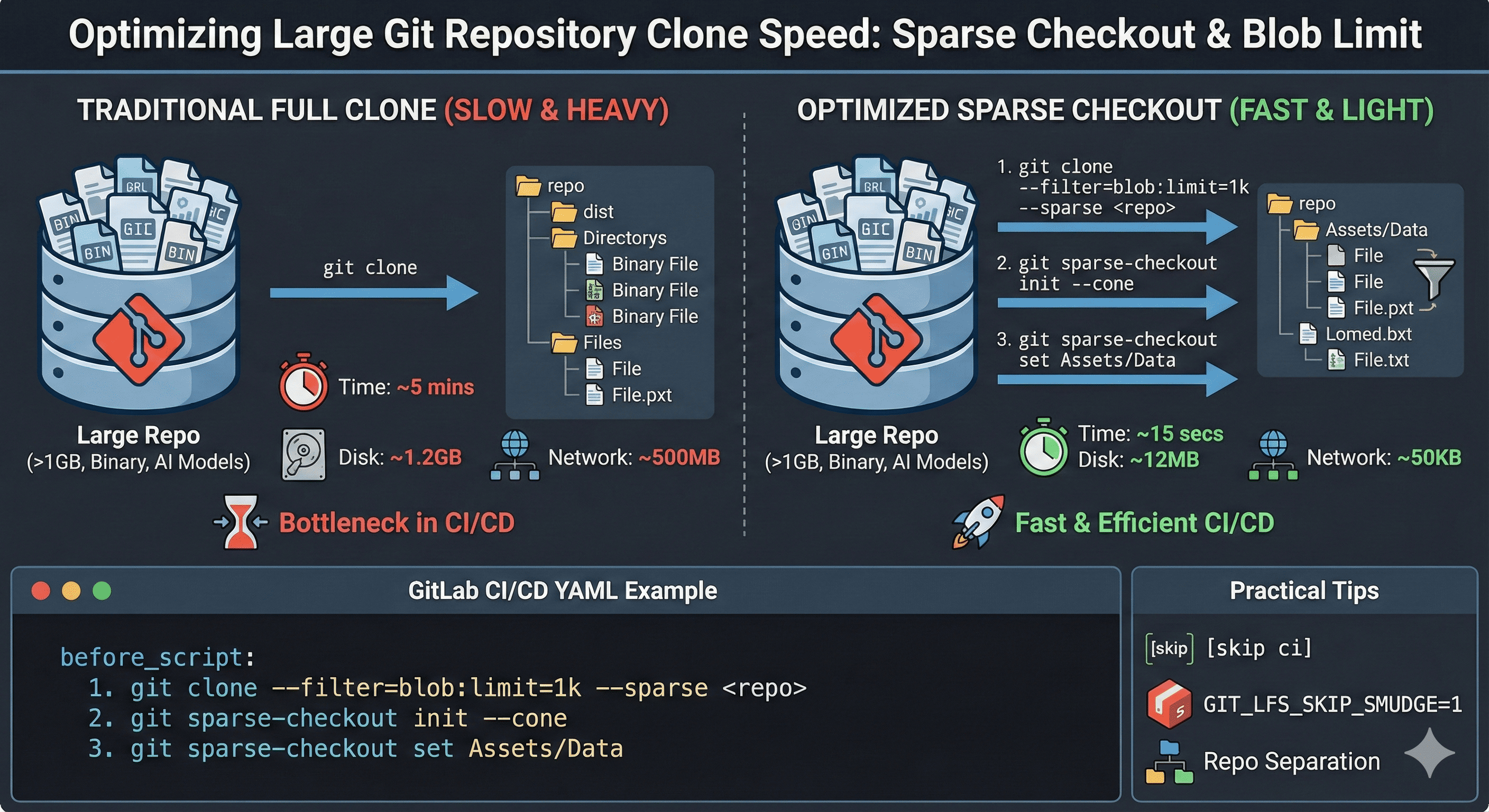
Overview
One common problem that developers working with large Git repositories face is slow git clone speeds and unnecessary data downloads.
Especially in GitLab CI/CD environments, since work starts in a fresh environment each time, the process of cloning the entire project often becomes a bottleneck.
This article introduces how to use Git’s sparse-checkout and --filter=blob:limit features to quickly clone only necessary folders and minimize unnecessary file downloads.
We’ll provide practical YAML examples directly applied in GitLab CI/CD environments, making this essential reading for teams operating large-scale projects.
The Problem
When building CI/CD pipelines, if the repository is large, a simple git clone can take several minutes to tens of minutes.
Particularly in projects with many binary resources, images, AI models, etc., clone time can exceed actual build time.
Real-World Pain Points
# Traditional full clone
$ git clone https://gitlab.example.com/large-project.git
Cloning into 'large-project'...
remote: Counting objects: 847512, done.
remote: Compressing objects: 100% (183921/183921), done.
Receiving objects: 100% (847512/847512), 1.2 GiB | 3.2 MiB/s, done.
Resolving deltas: 100% (592847/592847), done.

# Time elapsed: 5 minutes 23 seconds
# Files downloaded: 50,000+
# Disk usage: 1.2 GB
# Files actually needed: ~100
Limitations of Traditional Approaches
Shallow Clone (GIT_DEPTH=1)
Even using GIT_DEPTH=1 for shallow clones, you still clone the entire directory structure.
variables:
  GIT_DEPTH: 1  # Only fetches latest commit

# Problem: Still downloads ALL files from latest commit
# Unnecessary folders: thousands of files downloaded
# Time waste: significant
Result: Reduces history, but not file count.
Solution Strategy: Sparse Checkout + Blob Filtering
Git has supported --sparse + --filter=blob:limit=N features since v2.25.
This allows cloning only specific folders and downloading only blobs under N bytes.
Basic Usage
git clone --filter=blob:limit=1k --sparse <repo_url>
cd repo
git sparse-checkout init --cone
git sparse-checkout set Assets/Data
This way, Git only fetches the necessary folders without cloning the entire repository.
Understanding Sparse Checkout
What is Sparse Checkout?
Sparse checkout allows you to have a working directory with only a subset of files from the repository.
Traditional Clone:
repository/
├── frontend/         ← Downloaded
├── backend/          ← Downloaded
├── mobile/           ← Downloaded
├── docs/             ← Downloaded
├── assets/           ← Downloaded (large!)
└── tests/            ← Downloaded
Sparse Checkout:
repository/
├── backend/          ← ONLY THIS downloaded
└── .git/             ← Metadata only
Blob Filtering Explained
--filter=blob:limit=1k tells Git to download only blobs (files) smaller than 1KB initially.
Without Filter:
Downloading objects: 100%
  - app.js (5 KB)
  - image.png (2 MB)     ← Downloaded immediately
  - model.dat (500 MB)   ← Downloaded immediately
  - README.md (3 KB)
With Filter:
Downloading objects: 100%
  - app.js (5 KB)        ← Downloaded
  - image.png (2 MB)     ← Skipped (lazy fetch)
  - model.dat (500 MB)   ← Skipped (lazy fetch)
  - README.md (3 KB)     ← Downloaded
GitLab CI/CD Implementation
Basic Example
script:
  - git clone --filter=blob:limit=1k --sparse http://user:token@gitlab.example.com/myproject.git repo
  - cd repo
  - git sparse-checkout init --cone
  - git sparse-checkout set Assets/Data
Performance Comparison
| Metric | Traditional (Full Clone) | Optimized (Sparse) |
|---|---|---|
| Clone Time | ~5 minutes | ~15 seconds |
| Disk Usage | 1.2 GB | 12 MB |
| Network Traffic | Hundreds of MB | Tens of KB |
| Performance Gain | Baseline | 10x+ faster |
Practical Tips for Sparse Checkout
List Available Directories
Check which directories are available for sparse checkout:
git ls-tree -d HEAD
Test Sparse Checkout Without Full Clone
Test sparse checkout on specific folders before applying to CI/CD:
git init test && cd test
git remote add origin <your-repo-url>
git sparse-checkout init --cone
git sparse-checkout set some/folder
git pull origin master
This verifies only selected folders are cloned, perfect for testing before CI/CD integration.
Real-World GitLab CI Example
Here’s a complete production example that updates C# data files:
gitlab-ci.yml
stages:
  - update_cs

variables:
  STATIC_DATA_PROJECT_ID: $project_id
  GENERATE_JOB_ID: $job_id
  CHANGED_CS: $changed_cs
  GIT_STRATEGY: none

update_cs:
  stage: update_cs
  image: harbor.somaz.link/library/alpine:latest
  interruptible: false
  retry:
    max: 1
    when:
      - runner_system_failure
      - unknown_failure
      - data_integrity_failure
    exit_codes:
      - 137
  tags:
    - build-image
  before_script:
    - echo [INFO] STATIC_DATA_PROJECT_ID is $STATIC_DATA_PROJECT_ID
    - echo [INFO] GENERATE_JOB_ID is $GENERATE_JOB_ID
    - echo [INFO] CHANGED_CS is $CHANGED_CS
    - apk update && apk add --no-cache unzip git curl
  script:
    # 1. Download artifacts
    - 'curl --location --output artifacts.zip --header "PRIVATE-TOKEN: ${CICD_ACCESS_TOKEN}" "http://gitlab.somaz.link/api/v4/projects/${STATIC_DATA_PROJECT_ID}/jobs/${GENERATE_JOB_ID}/artifacts"'
    - unzip -o artifacts.zip

    # 2. Configure Git
    - git config --global user.email "cicd@somaz.link"
    - git config --global user.name "cicd"

    # 3. Clone repository with sparse checkout
    - git clone --filter=blob:limit=1k --sparse http://cicd:${CICD_ACCESS_TOKEN}@gitlab.somaz.link/game/somaz-project.git repo
    - cd repo
    - git sparse-checkout init --cone
    - git sparse-checkout set Assets/Data

    # 4. Copy CS files and commit
    - |
      echo "$CHANGED_CS" | while read -r file; do
        if [ ! -z "$file" ]; then
          echo "Copying cs/${file}.cs to Assets/Data/"
          cp ../cs/${file}.cs Assets/Data/
        fi
      done

    # 5. Check changes and push
    - |
      if [ -n "$(git status --porcelain)" ]; then
        git add Assets/Data/
        git commit -m "feat(data): update ${CHANGED_CS} data mediator [skip ci]"
        git push origin master
      else
        echo "No changes detected"
      fi
  rules:
    - if: '$CI_PIPELINE_SOURCE == "trigger"'
Step-by-Step Breakdown
Step 1: Download Artifacts
- Fetch generated data from another job
- Unzip for processing
Step 2: Configure Git
- Set up Git identity for commits
- Required for push operations
Step 3: Sparse Clone
--filter=blob:limit=1k: Only download small metadata files--sparse: Enable sparse checkout modesparse-checkout set Assets/Data: Only checkout this directory
Step 4: Process Files
- Copy only changed CS files
- Iterate through changed files list
Step 5: Commit and Push
- Check if changes exist
- Commit with
[skip ci]to prevent recursive triggers - Push to master branch
Skipping CI Execution in GitLab
When commits don’t require CI/CD execution, you can skip pipelines using two methods:
Method 1: [skip ci] in Commit Message
Include [skip ci] or [ci skip] in your commit message. This works across GitLab, GitHub Actions, Jenkins, and other CI platforms.
git commit -m "docs: update README [skip ci]"
git push origin master
Advantages:
- Standard approach, clear intent
- Works across multiple CI platforms
- Visible in commit history
Disadvantages:
- Lengthens commit messages
- Can look awkward
Method 2: -o ci.skip Git Option
GitLab-specific option that achieves the same effect without modifying the commit message:
git commit -o ci.skip -m "update some file silently"
git push origin master
Advantages:
- Keeps commit messages clean
- More elegant solution
Disadvantages:
- Git CLI only
- May not work in Git GUI tools
- GitLab-specific
When to Skip CI
# Automated commits that don't need verification
git commit -m "chore: auto-update dependencies [skip ci]"

# Documentation-only changes
git commit -m "docs: fix typo in README [ci skip]"

# Data files that were already validated
git commit -o ci.skip -m "feat(data): update configuration"
Advanced Sparse Checkout Patterns
Pattern 1: Multiple Directories
Pattern 2: Exclude Patterns
# Include everything except tests
git sparse-checkout set '/*' '!tests'
Pattern 3: Deep Nested Paths
Pattern 4: Conditional Checkout Based on Job
script:
  - git clone --filter=blob:limit=1k --sparse http://user:token@gitlab.example.com/myproject.git repo
  - cd repo
  - git sparse-checkout init --cone
  - git sparse-checkout set Assets/Data
Combining with Other Optimization Techniques
1. Git LFS with Sparse Checkout
variables:
  GIT_LFS_SKIP_SMUDGE: 1  # Skip LFS file download

script:
  - git clone --filter=blob:limit=1k --sparse $CI_REPOSITORY_URL repo
  - cd repo
  - git sparse-checkout set Assets/Data

  # Only fetch LFS files in sparse checkout directory
  - git lfs pull --include="Assets/Data/**"
2. Shallow Clone + Sparse Checkout
variables:
  GIT_DEPTH: 1  # Shallow clone

script:
  - git clone --depth=1 --filter=blob:limit=1k --sparse $CI_REPOSITORY_URL repo
  - cd repo
  - git sparse-checkout set src/app
3. Caching Sparse Repository
cache:
  key: sparse-repo-cache
  paths:
    - .git/
    - src/app/  # Only cache sparse checkout directory

script:
  - |
    if [ ! -d ".git" ]; then
      git clone --filter=blob:limit=1k --sparse $CI_REPOSITORY_URL .
      git sparse-checkout set src/app
    else
      git fetch origin
      git checkout $CI_COMMIT_SHA
    fi
Troubleshooting
Issue 1: “sparse-checkout: command not found”
Cause: Git version too old (need v2.25+)
Solution:
before_script:
  # Update Git
  - apk add --no-cache git  # Alpine
  # or
  - apt-get update && apt-get install -y git  # Debian/Ubuntu

  # Verify version
  - git --version
Issue 2: Files Still Being Downloaded
Cause: Filter not applied correctly or files under threshold
Solution:
# Check filter settings
git config --list | grep filter

# Adjust blob limit
git clone --filter=blob:limit=10k --sparse <url>  # Increase to 10k

# Or use tree:0 for aggressive filtering
git clone --filter=tree:0 --sparse <url>
Issue 3: Sparse Checkout Not Working in Submodules
Cause: Submodules not initialized with sparse checkout
Solution:
git clone --filter=blob:limit=1k --sparse <url>
cd repo
git sparse-checkout set src/main

# Apply to submodules
git submodule foreach 'git sparse-checkout init --cone'
git submodule foreach 'git sparse-checkout set src'
Issue 4: Authentication Errors
Cause: Token or credentials not properly configured
Solution:
Monitoring and Metrics
Track Clone Performance
script:
  - START_TIME=$(date +%s)

  - git clone --filter=blob:limit=1k --sparse $CI_REPOSITORY_URL repo
  - cd repo
  - git sparse-checkout set src/app

  - END_TIME=$(date +%s)
  - DURATION=$((END_TIME - START_TIME))
  - echo "Clone duration: ${DURATION}s"

  # Report to monitoring
  - 'curl -X POST https://metrics.example.com/git-clone -d "duration=${DURATION}&project=${CI_PROJECT_NAME}"'
Measure Repository Size
# Check .git directory size
du -sh .git

# Check working directory size
du -sh --exclude=.git .

# Compare before and after
echo "Sparse checkout saved: $((FULL_SIZE - SPARSE_SIZE)) MB"
Best Practices
1. Start Conservative, Then Optimize
# Phase 1: Test with one directory
git sparse-checkout set src/backend

# Phase 2: Expand as needed
git sparse-checkout add src/shared
git sparse-checkout add config

# Phase 3: Fine-tune blob limit
git clone --filter=blob:limit=5k  # Start at 5k
# Adjust based on your needs
2. Document Sparse Patterns
# .gitlab/sparse-checkout-patterns.txt
# Documentation for sparse checkout configuration
# Last updated: 2025-01-08

# Backend service
src/backend/**
config/backend/**

# Shared utilities
src/shared/**

# Exclude large assets
!assets/**
!models/**
3. Consider Repository Structure
# Good structure for sparse checkout
project/
├── backend/          ← Clear boundaries
├── frontend/         ← Independent
├── mobile/           ← Separate
└── shared/           ← Minimal dependencies

# Poor structure
project/
├── src/              ← Everything mixed
│   ├── backend_file.js
│   ├── frontend_file.js
│   └── mobile_file.js
└── assets/           ← Shared everywhere
4. Automate Sparse Configuration
.sparse_checkout_backend: &sparse_backend
  - git sparse-checkout init --cone
  - git sparse-checkout set src/backend config

.sparse_checkout_frontend: &sparse_frontend
  - git sparse-checkout init --cone
  - git sparse-checkout set src/frontend public

backend_build:
  script:
    - git clone --filter=blob:limit=1k --sparse $CI_REPOSITORY_URL repo
    - cd repo
    - *sparse_backend
    - npm run build

frontend_build:
  script:
    - git clone --filter=blob:limit=1k --sparse $CI_REPOSITORY_URL repo
    - cd repo
    - *sparse_frontend
    - npm run build
Migration Strategy
Phase 1: Analyze Current State
# Measure current clone time
time git clone $REPO_URL

# Identify large files
git rev-list --objects --all |
  git cat-file --batch-check='%(objecttype) %(objectname) %(objectsize) %(rest)' |
  awk '/^blob/ {print substr($0,6)}' |
  sort --numeric-sort --key=2 |
  tail -20

# Analyze directory sizes
du -sh */ | sort -hr | head -20
Phase 2: Test Sparse Checkout
# Create test pipeline
test_sparse_checkout:
  stage: test
  script:
    - git clone --filter=blob:limit=1k --sparse $CI_REPOSITORY_URL test-repo
    - cd test-repo
    - git sparse-checkout set src/backend
    - npm run test
  only:
    - schedules
Phase 3: Gradual Rollout
# Week 1: Non-critical pipelines
development_build:
  script:
    - git clone --filter=blob:limit=1k --sparse $CI_REPOSITORY_URL repo
    - # ... rest of pipeline

# Week 2: Add more pipelines
staging_deploy:
  # ... use sparse checkout

# Week 3: Production (with fallback)
production_deploy:
  script:
    - |
      if git clone --filter=blob:limit=1k --sparse $CI_REPOSITORY_URL repo; then
        echo "Using sparse checkout"
      else
        echo "Fallback to full clone"
        git clone $CI_REPOSITORY_URL repo
      fi
Additional Optimization Tips
1. Repository Maintenance
# Regular cleanup
git gc --aggressive --prune=now

# Remove unreachable objects
git prune --expire now

# Repack for efficiency
git repack -Ad
2. Consider Monorepo Alternatives
For extremely large projects, consider:
- Split repositories: Separate services into individual repos
- Git submodules: Modular approach
- Git subtree: Alternative to submodules
- Monorepo tools: Nx, Lerna, Turborepo
3. Use Git LFS for Large Files
# Track large files with LFS
git lfs track "*.psd"
git lfs track "*.ai"
git lfs track "*.zip"

# Combine with sparse checkout
git clone --filter=blob:limit=1k --sparse <url>
git lfs pull --include="Assets/Data/**"
Conclusion and Tips
Key Takeaways
✅ Sparse Checkout is essential for large repositories
✅ Consider GIT_LFS_SKIP_SMUDGE=1 if using Git LFS
✅ Long-term: Separate build-only code into dedicated repos
Why This Matters
Git repository sizes continue to grow, making CI/CD pipeline efficiency increasingly important.
The sparse-checkout and blob:limit strategies introduced here are practical solutions that can be easily applied without complex configuration, providing immediate performance improvements.
Beyond Clone Time
The approach of fetching only specific folders doesn’t just reduce clone time—it’s significant in terms of:
- Network traffic savings
- Runner resource conservation
- Faster feedback loops
Paradigm Shift
For complex projects, it’s time to move away from the habit of “always fetching everything” and transition to “fetch only what’s needed, intelligently.”
The larger your project grows, the more critical it becomes to clone smartly, not clone everything.
References
- Git Sparse Checkout Documentation
- Git Partial Clone
- GitHub Blog: Getting Started with Git Sparse Checkout
- GitLab CI Variables: GIT_STRATEGY
- GitLab Runner Advanced Configuration
- Medium: Speeding Up Git Clone with Sparse Checkout
- Stack Overflow: Git Clone Very Slow on Large Repo
- Git LFS Documentation
- Atlassian: Monorepo vs Multi-Repo

Comments