13 min to read
AWS Elastic File System (EFS) with Kubernetes - Complete Implementation Guide
Building scalable shared storage for Kubernetes workloads using AWS EFS
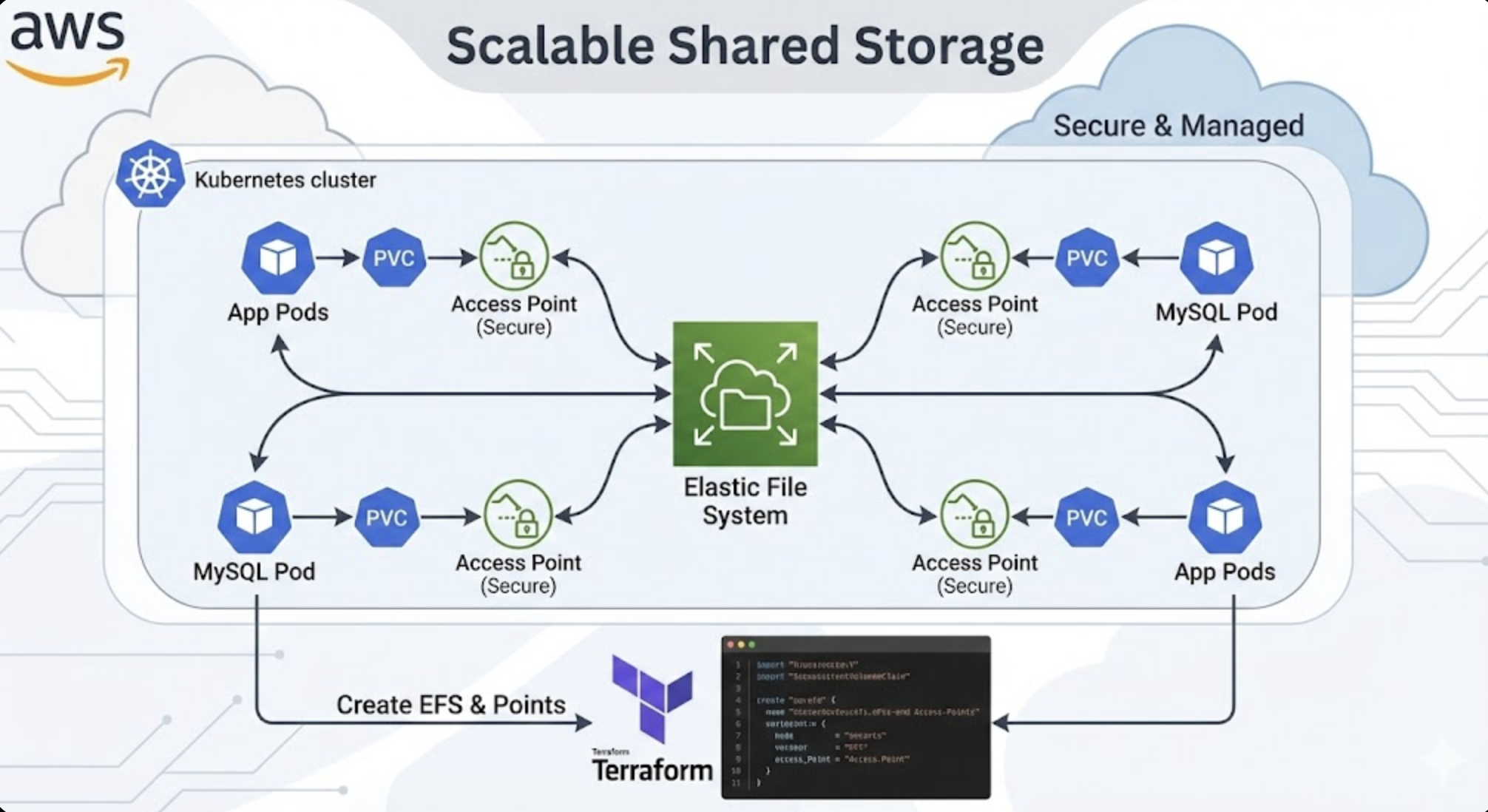
Overview
AWS Elastic File System (EFS) is a scalable, fully managed NFS file system that provides shared storage accessible by multiple EC2 instances simultaneously.
In Kubernetes environments, EFS is particularly valuable when multiple pods need to share the same data.
This comprehensive guide will walk you through implementing EFS with Terraform and utilizing it in Kubernetes for persistent storage solutions.
What is EFS?
Amazon Elastic File System (EFS) is a fully managed NFS (Network File System) service provided by AWS.
It can be understood as the cloud version of network storage traditionally used in on-premises environments.
EFS vs Other AWS Storage Services
| Feature | EFS | EBS | S3 | FSx |
|---|---|---|---|---|
| Access Method | Network File System | Block Storage | Object Storage | High-performance FS |
| Concurrent Access | Multiple instances | Single instance | API-based | Multiple instances |
| Use Case | Shared file storage | OS, databases | Backup, archive, web assets | HPC, ML workloads |
| Scalability | Auto-scaling | Manual scaling | Unlimited | Fixed capacity |
When to Use EFS
Suitable Use Cases
- Container Environments: When multiple pods/containers need to share the same configuration files or data
- Content Management: Web servers serving common media files or static content
- Data Analytics: Multiple analysis workers requiring simultaneous access to the same datasets
- Backup and Archiving: Centralized management of backup data from multiple systems
Unsuitable Use Cases
- High-performance Databases: OLTP databases requiring low latency
- Temporary Storage: Temporary data tied to instance lifecycle
- Single Access Workloads: Storage accessed by only one instance
Understanding EFS and Access Points
Key Features of EFS
- Scalability: Automatically scales up to petabyte scale
- High Availability: Automatically replicated across multiple Availability Zones
- Security: Supports encryption at rest via KMS and encryption in transit
- Performance: Offers General Purpose and Max I/O performance modes
Role of Access Points
Access Points provide application-specific entry points to EFS file systems.
Each Access Point can:
- Set a specific directory path as root
- Apply POSIX user and group permissions
- Enable access control independent of file system policies
EFS Configuration with Terraform
Here’s an example EFS configuration for a game server environment:
# KMS Key for EFS encryption at rest
resource "aws_kms_key" "gameserver_efs_key" {
  description             = "KMS key for beta-gameserver-efs encryption"
  deletion_window_in_days = 7

  tags = {
    Environment = var.environment
    Terraform   = var.terraform
  }
}

resource "aws_kms_alias" "gameserver_efs_key_alias" {
  name          = "alias/beta-gameserver-efs"
  target_key_id = aws_kms_key.gameserver_efs_key.id
}

# EFS File System
module "beta_gameserver_efs" {
  source = "terraform-aws-modules/efs/aws"

  # File system configuration
  name           = var.beta_gameserver_efs
  creation_token = "beta-gameserver-efs-token"
  encrypted      = true
  kms_key_arn    = aws_kms_key.gameserver_efs_key.arn

  # Performance and throughput modes
  performance_mode = "generalPurpose"
  throughput_mode  = "provisioned"
  provisioned_throughput_in_mibps = 100

  # File system policy
  attach_policy                      = true
  bypass_policy_lockout_safety_check = false
  policy_statements = [
    {
      sid = "BetaGameServerAccess"
      actions = [
        "elasticfilesystem:ClientMount",
        "elasticfilesystem:ClientWrite",
        "elasticfilesystem:ClientRootAccess"
      ]
      principals = [
        {
          type        = "AWS"
          identifiers = ["arn:aws:iam::${data.aws_caller_identity.current.account_id}:root"]
        }
      ]
    }
  ]

  # Mount targets across multiple AZs
  mount_targets = {
    "ap-northeast-2a" = {
      subnet_id       = "subnet-0a1b2c3d4e5f6789a"
      security_groups = ["sg-0123456789abcdef0"]
    }
    "ap-northeast-2b" = {
      subnet_id       = "subnet-0b2c3d4e5f6789abc"
      security_groups = ["sg-0123456789abcdef0"]
    }
    "ap-northeast-2c" = {
      subnet_id       = "subnet-0c3d4e5f6789abcde"
      security_groups = ["sg-0123456789abcdef0"]
    }
  }

  # Access Points configuration
  access_points = {
    # Server configuration files Access Point
    server_config = {
      name = "beta-gameserver-config"
      posix_user = {
        gid = 2000
        uid = 2000
      }
      root_directory = {
        path = "/server/config"
        creation_info = {
          owner_gid   = 2000
          owner_uid   = 2000
          permissions = "755"
        }
      }
      tags = {
        Purpose     = "Server configuration directory"
        Component   = "server-config"
        Environment = var.environment
      }
    }

    # Game assets Access Point
    game_assets = {
      name = "beta-gameserver-assets"
      posix_user = {
        gid = 2000
        uid = 2000
      }
      root_directory = {
        path = "/server/assets"
        creation_info = {
          owner_gid   = 2000
          owner_uid   = 2000
          permissions = "755"
        }
      }
      tags = {
        Purpose     = "Game assets directory"
        Component   = "game-assets"
        Environment = var.environment
      }
    }

    # Player data Access Point
    player_data = {
      name = "beta-gameserver-playerdata"
      posix_user = {
        gid = 2000
        uid = 2000
      }
      root_directory = {
        path = "/server/playerdata"
        creation_info = {
          owner_gid   = 2000
          owner_uid   = 2000
          permissions = "750"
        }
      }
      tags = {
        Purpose     = "Player data directory"
        Component   = "player-data"
        Environment = var.environment
      }
    }
  }

  # Enable backup policy
  enable_backup_policy = true

  tags = {
    Environment = var.environment
    Project     = var.project
    Terraform   = var.terraform
    Name        = var.beta_gameserver_efs
  }
}
Using EFS in Kubernetes
PersistentVolume and PersistentVolumeClaim Configuration
apiVersion: v1
kind: PersistentVolume
metadata:
  name: beta-gameserver-mysql-pv
spec:
  capacity:
    storage: 10Gi
  accessModes:
    - ReadWriteMany
  persistentVolumeReclaimPolicy: Retain
  storageClassName: efs-sc
  csi:
    driver: efs.csi.aws.com
    volumeHandle: fs-0e63cfa4272bcd819::fsap-0a1b2c3d4e5f67890
    volumeAttributes:
      path: "/mysql-data"
---
apiVersion: v1
kind: PersistentVolumeClaim
metadata:
  name: beta-gameserver-mysql-pvc
  namespace: gameserver
spec:
  storageClassName: efs-sc
  accessModes:
    - ReadWriteMany
  resources:
    requests:
      storage: 10Gi
  volumeName: beta-gameserver-mysql-pv
MySQL Deployment Example
apiVersion: v1
kind: Service
metadata:
  name: beta-gameserver-mysql
  namespace: gameserver
spec:
  type: ClusterIP
  ports:
  - port: 3306
    targetPort: 3306
    protocol: TCP
  selector:
    app: beta-gameserver-mysql
---
apiVersion: apps/v1
kind: Deployment
metadata:
  name: beta-gameserver-mysql
  namespace: gameserver
  labels:
    app: beta-gameserver-mysql
spec:
  replicas: 1
  selector:
    matchLabels:
      app: beta-gameserver-mysql
  strategy:
    type: Recreate
  template:
    metadata:
      labels:
        app: beta-gameserver-mysql
    spec:
      nodeSelector:
        eks.amazonaws.com/nodegroup: GameServerNodeGroup-MainNodes
      containers:
        - image: mysql:8.0
          name: mysql
          env:
            - name: MYSQL_ROOT_PASSWORD
              valueFrom:
                secretKeyRef:
                  name: mysql-secrets
                  key: root-password
            - name: MYSQL_DATABASE
              value: gameserver_db
          ports:
            - containerPort: 3306
              protocol: TCP
              name: mysql
          resources:
            requests:
              cpu: 200m
              memory: 512Mi
            limits:
              cpu: 1000m
              memory: 2048Mi
          volumeMounts:
            - name: mysql-storage
              mountPath: /var/lib/mysql
      volumes:
        - name: mysql-storage
          persistentVolumeClaim:
            claimName: beta-gameserver-mysql-pvc
Understanding volumeAttributes.path and Access Points
volumeHandle Configuration Methods
The volumeHandle can be configured in the following ways:
- Basic Format:
fs-xxxxxxxxx- Specifies only the EFS file system ID
- Provides access to the root directory of the file system
- With Access Point:
fs-xxxxxxxxx::fsap-yyyyyyyy- Specifies both EFS file system ID and Access Point ID
- Root path is restricted to the specific directory defined in the Access Point
Role of volumeAttributes.path
volumeAttributes.path specifies the particular path within the EFS file system to mount:
csi:
  driver: efs.csi.aws.com
  volumeHandle: fs-0e63cfa4272bcd819
  volumeAttributes:
    path: "/mysql-data"  # Mounts the /mysql-data directory within EFS
Access Point vs volumeAttributes.path
| Method | Advantages | Use Cases |
|---|---|---|
| Access Point | Strong security and permission control | Production environments requiring strict access control |
| volumeAttributes.path | Simple path specification, high flexibility | Development environments, simple shared storage |
| Combined Usage | Basic permissions via Access Point + detailed directory specification via path | Complex applications requiring both security and flexibility |
Practical Usage Examples
Security-enhanced approach using Access Point:
apiVersion: v1
kind: PersistentVolume
metadata:
  name: secure-data-pv
spec:
  capacity:
    storage: 5Gi
  accessModes:
    - ReadWriteMany
  csi:
    driver: efs.csi.aws.com
    volumeHandle: fs-0e63cfa4272bcd819::fsap-0a1b2c3d4e5f67890  # Using Access Point
    # volumeAttributes.path omitted (path controlled by Access Point)
Simple path specification approach:
apiVersion: v1
kind: PersistentVolume
metadata:
  name: shared-logs-pv
spec:
  capacity:
    storage: 2Gi
  accessModes:
    - ReadWriteMany
  csi:
    driver: efs.csi.aws.com
    volumeHandle: fs-0e63cfa4272bcd819  # File system ID only
    volumeAttributes:
      path: "/shared/logs"  # Specific directory specification
Security and Optimization Considerations
Security Settings
- Encryption at Rest: Enable KMS encryption for stored data
- Encryption in Transit: Configure TLS encryption
- IAM Policies: Implement fine-grained access control
- Security Groups: Restrict network access appropriately
Performance Optimization
- Performance Mode: Choose between General Purpose vs Max I/O
- Throughput Mode: Configure Bursting vs Provisioned
- Regional Distribution: Distribute mount targets across regions
Cost Optimization
- Storage Classes: Configure Standard vs Infrequent Access
- Backup Policies: Set appropriate backup policies
- Resource Cleanup: Remove unused Access Points
Best Practices
1. Access Point Strategy
- Create separate Access Points for different application components
- Use appropriate POSIX permissions for each Access Point
- Implement principle of least privilege
2. Performance Tuning
# Example performance configuration
performance_mode = "generalPurpose"  # or "maxIO" for high IOPS
throughput_mode  = "provisioned"     # or "bursting"
provisioned_throughput_in_mibps = 100
3. Monitoring and Alerting
- Monitor file system utilization
- Set up CloudWatch alarms for performance metrics
- Track access patterns and optimize accordingly
4. Backup and Recovery
# Enable automatic backups
enable_backup_policy = true

# Configure backup vault if needed
backup_vault_name = "efs-backup-vault"
Troubleshooting Common Issues
Mount Issues
- Permission Denied: Check Security Groups and IAM policies
- Timeout Issues: Verify network connectivity and mount target availability
- Performance Issues: Review performance mode and throughput settings
Kubernetes-specific Issues
- CSI Driver: Ensure AWS EFS CSI driver is installed
- Node Permissions: Verify EKS node IAM roles have required permissions
- Storage Class: Confirm proper StorageClass configuration
Conclusion
AWS EFS combined with Kubernetes provides a scalable and reliable persistent storage solution.
By leveraging Access Point functionality, you can create isolated environments for each application while maintaining strong security controls.
The configuration outlined in this guide enables you to build stable and scalable storage infrastructure in your Kubernetes environment.
Through the appropriate combination of volumeAttributes.path and Access Points, you can achieve both security and flexibility.
EFS has evolved beyond simple file sharing to become an essential data management solution in modern container environments.
With continuous monitoring and optimization, you can achieve even more efficient operations.

Comments