23 min to read
Xen Orchestra Complete Guide - XCP-ng Web Management Platform
Comprehensive guide to installing and managing XCP-ng with Xen Orchestra
Overview
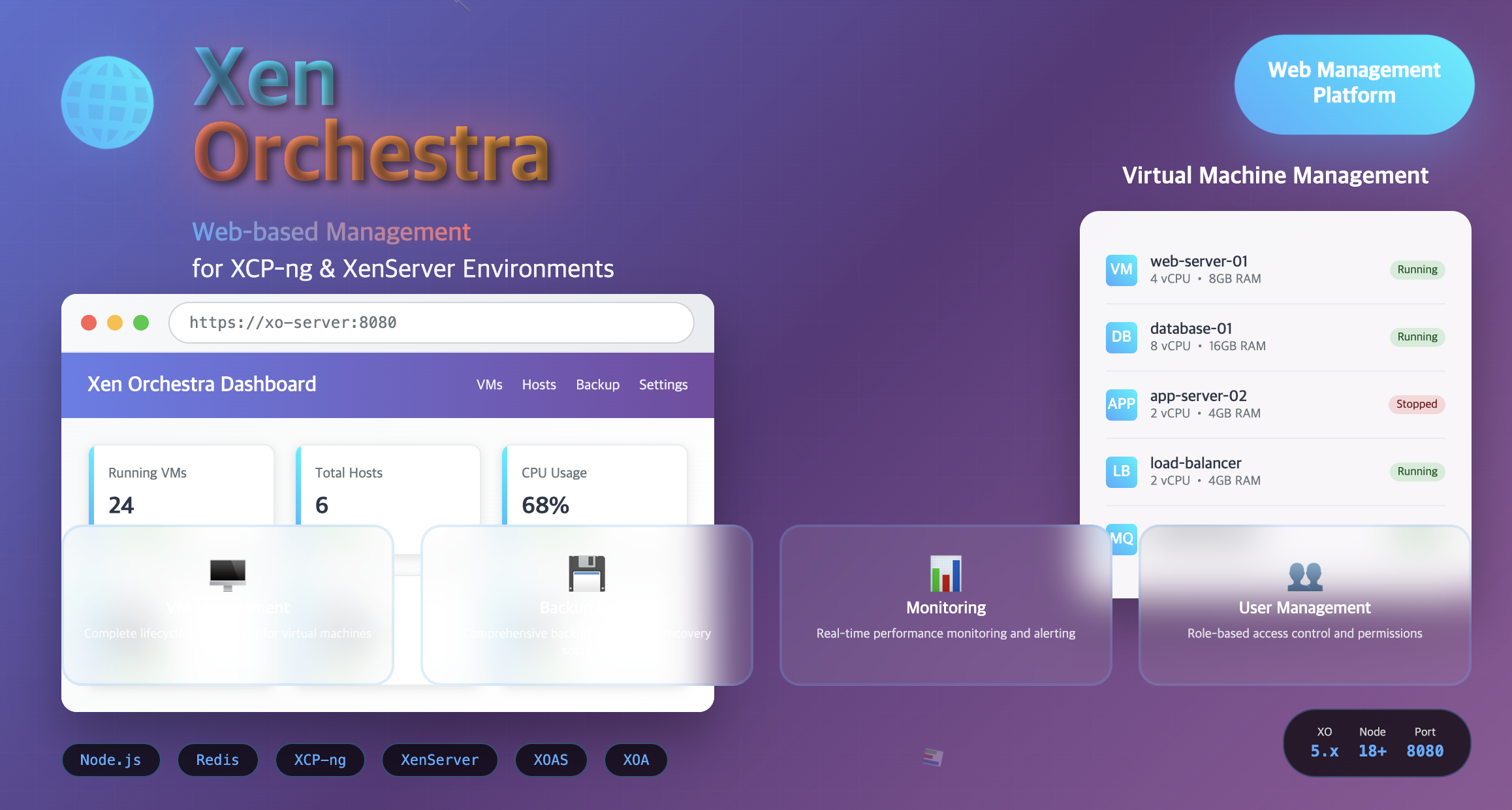
XO (Xen Orchestra) is a comprehensive web-based management tool designed to manage XenServer and XCP-ng hypervisor environments. It simplifies critical tasks such as VM management, backup processes, and resource monitoring through an intuitive web interface.
This guide provides a complete walkthrough of Xen Orchestra, from understanding its core components to detailed installation procedures and practical configuration examples.
Understanding XCP-ng and Xen Orchestra
Before diving into Xen Orchestra, it’s essential to understand the underlying virtualization platform and management architecture.
XCP-ng Platform Overview
XCP-ng is an open-source virtualization platform based on XenServer that provides enterprise-grade hypervisor capabilities without licensing restrictions.
XCP-ng aims to be a direct replacement for XenServer, providing complete control over virtualization environments without license constraints while offering all XenServer features plus community-driven enhancements.
Key XCP-ng Features
| Feature | Description |
|---|---|
| License-Free Operation | Complete XenServer functionality without licensing restrictions |
| Enterprise Features | Live migration, high availability, storage management included |
| Community-Driven | Active community development with regular updates and improvements |
| Hardware Compatibility | Extensive hardware support with certified driver packages |
Xen Orchestra (XO) Management Platform
Xen Orchestra provides a comprehensive web interface for managing XCP-ng and XenServer hosts and pools. Developed by Vates, it’s available in two versions to meet different deployment needs.
XO Version Comparison
| Version | XO from Sources (XOAS) | Xen Orchestra Appliance (XOA) |
|---|---|---|
| Cost | Free (community build) | Commercial (pre-packaged with support) |
| Installation | Manual build from source code | Pre-configured VM appliance |
| Support | Community support only | Commercial support from Vates |
| Updates | Manual source updates required | Automated update mechanism |
| Best For | Development, testing, learning | Production environments |
Xen Orchestra Core Features
Xen Orchestra provides comprehensive virtualization management capabilities through its web-based interface.
Virtual Machine Management
Lifecycle Operations
- VM Creation and Configuration: Create VMs with custom specifications and templates
- Power Management: Start, stop, restart, and suspend virtual machines
- Live Operations: Live migration, memory adjustment, and CPU modification
- Template Management: Create and manage VM templates for rapid deployment
Advanced VM Features
# VM console access through web interface
# VM performance monitoring and statistics
# Snapshot management and scheduling
# VM cloning and template creation
Backup and Disaster Recovery
Comprehensive Backup Solutions
- Full Backups: Complete VM image backup with all data
- Incremental Backups: Only changes since last backup
- Continuous Replication: Real-time VM replication to remote sites
- Disaster Recovery: Cross-site VM replication and restoration
Backup Configuration Example
// Backup job configuration
{
  "name": "nightly-backup",
  "schedule": "0 2 * * *",
  "type": "vm",
  "retention": 7,
  "compression": true,
  "targets": ["vm-prod-01", "vm-prod-02"]
}
User and Permission Management
Multi-Tenant Access Control
- Role-Based Access Control (RBAC): Granular permission management
- User Groups: Organize users with common access requirements
- Resource Isolation: Limit user access to specific hosts or VMs
- Audit Logging: Track user actions and system changes
Resource Monitoring and Alerting
Real-Time Monitoring
- Performance Metrics: CPU, memory, disk, and network utilization
- Custom Dashboards: Create personalized monitoring views
- Alert Configuration: Set thresholds for resource usage and system events
- Historical Analytics: Long-term performance trend analysis
Update and Patch Management
Automated Maintenance
- Host Updates: Apply security patches and system updates
- Rolling Updates: Update cluster nodes without service interruption
- Update Scheduling: Plan maintenance windows for system updates
- Rollback Capability: Revert updates if issues occur
Installation Methods Overview
Xen Orchestra can be deployed through two primary methods, each suited for different use cases and requirements.
Architecture Components
Architecture Overview:
- XCP-ng serves as the hypervisor layer, running directly on hardware and managing VMs
- Xen Orchestra provides the management layer accessible through web browsers
- Additional tools and plugins can be integrated for enhanced monitoring, cloud integration, or advanced backup configurations
Option 1: XOA (Xen Orchestra Appliance) Installation
For users prioritizing ease of use and commercial support, the Xen Orchestra Appliance is the recommended approach.
XOA Installation Steps
1. Download XOA Image
# Visit Xen Orchestra website and download the appliance image
# https://xen-orchestra.com/#!/member/download
# Download the .xva file for your environment
2. Import XOA Image
# Using XenCenter or XCP-ng Center:
# 1. Open management tool
# 2. Select "Import VM"
# 3. Choose the downloaded XVA file
# 4. Follow import wizard

# Using xe CLI:
xe vm-import filename=xoa-latest.xva
3. Start and Configure XOA VM
# Start the imported VM
xe vm-start vm=<xoa-vm-uuid>

# Access web interface at VM's IP address
# Default credentials: admin@admin.net / admin
4. Initial Configuration
- Network Configuration: Set static IP and DNS settings
- System Updates: Apply latest patches and updates
- License Registration: Register for commercial features
- Backup Configuration: Set up backup repositories
Option 2: Installation from Source (XOAS)
Building Xen Orchestra from source provides complete control and no licensing costs, making it ideal for development and testing environments.
Prerequisites
Before starting the installation, ensure your system meets the requirements:
| Component | Requirement | Notes |
|---|---|---|
| Operating System | Linux (Ubuntu/Debian recommended) | Ubuntu 20.04+ or Debian 11+ preferred |
| Node.js | Version 18.x or higher | Required for XO server runtime |
| Yarn | Latest stable version | Package manager for dependencies |
| Git | Latest version | For source code repository access |
| Redis | 6.0+ | Required for session management |
Step 1: Install Dependencies
System Update and Basic Packages
# Update system packages
sudo apt update && sudo apt upgrade -y

# Install essential packages
sudo apt install -y ca-certificates curl gnupg git ntp build-essential
Node.js Installation
Yarn Installation
Additional Dependencies
# Python and build tools
sudo apt install -y python3-minimal python3-dev

# XO-specific dependencies
sudo apt install -y redis-server libpng-dev libvhdi-utils lvm2 cifs-utils

# Start Redis service
sudo systemctl start redis-server
sudo systemctl enable redis-server
Step 2: Clone and Build Xen Orchestra
Clone Source Repository
# Clone the official repository
git clone -b master https://github.com/vatesfr/xen-orchestra.git
cd xen-orchestra

# Verify repository contents
ls -la
# Expected: packages/ directory and package.json files
Build Process
# Install JavaScript dependencies (this may take 10-15 minutes)
sudo yarn install

# Build the project (this may take 5-10 minutes)
sudo yarn build

# Verify build completion
ls packages/xo-server/dist/
# Expected: Built JavaScript files
Step 3: Configuration Setup
Create Configuration Directory
# Navigate to XO server directory
cd ~/xen-orchestra/packages/xo-server

# Create configuration directory
sudo mkdir -p /etc/xo-server

# Copy sample configuration
sudo cp sample.config.toml /etc/xo-server/config.toml
Configure XO Server
# Edit configuration file
sudo vi /etc/xo-server/config.toml
Key configuration sections:
# HTTP server configuration
[[http.listen]]
# Address binding (use 0.0.0.0 for all interfaces)
hostname = '0.0.0.0'

# Web interface port
port = 8080

# Redis configuration
[redis]
host = 'localhost'
port = 6379

# Authentication configuration
[[authentication.providers.basic]]
# Default admin credentials
identifier = 'admin@admin.net'
password = '$2b$10$...' # Will be generated on first run
Security Configuration
# Set appropriate file permissions
sudo chmod 600 /etc/xo-server/config.toml
sudo chown root:root /etc/xo-server/config.toml

# Configure firewall (if enabled)
sudo ufw allow 8080/tcp
Step 4: Service Configuration
Manual Startup Test
# Test manual startup
cd ~/xen-orchestra/packages/xo-server
sudo yarn start

# Check for successful startup messages
# Expected: "Web server listening on http://0.0.0.0:8080"
Service Installation with Forever
# Install forever for process management
sudo yarn global add forever
sudo yarn global add forever-service

# Navigate to XO server directory
cd ~/xen-orchestra/packages/xo-server/

# Install as system service
sudo forever-service install orchestra -r root -s dist/cli.mjs

# The installation will output service commands:
# Start   - "sudo service orchestra start"
# Stop    - "sudo service orchestra stop"
# Status  - "sudo service orchestra status"
# Restart - "sudo service orchestra restart"
Service Management
# Start the service
sudo service orchestra start

# Check service status
sudo service orchestra status
# Expected: active (running)

# Enable auto-start on boot
sudo systemctl enable orchestra

# Verify port binding
sudo ss -tunelp | grep ':8080'
# Expected: tcp LISTEN 0 511 *:8080 *:*
Step 5: Web Interface Access and Initial Setup
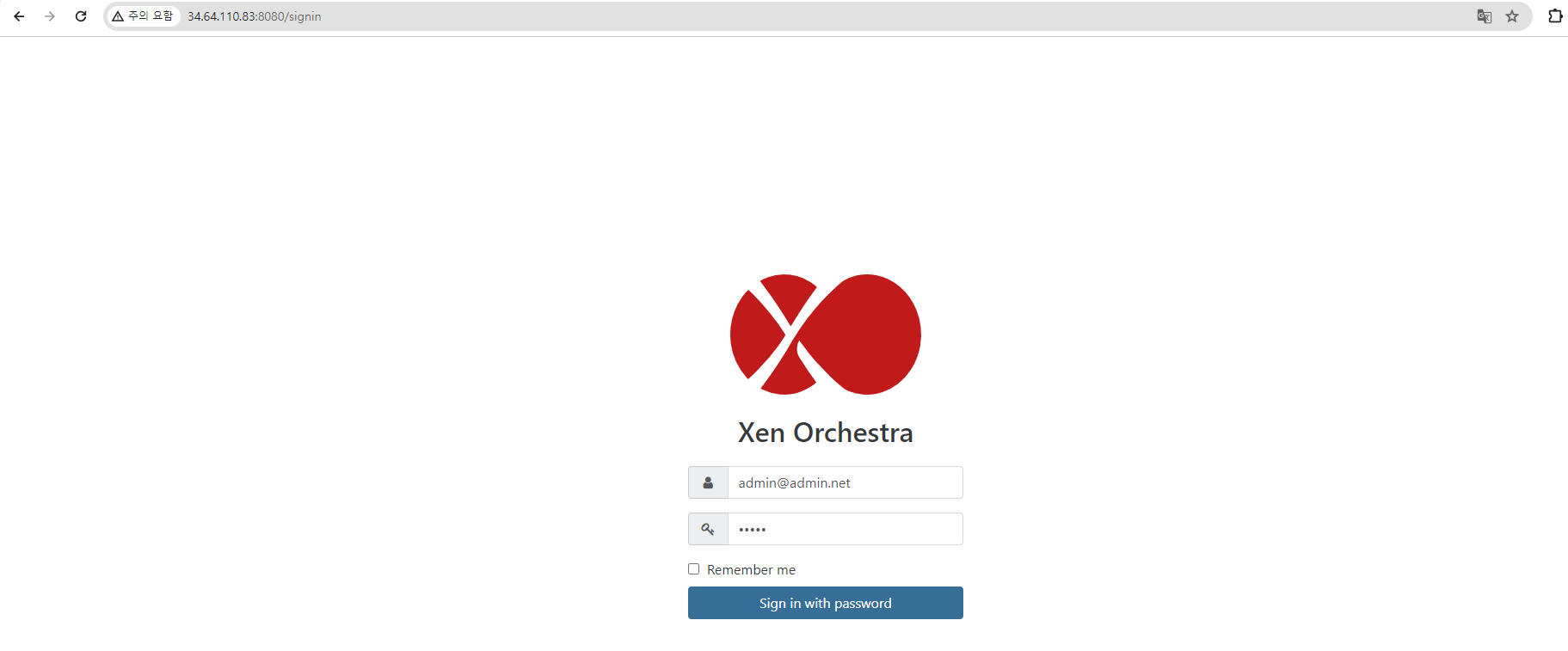
Access Web Interface
# Open web browser and navigate to:
http://[your-server-ip]:8080

# Default login credentials:
# Username: admin@admin.net
# Password: admin
Initial Configuration Wizard
- Change Default Password
// Immediately change the default password for security // Navigate to Settings > Users > admin user - Configure Network Settings
- Verify network connectivity
- Configure DNS settings if needed
- Test external connectivity
- System Updates
# Update XO to latest version
cd ~/xen-orchestra
git pull origin master
sudo yarn install
sudo yarn build
sudo service orchestra restart
Step 6: Install XO CLI Tool
CLI Installation
# Install XO CLI globally
sudo npm install --global xo-cli

# Verify installation
xo-cli --version

# Configure CLI connection
xo-cli --register http://localhost:8080 admin@admin.net admin
CLI Usage Examples
# List all VMs
xo-cli list vms

# Get server information
xo-cli list hosts

# Create VM snapshot
xo-cli snapshot vm=<vm-id> name="backup-snapshot"
Adding XCP-ng Servers to Xen Orchestra
Once Xen Orchestra is running, the next step is connecting it to your XCP-ng infrastructure.
Server Connection Process
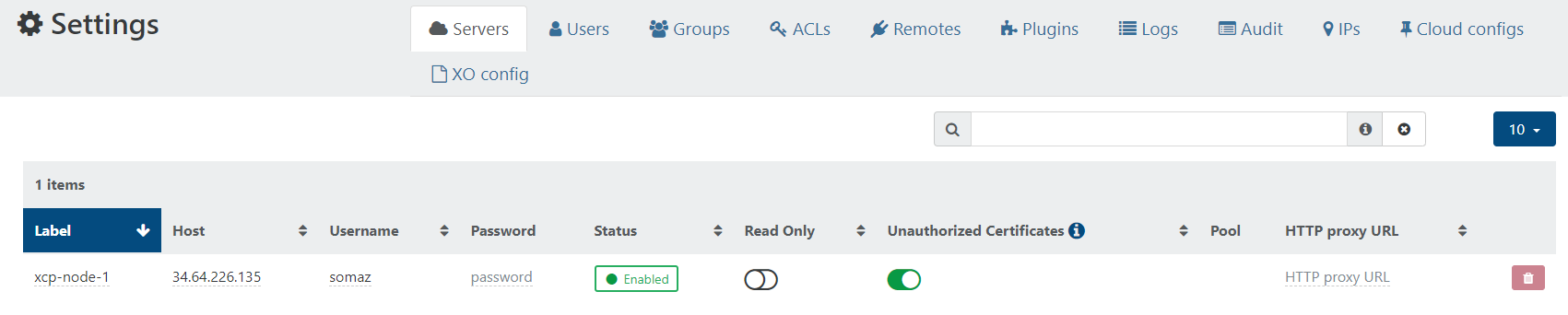
1. Access Server Management
# In XO web interface:
# 1. Navigate to "Settings" > "Servers"
# 2. Click "Add Server" button
# 3. Fill in connection details
2. Server Configuration Parameters
| Parameter | Description | Example |
|---|---|---|
| Label | Friendly name for the server | XCP-ng-Production-01 |
| Host | IP address or FQDN | 192.168.1.100 |
| Username | XCP-ng admin username | root |
| Password | XCP-ng admin password | SecurePassword123 |
| Read Only | Limit to monitoring only | false (for full management) |
3. Connection Verification
# After adding server, verify connection:
# 1. Check server status in XO interface
# 2. Verify VM list appears
# 3. Test basic operations (VM start/stop)
Multi-Host Pool Configuration
Pool Setup Process
# For XCP-ng pools:
# 1. Add pool master to XO first
# 2. Other pool members will appear automatically
# 3. Configure pool-wide settings through XO interface
Pool Management Features
- Centralized Management: Control entire pool from single interface
- Load Balancing: Distribute VMs across pool members
- High Availability: Configure VM restart priorities
- Shared Storage: Manage pool-wide storage repositories
Virtual Machine Management through XO
Once XCP-ng servers are connected, you can perform comprehensive VM management operations.
VM Creation and Configuration
Creating New VMs
// VM creation through XO web interface
{
  "template": "Ubuntu 20.04",
  "name": "web-server-01",
  "description": "Production web server",
  "cpus": 4,
  "memory": "8 GB",
  "disk": "100 GB",
  "network": "Pool-wide network associated with eth0"
}
Advanced VM Configuration
# CPU Configuration
- vCPUs: 1-32 (depending on license and hardware)
- CPU weight: Performance prioritization
- CPU mask: NUMA affinity settings

# Memory Configuration
- Static memory: Fixed allocation
- Dynamic memory: Ballooning support
- Memory weight: Memory priority

# Storage Configuration
- Virtual disk size and type
- Storage repository selection
- Disk performance settings

# Network Configuration
- Virtual network interfaces
- VLAN configuration
- MAC address assignment
VM Operations and Monitoring
Lifecycle Management
# Power operations
Start VM: Boot virtual machine
Stop VM: Graceful shutdown
Force Shutdown: Hard power off
Restart VM: Reboot operation
Suspend VM: Save state to disk

# Advanced operations
Live Migration: Move running VM between hosts
Memory Adjustment: Change RAM allocation without restart
CPU Modification: Adjust vCPU count dynamically
Performance Monitoring
// Real-time monitoring metrics
{
  "cpu": {
    "usage": "45%",
    "cores": 4,
    "ghz": 2.4
  },
  "memory": {
    "used": "6.2 GB",
    "total": "8 GB",
    "utilization": "77%"
  },
  "storage": {
    "read_iops": 150,
    "write_iops": 89,
    "throughput": "45 MB/s"
  },
  "network": {
    "rx_rate": "12 Mbps",
    "tx_rate": "8 Mbps",
    "packets": 1250
  }
}
Backup and Disaster Recovery Configuration
Xen Orchestra provides enterprise-grade backup and disaster recovery capabilities.
Backup Job Configuration
Setting Up Backup Jobs
// Backup job configuration example
{
  "name": "nightly-vm-backup",
  "type": "vm",
  "schedule": "0 2 * * *", // Daily at 2 AM
  "vms": ["vm-web-01", "vm-db-01"],
  "settings": {
    "depth": 7, // Retain 7 backups
    "compression": "gzip",
    "encryption": true,
    "reportWhen": "failure"
  },
  "remotes": ["nfs-backup-01"]
}
Backup Types and Strategies
- Full Backup: Complete VM export including all data
- Incremental Backup: Only changes since last backup
- Delta Backup: Advanced incremental with deduplication
- Continuous Replication: Real-time replication to remote site
Remote Storage Configuration
Disaster Recovery Setup
Cross-Site Replication
// DR configuration
{
  "source_pool": "production-site",
  "target_pool": "dr-site",
  "vms": ["critical-vm-01", "critical-vm-02"],
  "schedule": "*/15 * * * *", // Every 15 minutes
  "settings": {
    "delete_first": false,
    "override": true,
    "compression": true
  }
}
Recovery Testing
# Regular DR testing procedures
1. Schedule test failover windows
2. Document recovery procedures
3. Verify backup integrity
4. Test network connectivity
5. Validate application functionality
Advanced Configuration and Optimization
Optimize Xen Orchestra performance and functionality for production environments.
Performance Tuning
XO Server Optimization
# Increase Node.js memory limit
export NODE_OPTIONS="--max-old-space-size=4096"

# Configure process limits
sudo vi /etc/security/limits.conf
xo-server soft nofile 65536
xo-server hard nofile 65536

# Optimize Redis configuration
sudo vi /etc/redis/redis.conf
maxmemory 2gb
maxmemory-policy allkeys-lru
Database Optimization
# Redis performance tuning
save 900 1
save 300 10
save 60 10000

# Disable Redis disk persistence for better performance (if acceptable)
save ""
appendonly no
Security Hardening
SSL/TLS Configuration
# Configure HTTPS in config.toml
[[http.listen]]
hostname = '0.0.0.0'
port = 443
certificate = '/etc/ssl/certs/xo-server.crt'
key = '/etc/ssl/private/xo-server.key'

[[http.redirectToHttps]]
port = 80
Authentication Integration
# LDAP authentication
[[authentication.providers.ldap]]
uri = 'ldap://domain-controller.example.com'
base = 'DC=example,DC=com'
bind = 'CN=xo-service,OU=Service Accounts,DC=example,DC=com'
password = 'ServiceAccountPassword'
Network Security
# Configure firewall rules
sudo ufw allow from 192.168.1.0/24 to any port 8080
sudo ufw deny 8080

# Set up reverse proxy with nginx
sudo apt install nginx
sudo vi /etc/nginx/sites-available/xen-orchestra
Monitoring and Alerting
Custom Dashboard Configuration
// Custom dashboard widgets
{
  "widgets": [
    {
      "type": "vm_status",
      "title": "VM Status Overview",
      "filter": "production"
    },
    {
      "type": "host_performance",
      "title": "Host Performance",
      "metrics": ["cpu", "memory", "storage"]
    },
    {
      "type": "backup_status",
      "title": "Backup Job Status",
      "period": "24h"
    }
  ]
}
Alert Configuration
# Email notification setup
SMTP Server: smtp.company.com
Port: 587
Username: alerts@company.com
Password: EmailPassword
From: xo-alerts@company.com
To: admins@company.com

# Alert conditions
- VM down for > 5 minutes
- Host CPU > 90% for > 10 minutes
- Backup job failure
- Disk space < 10% free
Troubleshooting Common Issues
Solutions for frequently encountered problems in Xen Orchestra deployments.
Installation Issues
Node.js Version Conflicts
# Problem: Wrong Node.js version
node -v
# Shows version < 18

# Solution: Update Node.js
sudo apt remove nodejs npm
curl -fsSL https://deb.nodesource.com/setup_18.x | sudo -E bash -
sudo apt install -y nodejs

# Verify
node -v
npm -v
Build Failures
# Problem: Build fails with dependency errors
# Solution: Clean and rebuild
rm -rf node_modules
sudo yarn cache clean
sudo yarn install
sudo yarn build
Connection Issues
XCP-ng Server Connection Failures
# Check XCP-ng XAPI service
sudo systemctl status xapi

# Verify network connectivity
telnet xcp-ng-host 443

# Check XCP-ng firewall
iptables -L | grep 443

# Test credentials
xe host-list -s xcp-ng-host -u root -pw password
SSL Certificate Issues
# Problem: SSL certificate errors
# Solution: Add certificate exception or use proper certificates

# For self-signed certificates
openssl s_client -connect xcp-ng-host:443 -showcerts

# Import certificate to trusted store
sudo cp certificate.crt /usr/local/share/ca-certificates/
sudo update-ca-certificates
Performance Issues
Slow Web Interface
# Check XO server logs
tail -f /var/log/xo-server.log

# Monitor system resources
htop
iotop
netstat -an | grep 8080

# Optimize Redis
redis-cli info memory
redis-cli config set maxmemory 2gb
High Memory Usage
# Check Node.js memory usage
ps aux | grep node

# Increase memory limit
export NODE_OPTIONS="--max-old-space-size=8192"

# Restart XO service
sudo service orchestra restart
Key Points
-
Comprehensive Management Platform
- Web-based interface for XCP-ng and XenServer management
- Complete VM lifecycle management and monitoring
- Enterprise-grade backup and disaster recovery features
- Multi-user access control and resource isolation -
Deployment Options
- XOA: Commercial appliance with support and updates
- XOAS: Free community build from source code
- Flexible configuration for development and production
- Scalable architecture supporting multiple host pools -
Production Considerations
- Proper security hardening and SSL configuration
- Performance optimization for large environments
- Comprehensive backup strategy implementation
- Monitoring and alerting for proactive management
Conclusion
Xen Orchestra provides a powerful, web-based management solution for XCP-ng and XenServer virtualization environments. Whether deployed as a commercial appliance or built from source, XO offers comprehensive features for VM management, backup operations, and infrastructure monitoring.
The XOAS (source-based) installation provides complete control and customization options, making it ideal for development environments and cost-conscious deployments. Meanwhile, the XOA appliance offers enterprise support and simplified maintenance for production environments.
Key Implementation Recommendations
- Choose the right deployment method based on your support and budget requirements
- Implement proper security measures including SSL/TLS and authentication integration
- Configure comprehensive backup strategies with regular testing procedures
- Monitor performance metrics and optimize for your specific workload requirements
Future Outlook
As XCP-ng continues evolving as a mature open-source virtualization platform, Xen Orchestra’s role becomes increasingly critical for organizations seeking enterprise-grade management capabilities without vendor lock-in. The platform’s active development and community support ensure continued innovation and feature enhancement.
For organizations managing XCP-ng environments, Xen Orchestra provides the essential tools needed for efficient virtualization operations and management.

Comments