13 min to read
Jenkins Server Recovery After Power Outage - Resolving Plugin Version Mismatch
Comprehensive guide to fixing Jenkins issues caused by unexpected server shutdowns and plugin incompatibilities
Overview
Unexpected server power outages can cause serious issues in Jenkins environments. When developers update plugins before an outage, the restart process may result in plugin version mismatches, preventing Jenkins from functioning properly.
This article shares practical solutions for recovering Jenkins when the UI breaks and Jobs become invisible after a power outage. We’ll cover upgrade procedures for various platforms including macOS, Linux, Docker containers, and Kubernetes.
Problem Description
Issues Encountered
- Unexpected server power outage causing abnormal Jenkins termination
- Developer had updated plugins before outage, plugin versions increased during restart
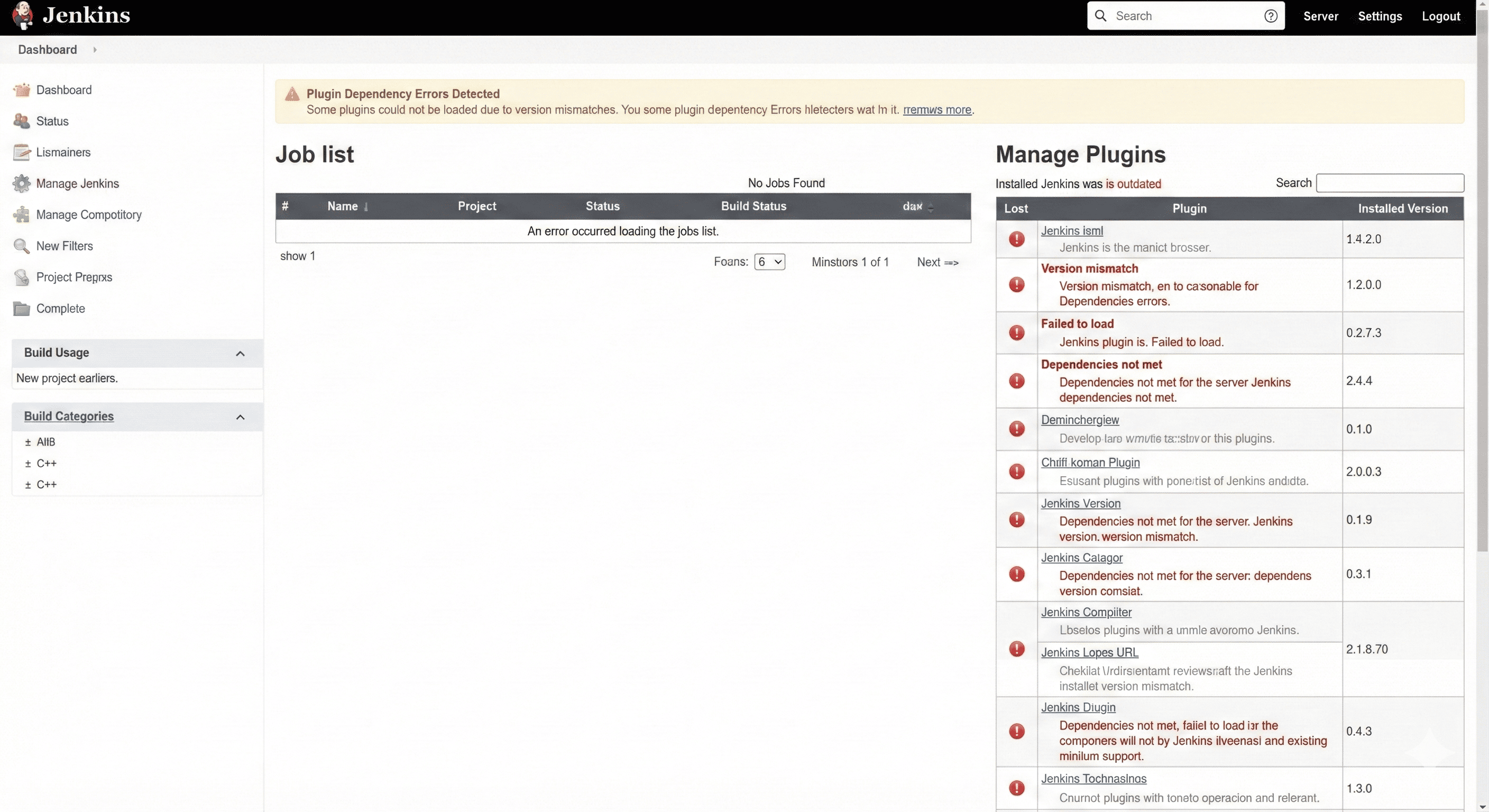
- After Jenkins restart, UI broke and Job list completely disappeared
- Compatibility issues due to plugin version mismatch
Symptoms
- Jenkins web UI accessible but Job list not displayed
- Warning messages appearing in plugin management page
- Some plugins failing to load or throwing errors
Solution Approach
1. Jenkins Backup (Essential!)
Before attempting any fixes, you must backup the current state.
2. macOS - Homebrew Installation
For Jenkins installed via Homebrew on macOS:
# 1. Stop Jenkins
brew services stop jenkins-lts

# 2. Install Java 21 (dependency)
brew install openjdk@21

# 3. Update Homebrew
brew update

# 4. Upgrade Jenkins
brew upgrade jenkins-lts

# 5. Start Jenkins
brew services start jenkins-lts

# 6. Verify version
brew info jenkins-lts
Simplified version
# Stop Jenkins
brew services stop jenkins-lts

# Update Homebrew
brew update

# Upgrade Jenkins
brew upgrade jenkins-lts

# Restart Jenkins
brew services start jenkins-lts

# Check version
brew info jenkins-lts
3. macOS - Direct WAR File Installation
For WAR file installations:
# Stop current Jenkins (Ctrl+C in running terminal)

# Backup existing WAR file
cd ~/jenkins  # or directory containing jenkins.war
mv jenkins.war jenkins.war.backup

# Download latest LTS version
wget https://updates.jenkins.io/download/war/2.528.3/jenkins.war

# Or use curl
curl -L https://updates.jenkins.io/download/war/2.528.3/jenkins.war -o jenkins.war

# Restart Jenkins
java -jar jenkins.war --httpPort=8080
4. macOS - Installer Package (.pkg)
For macOS Installer package installations:
# Download latest Jenkins LTS Installer
curl -L https://www.jenkins.io/download/thank-you-downloading-osx-installer-stable/ -o jenkins-installer.pkg

# Install (overwrites existing version)
sudo installer -pkg jenkins-installer.pkg -target /

# Restart Jenkins
sudo launchctl unload /Library/LaunchDaemons/org.jenkins-ci.plist
sudo launchctl load /Library/LaunchDaemons/org.jenkins-ci.plist
5. Linux - Package Manager Installation
Ubuntu/Debian
# 1. Backup current Jenkins
sudo tar -czf /backup/jenkins-backup-$(date +%Y%m%d).tar.gz /var/lib/jenkins

# 2. Stop Jenkins
sudo systemctl stop jenkins

# 3. Update APT
sudo apt update

# 4. Upgrade Jenkins
sudo apt upgrade jenkins -y

# 5. Start Jenkins
sudo systemctl start jenkins

# 6. Check status
sudo systemctl status jenkins

# 7. Verify version
jenkins --version
CentOS/RHEL
# 1. Backup current Jenkins
sudo tar -czf /backup/jenkins-backup-$(date +%Y%m%d).tar.gz /var/lib/jenkins

# 2. Stop Jenkins
sudo systemctl stop jenkins

# 3. Update YUM
sudo yum update

# 4. Upgrade Jenkins
sudo yum upgrade jenkins -y

# 5. Start Jenkins
sudo systemctl start jenkins

# 6. Check status
sudo systemctl status jenkins

# 7. Verify version
rpm -qa | grep jenkins
Docker Container Environment
Single Docker Container
Docker Compose
Update docker-compose.yml:
version: '3.8'

services:
  jenkins:
    image: jenkins/jenkins:lts  # or jenkins/jenkins:2.528.3
    container_name: jenkins
    privileged: true
    user: root
    ports:
      - "8080:8080"
      - "50000:50000"
    volumes:
      - jenkins_home:/var/jenkins_home
      - /var/run/docker.sock:/var/run/docker.sock
    environment:
      - JAVA_OPTS=-Djenkins.install.runSetupWizard=false
    restart: unless-stopped

volumes:
  jenkins_home:
    driver: local
Execute upgrade:
Kubernetes Environment
Using Helm Chart
Example values.yaml (update image version):
controller:
  image:
    repository: jenkins/jenkins
    tag: "2.528.3-lts"  # Update to latest LTS version

  # Resource configuration
  resources:
    requests:
      cpu: "500m"
      memory: "2Gi"
    limits:
      cpu: "2000m"
      memory: "4Gi"

  # Backup configuration
  backup:
    enabled: true
    schedule: "0 2 * * *"

  # JVM options
  javaOpts: "-Xmx2048m -Xms512m"

persistence:
  enabled: true
  size: 20Gi
  storageClass: "gp3"  # Modify according to environment
Using Kubernetes Manifests
1. Update Deployment:
# jenkins-deployment.yaml
apiVersion: apps/v1
kind: Deployment
metadata:
  name: jenkins
  namespace: jenkins
spec:
  replicas: 1
  selector:
    matchLabels:
      app: jenkins
  template:
    metadata:
      labels:
        app: jenkins
    spec:
      containers:
      - name: jenkins
        image: jenkins/jenkins:2.528.3-lts  # Update to latest version
        ports:
        - containerPort: 8080
        - containerPort: 50000
        volumeMounts:
        - name: jenkins-home
          mountPath: /var/jenkins_home
        resources:
          requests:
            memory: "2Gi"
            cpu: "500m"
          limits:
            memory: "4Gi"
            cpu: "2000m"
      volumes:
      - name: jenkins-home
        persistentVolumeClaim:
          claimName: jenkins-pvc
2. Execute upgrade:
# 1. Backup current PVC
JENKINS_POD=$(kubectl get pod -n jenkins -l app=jenkins -o jsonpath='{.items[0].metadata.name}')
kubectl exec -n jenkins $JENKINS_POD -- tar czf /tmp/jenkins-backup.tar.gz -C /var/jenkins_home .
kubectl cp jenkins/$JENKINS_POD:/tmp/jenkins-backup.tar.gz ./jenkins-backup-$(date +%Y%m%d).tar.gz

# 2. Apply Deployment update
kubectl apply -f jenkins-deployment.yaml

# 3. Monitor rollout status
kubectl rollout status deployment/jenkins -n jenkins

# 4. Verify new Pod
kubectl get pods -n jenkins

# 5. Check logs
NEW_POD=$(kubectl get pod -n jenkins -l app=jenkins -o jsonpath='{.items[0].metadata.name}')
kubectl logs -f $NEW_POD -n jenkins
StatefulSet Configuration
# 1. Backup current StatefulSet
kubectl get statefulset jenkins -n jenkins -o yaml > jenkins-statefulset-backup.yaml

# 2. Backup PVC
JENKINS_POD=$(kubectl get pod -n jenkins -l app=jenkins -o jsonpath='{.items[0].metadata.name}')
kubectl exec -n jenkins $JENKINS_POD -- tar czf /tmp/jenkins-backup.tar.gz -C /var/jenkins_home .
kubectl cp jenkins/$JENKINS_POD:/tmp/jenkins-backup.tar.gz ./jenkins-backup-$(date +%Y%m%d).tar.gz

# 3. Update StatefulSet image
kubectl set image statefulset/jenkins jenkins=jenkins/jenkins:2.528.3-lts -n jenkins

# Or edit directly
kubectl edit statefulset jenkins -n jenkins

# 4. Check rollout status
kubectl rollout status statefulset/jenkins -n jenkins

# 5. Verify Pod restart
kubectl get pods -n jenkins -w
Post-Upgrade Verification
1. Verify Jenkins Access
Access Jenkins URL via browser to confirm normal operation.
Default URLs by environment:
- macOS/Linux:
http://localhost:8080 - Docker:
http://localhost:8080 - Kubernetes: URL configured in Service/Ingress
2. Verify Job List
- Check that all Jobs display correctly in Dashboard
- Verify that Job configurations are preserved
3. Update Plugins
Once Jenkins operates normally, update all plugins to latest versions.
Plugin update procedure:
- Access Jenkins Management → Plugin Manager
- Check available plugin updates in “Updates” tab
- Select “Select All” then click “Download now and install after restart”
- Enable restart checkbox for automatic restart
4. Final Validation
macOS/Linux:
# Check Jenkins logs
# Homebrew installation
tail -f /opt/homebrew/var/log/jenkins-lts/jenkins.log

# Linux systemd
sudo journalctl -u jenkins -f

# Linux traditional method
tail -f /var/log/jenkins/jenkins.log
Docker:
# Check container logs
docker logs -f jenkins

# Docker Compose
docker-compose logs -f jenkins
Kubernetes:
# Check Pod logs
kubectl logs -f <jenkins-pod-name> -n jenkins

# Monitor real-time events
kubectl get events -n jenkins --watch

# Check Pod status
kubectl describe pod <jenkins-pod-name> -n jenkins
Troubleshooting Tips
Preventing Plugin Version Mismatches
- Regular Jenkins and plugin updates: Maintain latest versions to prevent compatibility issues
- Backup before updates: Perform backups before all updates
- Gradual updates: Update plugins incrementally by priority rather than all at once
- Utilize test environments: Validate in test environments before applying to production
Power Outage Preparedness
Infrastructure Level
- Use UPS (Uninterruptible Power Supply): Protection against sudden power outages
- Utilize cloud environments: Use high-availability infrastructure from AWS/GCP/Azure
- Multi-AZ deployment: Distribute across multiple availability zones in Kubernetes
Application Level
Automated regular backups:
Backup using Kubernetes CronJob:
apiVersion: batch/v1
kind: CronJob
metadata:
  name: jenkins-backup
  namespace: jenkins
spec:
  schedule: "0 2 * * *"  # Daily at 2 AM
  jobTemplate:
    spec:
      template:
        spec:
          containers:
          - name: backup
            image: alpine
            command:
            - /bin/sh
            - -c
            - |
              tar czf /backup/jenkins-$(date +%Y%m%d).tar.gz -C /var/jenkins_home .
              # Add logic to upload to S3 or other storage
            volumeMounts:
            - name: jenkins-home
              mountPath: /var/jenkins_home
            - name: backup
              mountPath: /backup
          restartPolicy: OnFailure
          volumes:
          - name: jenkins-home
            persistentVolumeClaim:
              claimName: jenkins-pvc
          - name: backup
            persistentVolumeClaim:
              claimName: jenkins-backup-pvc
Using Jenkins Configuration as Code (JCasC):
# jenkins.yaml
jenkins:
  systemMessage: "Jenkins configured automatically by JCasC"
  numExecutors: 5
  mode: NORMAL
  securityRealm:
    local:
      allowsSignup: false
  authorizationStrategy:
    loggedInUsersCanDoAnything:
      allowAnonymousRead: false

  crumbIssuer:
    standard:
      excludeClientIPFromCrumb: false

unclassified:
  location:
    url: "https://jenkins.yourdomain.com"
    adminAddress: "admin@yourdomain.com"
Container Environment Specific Tips
Docker
- Use Named Volumes: Ensure data persistence
- Configure Health Checks: Monitor container status
services:
  jenkins:
 image: jenkins/jenkins:lts
 healthcheck:
   test: ["CMD-SHELL", "curl -f http://localhost:8080/login || exit 1"]
   interval: 30s
   timeout: 10s
   retries: 5
   start_period: 60s
Kubernetes
- PersistentVolume backups: Create regular snapshots
- Configure ReadinessProbe/LivenessProbe: Enable automatic recovery ```yaml livenessProbe: httpGet: path: /login port: 8080 initialDelaySeconds: 90 periodSeconds: 10 timeoutSeconds: 5 failureThreshold: 5
readinessProbe: httpGet: path: /login port: 8080 initialDelaySeconds: 60 periodSeconds: 10 timeoutSeconds: 5 failureThreshold: 3 ```
- StorageClass selection: Use storage supporting backup/snapshot features (AWS EBS, GCP PD, etc.)
Conclusion
Jenkins is a critical tool in DevOps pipelines but can be vulnerable during unexpected outages. Power outages in particular can cause serious issues due to plugin version mismatches.
The key to this troubleshooting was upgrading Jenkins itself to the latest version to ensure plugin compatibility. After upgrading, updating all plugins to their latest versions and rebooting resolved the issue completely.
Key Lessons:
- Always prioritize backups
- Keep Jenkins and plugins up to date
- Establish preventive measures for outage scenarios like power failures
- Use a systematic approach when issues occur (Backup → Upgrade → Plugin Update)
Platform-Specific Recommendations:
- macOS: Manage via Homebrew for automatic dependency resolution
- Linux: Leverage package managers for stable updates
- Docker: Establish image version management and volume backup strategies
- Kubernetes: Use Helm Charts and configure automated backup CronJobs
Stable Jenkins operation requires regular maintenance and backup strategies. Container orchestration environments particularly benefit from declarative configuration management (IaC) and automated backup systems. I hope this experience helps others facing similar challenges.

Comments