15 min to read
Dockerfile - Complete Guide to Container Image Creation and Best Practices
Master containerized application development with Dockerfile automation and optimization
Overview
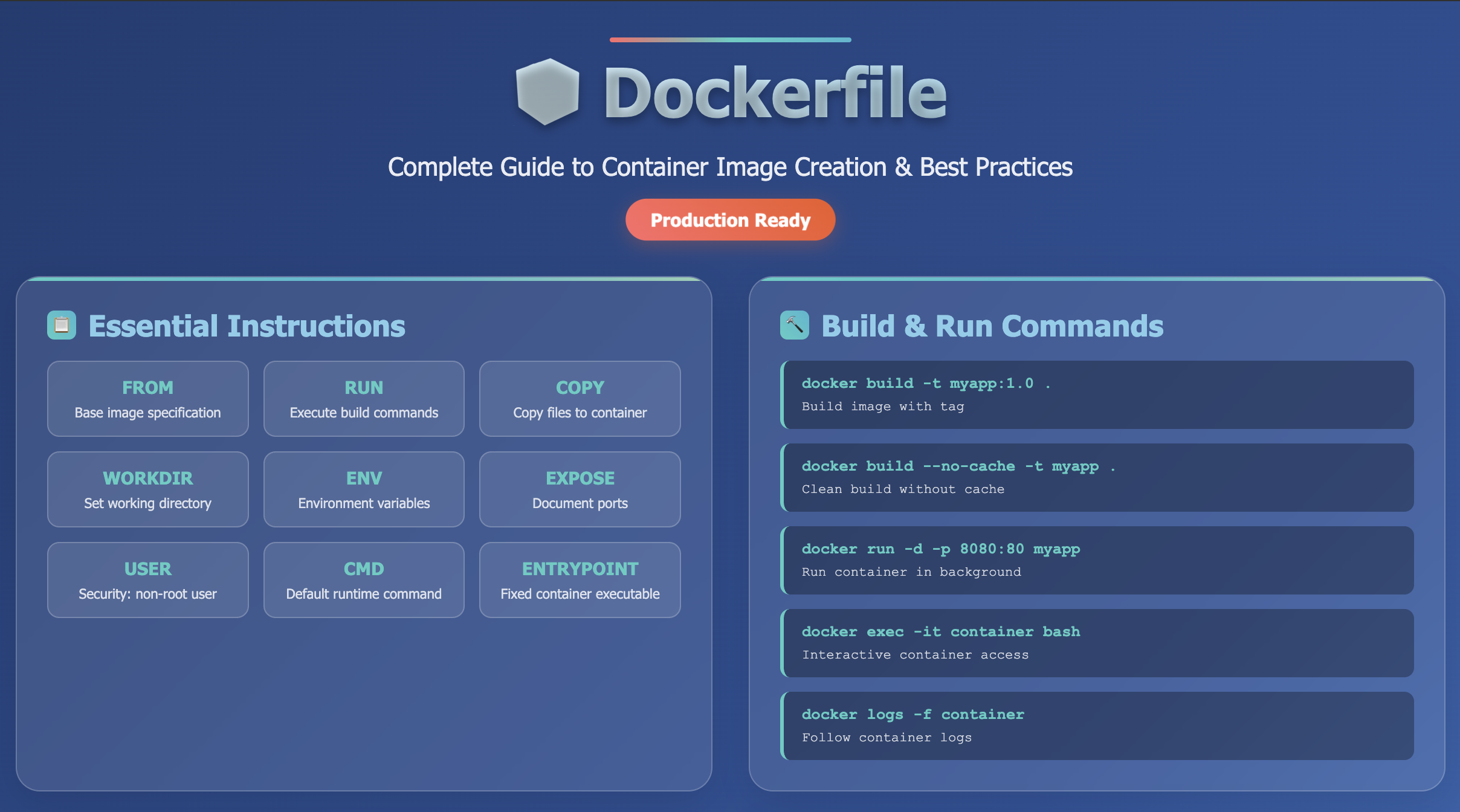
Dockerfile is a script containing a series of instructions that Docker uses to automatically build container images.
It serves as a blueprint for creating consistent, reproducible environments that can run anywhere Docker is installed.
By defining your application’s dependencies, configuration, and runtime environment in a single text file, Dockerfile enables Infrastructure as Code for containerized applications.
Dockerfile transforms the complex process of container creation into automated, version-controlled, and reproducible workflows.
It ensures that your application runs consistently across development, testing, and production environments, eliminating the “it works on my machine” problem.
Key Benefits of Dockerfile
- Automation: Eliminates manual container setup and configuration
- Reproducibility: Ensures consistent environments across all deployment stages
- Version Control: Track changes to your infrastructure alongside your code
- Portability: Run identical containers on any Docker-compatible system
- Efficiency: Leverage layer caching for faster builds and smaller images
- Documentation: Self-documenting infrastructure requirements
Dockerfile Architecture and Workflow
Understanding how Dockerfile integrates with the Docker ecosystem is crucial for effective container development.
Container Build Workflow
Layer-Based Architecture
Dockerfile creates images using a layered filesystem where each instruction creates a new layer. This architecture enables:
- Efficient Storage: Shared layers reduce disk usage
- Fast Builds: Unchanged layers are cached and reused
- Incremental Updates: Only modified layers need rebuilding
- Network Efficiency: Layer-based image distribution
Dockerfile Instructions Reference
Master the essential Dockerfile instructions for building robust container images.
Core Instructions Overview
| Instruction | Description |
|---|---|
| FROM | Specifies the base image from Docker Hub, GCR, Quay, ECR, or other registries |
| RUN | Executes commands during build time (package installation, compilation) |
| COPY | Copies files and directories from build context to container filesystem |
| ADD | Advanced file copying with URL download and archive extraction capabilities |
| WORKDIR | Sets the working directory for subsequent instructions |
| ENV | Sets environment variables available during build and runtime |
| ARG | Defines build-time variables that can be passed during image building |
| EXPOSE | Documents which ports the container will listen on at runtime |
| VOLUME | Creates mount points for external volumes or bind mounts |
| USER | Specifies the user context for running containers (security best practice) |
| LABEL | Adds metadata to images using key-value pairs |
| CMD | Provides default command to execute when container starts (overridable) |
| ENTRYPOINT | Configures container to run as executable with fixed entry command |
Critical Instruction Differences: RUN vs CMD vs ENTRYPOINT
Understanding when to use each execution instruction is fundamental to Dockerfile mastery.
RUN Instruction
- Purpose: Execute commands during image build process
- Timing: Build-time only
- Use Cases: Package installation, compilation, configuration setup
CMD Instruction
- Purpose: Define default command executed when container starts
- Timing: Runtime
- Behavior: Overridable by docker run arguments
# Shell format
CMD nginx -g "daemon off;"

# Exec format (recommended)
CMD ["nginx", "-g", "daemon off;"]

# As default parameters to ENTRYPOINT
ENTRYPOINT ["python3"]
CMD ["app.py"]  # Default argument
ENTRYPOINT Instruction
- Purpose: Configure container as executable with fixed entry point
- Timing: Runtime
- Behavior: Cannot be overridden, arguments are appended
# Basic ENTRYPOINT
ENTRYPOINT ["python3", "app.py"]

# ENTRYPOINT with CMD for flexible defaults
ENTRYPOINT ["python3", "app.py"]
CMD ["--port", "8080"]

# Usage examples:
# docker run myapp                    -> python3 app.py --port 8080
# docker run myapp --port 3000       -> python3 app.py --port 3000
# docker run myapp --debug           -> python3 app.py --debug
Basic Dockerfile Creation
Learn to create your first Dockerfile with a practical nginx web server example.
Project Structure Setup
Create a well-organized directory structure for your Docker project:
# Create project directory
mkdir nginx-image && cd nginx-image

# Create subdirectories
mkdir files
mkdir config
mkdir scripts

# Create essential files
touch Dockerfile
touch .dockerignore
touch README.md
.dockerignore Configuration
The .dockerignore file prevents unnecessary files from being sent to the Docker daemon, reducing build context size and improving security.
# Version control
.git
.gitignore
.dockerignore

# Build artifacts
dist/
build/
target/
node_modules/
coverage/

# Environment files (contain sensitive data)
.env
.env.local
.env.production

# Development files
.editorconfig
Dockerfile
README.md
*.md
.vscode/
.idea/

# Logs and temporary files
*.log
tmp/
temp/
.cache/

# Operating system files
.DS_Store
Thumbs.db
Sample Application Files
Create the necessary application files for your containerized nginx server.
HTML Content
<!-- files/index.html -->
<!DOCTYPE html>
<html lang="en">
<head>
    <meta charset="UTF-8">
    <meta name="viewport" content="width=device-width, initial-scale=1.0">
    <title>Dockerized Nginx Application</title>
    <style>
        body {
            font-family: 'Segoe UI', Tahoma, Geneva, Verdana, sans-serif;
            margin: 0;
            padding: 0;
            background: linear-gradient(135deg, #667eea 0%, #764ba2 100%);
            color: white;
            display: flex;
            justify-content: center;
            align-items: center;
            min-height: 100vh;
        }
        .container {
            text-align: center;
            background: rgba(255, 255, 255, 0.1);
            padding: 2rem;
            border-radius: 10px;
            backdrop-filter: blur(10px);
            box-shadow: 0 8px 32px rgba(0, 0, 0, 0.1);
        }
        h1 {
            font-size: 3rem;
            margin-bottom: 1rem;
        }
        h2 {
            font-size: 1.5rem;
            margin-bottom: 1rem;
            opacity: 0.9;
        }
        p {
            font-size: 1.1rem;
            opacity: 0.8;
        }
        .docker-info {
            margin-top: 2rem;
            padding: 1rem;
            background: rgba(255, 255, 255, 0.1);
            border-radius: 5px;
        }
    </style>
</head>
<body>
    <div class="container">
        <h1>🚀 My Dockerized App</h1>
        <h2>Nginx Container Running Successfully</h2>
        <p>This application is running inside a Docker container built with a custom Dockerfile.</p>
        <div class="docker-info">
            <p><strong>🐳 Container Technology:</strong> Docker</p>
            <p><strong>🌐 Web Server:</strong> Nginx</p>
            <p><strong>📦 Base Image:</strong> Ubuntu 20.04</p>
        </div>
    </div>
</body>
</html>
Nginx Configuration
Complete Dockerfile Example
Building and Testing Docker Images
Learn the complete workflow for building, testing, and validating your Docker images.
Image Building Commands
Basic Build Commands
Image Verification and Inspection
Container Testing and Validation
Basic Container Operations
Container Monitoring and Debugging
# Check container status
docker ps
docker ps -a

# View container logs
docker logs webserver
docker logs -f webserver  # Follow logs

# Execute commands in running container
docker exec -it webserver bash
docker exec webserver curl -f http://localhost/health

# Monitor resource usage
docker stats webserver

# Inspect container configuration
docker inspect webserver
Health and Functionality Testing
# Test HTTP response
curl -I http://localhost:8080

# Comprehensive health check
curl -f http://localhost:8080/health

# Load testing (using ab if available)
ab -n 1000 -c 10 http://localhost:8080/

# Security scan
docker exec webserver netstat -tulpn
Cleanup and Maintenance
# Stop and remove container
docker stop webserver
docker rm webserver

# Remove image
docker rmi nginx:custom

# Clean up unused resources
docker system prune -f

# Remove all unused images
docker image prune -a

# Complete cleanup (careful!)
docker system prune -a --volumes
Advanced Dockerfile Patterns
Explore sophisticated Dockerfile techniques for production-ready containers.
Multi-Stage Builds
Multi-stage builds enable you to create smaller, more secure production images by separating build dependencies from runtime requirements.
Node.js Application Example
Go Application with Scratch Base
ARG and ENV Best Practices
Build-time Customization with ARG
Environment Variables for Runtime Configuration
FROM node:18-alpine

# Runtime environment variables
ENV NODE_ENV=production
ENV PORT=3000
ENV LOG_LEVEL=info
ENV REDIS_URL=redis://localhost:6379
ENV DATABASE_URL=postgresql://localhost:5432/myapp

# Application-specific configuration
ENV APP_NAME="My Application"
ENV APP_DEBUG=false
ENV APP_TIMEOUT=30000

# Health check configuration
ENV HEALTH_CHECK_INTERVAL=30s
ENV HEALTH_CHECK_TIMEOUT=3s
ENV HEALTH_CHECK_RETRIES=3

# User can override these at runtime:
# docker run -e NODE_ENV=development -e PORT=8080 myapp
Security Hardening Techniques
Comprehensive Security Dockerfile
Distroless Image Example
# Build stage
FROM golang:1.21-alpine AS builder

WORKDIR /build
COPY . .
RUN CGO_ENABLED=0 go build -o app .

# Production stage with distroless
FROM gcr.io/distroless/static:nonroot

# Copy binary
COPY --from=builder /build/app /app

# Use nonroot user (uid=65532)
USER 65532:65532

EXPOSE 8080

ENTRYPOINT ["/app"]
Optimization and Performance
Implement strategies to create efficient, fast-building Docker images.
Layer Caching Optimization
Optimal Layer Ordering
Cache Mount Optimization
Image Size Reduction
Alpine-based Optimization
Minimal Python Image
Build Performance Optimization
Parallel Builds with BuildKit
Build Context Optimization
# Use .dockerignore to exclude unnecessary files
# Example .dockerignore:
# node_modules
# .git
# *.md
# tests/
# coverage/

FROM node:18-alpine

WORKDIR /app

# Copy only necessary files
COPY package*.json ./
RUN npm ci --only=production

# Copy source files (excluding what's in .dockerignore)
COPY src/ ./src/
COPY public/ ./public/
COPY config/ ./config/

RUN npm run build

EXPOSE 3000
CMD ["npm", "start"]
Security Best Practices
Implement comprehensive security measures in your Dockerfiles.
User Security and Permissions
Non-Root User Implementation
Filesystem Security
Secret Management
Build-time Secret Handling
Runtime Secret Management
Vulnerability Mitigation
Package Security Updates
Security Scanning Integration
Debugging and Troubleshooting
Master techniques for diagnosing and resolving Dockerfile and container issues.
Build Debugging Strategies
Incremental Build Testing
Interactive Build Debugging
# Build up to specific layer for debugging
docker build --target dependencies -t debug:deps .

# Run interactive container to investigate
docker run -it --rm debug:deps sh

# Inside container, debug the environment
/ $ pwd
/ $ ls -la
/ $ env
/ $ ps aux
/ $ df -h
Runtime Debugging
Debug-enabled Dockerfile
Container Inspection Commands
Common Issues and Solutions
Build Context Problems
# Problem: Large build context
# Solution: Optimize .dockerignore
echo "node_modules
.git
*.log
dist
coverage" > .dockerignore

# Problem: Files not found during COPY
# Solution: Verify build context
docker build --no-cache --progress=plain -t test .

# Problem: Permission denied
# Solution: Check file permissions
ls -la Dockerfile
chmod 644 Dockerfile
Layer Caching Issues
# Problem: Dependencies reinstalled on every build
# Solution: Copy package files first

# ❌ Bad: Source changes invalidate dependency cache
COPY . .
RUN npm install

# ✅ Good: Package files cached separately
COPY package*.json ./
RUN npm ci
COPY . .
Runtime Issues
# Problem: Container exits immediately
# Solution: Check entrypoint and command
docker run --rm myapp echo "test"
docker logs myapp

# Problem: Permission denied in container
# Solution: Check user and file permissions
docker exec myapp ls -la /app
docker exec myapp id

# Problem: Network connectivity issues
# Solution: Debug networking
docker exec myapp ping google.com
docker exec myapp netstat -tlnp
Best Practices Summary
-
Security First
- Always use non-root users in production
- Keep base images updated with security patches
- Use specific image tags, never 'latest' in production
- Implement proper secret management for sensitive data -
Optimization Strategies
- Order layers by frequency of change (most stable first)
- Use multi-stage builds to minimize final image size
- Leverage BuildKit cache mounts for dependencies
- Combine RUN commands to reduce layer count -
Maintainability
- Use semantic versioning for image tags
- Add comprehensive labels for metadata
- Implement health checks for container monitoring
- Document build arguments and environment variables -
Production Readiness
- Use distroless or minimal base images
- Implement proper logging and monitoring
- Configure resource limits appropriately
- Plan for graceful shutdown and signal handling
Conclusion
Dockerfile mastery is fundamental to successful containerization strategies.
A well-crafted Dockerfile serves as the foundation for scalable, secure, and maintainable containerized applications.
Understanding instruction nuances, optimization techniques, and security best practices enables you to create production-ready images that perform efficiently across all environments.
The evolution from simple script automation to sophisticated multi-stage builds, security hardening, and performance optimization represents the maturity of containerization practices.
Modern Dockerfile development requires balancing image size, security, build speed, and runtime performance.
Key Takeaways
- Layer Awareness: Every instruction creates a layer; optimize for caching and size
- Security by Design: Implement non-root users and minimal attack surfaces from the start
- Multi-Stage Efficiency: Separate build and runtime concerns for optimal images
- Documentation as Code: Use labels and comments to make Dockerfiles self-documenting
- Continuous Improvement: Regularly update base images and dependencies for security
Future Considerations
As containerization continues evolving, stay current with BuildKit features, distroless images, and security scanning tools.
The principles learned in Dockerfile development directly apply to Kubernetes manifests, Helm charts, and other container orchestration platforms.
Effective Dockerfile practices form the cornerstone of reliable DevOps pipelines and scalable microservice architectures.
Master these fundamentals, and you’ll build containers that stand the test of production workloads.
References
- Dockerfile Reference (Official Documentation)
- Docker Build Best Practices
- Multi-stage Build Documentation
- Docker Security Best Practices
- BuildKit Documentation
- Distroless Images
- Hadolint - Dockerfile Linter
- Docker Image Security Scanning
- Semantic Versioning Guide
- Container Security Guide (NIST)
- Alpine Linux Security
- Red Hat Container Security
- OWASP Container Security
- Docker Hub Official Images
- Container Image Signing with Cosign

Comments