15 min to read
GitLab Repository Mirroring Complete Guide: Push & Pull Methods
Automating repository synchronization between GitLab instances with push and pull mirroring
Overview
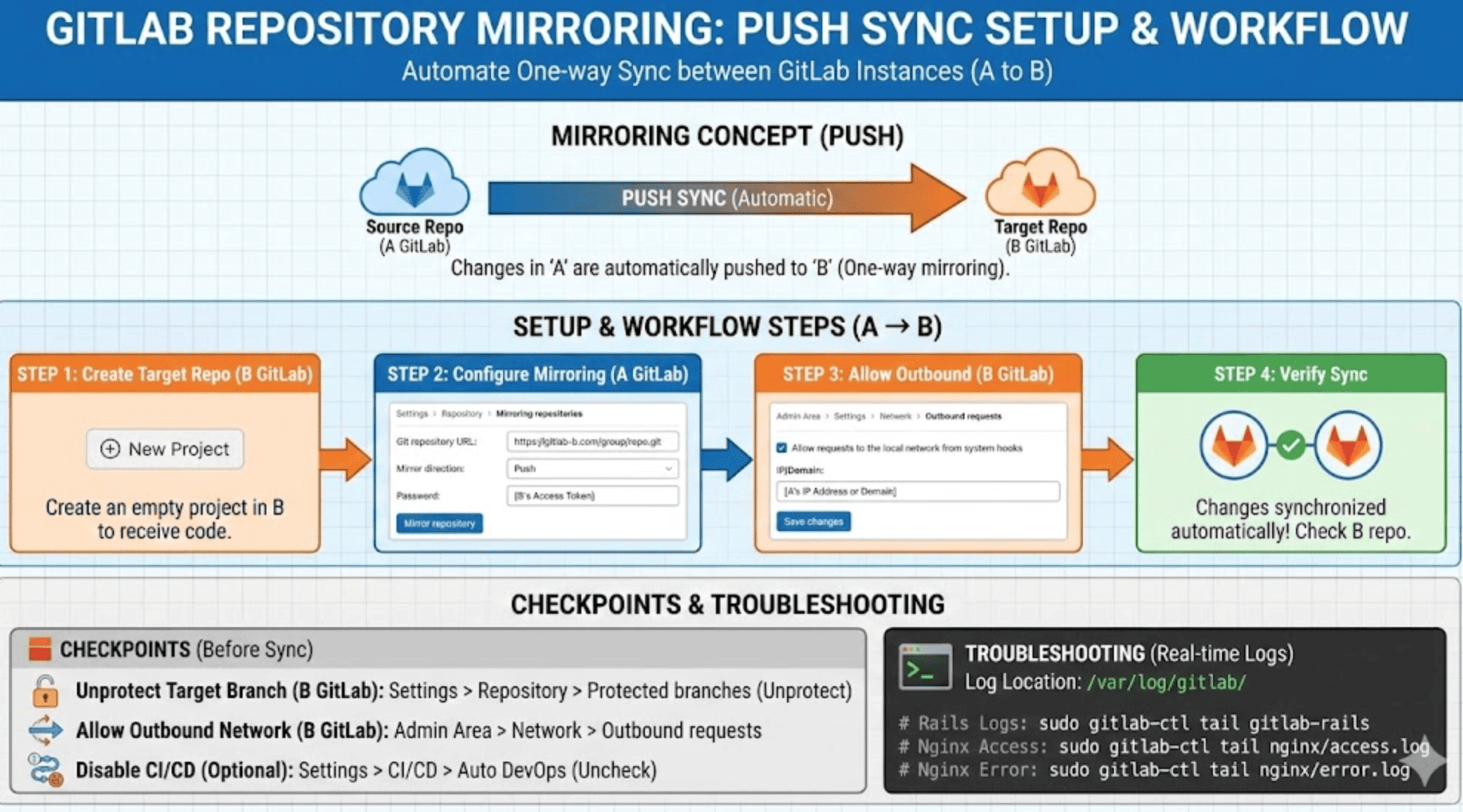
This article covers how to set up repository synchronization (push method) between repositories using GitLab’s Repository Mirroring feature.
GitLab natively supports push or pull-based mirroring with remote repositories, enabling efficient automatic replication, backup, and source code synchronization across multiple GitLab environments.
Pull mirroring is available in GitLab Premium and higher paid plans, while push-based one-way mirroring is commonly used by general users and in Community Edition.
This guide provides detailed explanations of GitLab → GitLab mirroring configuration, including setup steps, configuration screens, outbound network permissions, precautions, and real-time log verification methods.
Related Articles
- What is GitLab? Concepts and Installation
- GitLab Runner Concepts and Installation
- GitLab CI/CD
- GitLab Version Upgrade
- GitLab ArgoCD Integration
- GitLab CI Build (with GCP Artifact Registry, Harbor)
- GitLab CI Template Usage
What is GitLab Repository Mirroring?
GitLab has a Repository Mirroring feature that allows you to mirror from repository B in GitLab A to repository D in GitLab C (push method). You can also mirror to and from external sources.
Mirroring Methods
| Method | Description | Availability |
|---|---|---|
| Push | Mirror repository from GitLab to another location | All editions |
| Pull | Mirror repository from another location to GitLab | Premium/Ultimate only |
| Bidirectional | Two-way mirroring possible but can cause conflicts | Premium/Ultimate only |
Architecture Diagram
Source GitLab (A)                Target GitLab (B)
─────────────────               ──────────────────
Repository A                    Repository B
     │                               ↑
     │ Push Mirroring              │
     │ (Automatic Sync)             │
     └───────────────────────────────┘

     - Access Token Authentication
     - Periodic or Event-based Sync
     - Branch Protection Handling
Push Mirroring Configuration Steps
The process is straightforward. Here’s an example of mirroring from Repository A in GitLab A to Repository B in GitLab B using the push method.
Step 1: Create Repository on Target GitLab (B)
Create a new repository on GitLab B where mirrored content will be pushed:
# Via GitLab UI
GitLab B → New Project → Create blank project
- Project name: target-repo
- Visibility: Internal/Private
- Initialize with README: No (will be overwritten)
Step 2: Generate Access Token on Target GitLab (B)
Create a personal access token with appropriate permissions:
Navigate to:
GitLab B → User Settings → Access Tokens
Token Configuration:
Token name: mirror-token
Scopes:
  ☑ api
  ☑ write_repository
Expiration date: [Select appropriate date]
Save the token immediately - you won’t be able to see it again!
Example token: glpat-xxxxxxxxxxxxxxxxxxxx
Step 3: Configure Mirroring on Source GitLab (A)
Navigate to:
GitLab A → Your Project → Settings → Repository → Mirroring repositories
Configuration:
Git repository URL: https://gitlab-b.example.com/username/target-repo.git
Mirror direction: Push
Authentication method: Password
Password: [Paste access token from Step 2]
Step 4: Allow Outbound Requests on Target GitLab (B)
Navigate to:
GitLab B → Admin Area → Settings → Network → Outbound requests
Enable:
☑ Allow requests to the local network from system hooks

Add to allowlist:
- gitlab-a.example.com
- OR specific IP: 192.168.1.100
Detailed Configuration Screenshots
Source GitLab (A) - Mirroring Settings
# Repository → Settings → Repository → Mirroring repositories

Git repository URL: https://gitlab-b.example.com/group/project.git
Mirror direction: Push
Authentication method: Password
Password: glpat-xxxxxxxxxxxxxxxxxxxx
Keep divergent refs: ☐ (unchecked)
Mirror only protected branches: ☐ (unchecked)
Click: Mirror repository
Target GitLab (B) - Network Settings
# Admin Area → Settings → Network → Outbound requests

Allow requests to the local network from system hooks: ☑ (checked)

Local IP addresses and domain names that hooks and integrations can access:
- gitlab-a.example.com
- 192.168.1.100/32
Click: Save changes
Verification and Testing
1. Manual Mirror Update
After configuration, test the mirroring:
# On Source GitLab (A)
GitLab A → Project → Settings → Repository → Mirroring repositories
Click: Update now (refresh icon)
Expected result:
✓ Successfully updated
Last successful update: just now
2. Automatic Mirroring Trigger
Push a commit to trigger automatic mirroring:
# Make a change
echo "Test mirroring" > test.txt
git add test.txt
git commit -m "Test: Verify mirroring"
git push origin main

# Check Target GitLab (B)
# The commit should appear within a few seconds
3. Check Mirroring Status
# View mirror update history
GitLab A → Project → Settings → Repository → Mirroring repositories

Status indicators:
✓ Green checkmark: Successfully mirrored
✗ Red X: Mirror failed
⟳ Rotating arrow: Mirror in progress
Log Verification
GitLab Log Locations
# Base log directory
/var/log/gitlab/

# Key log files
/var/log/gitlab/gitlab-rails/production.log  # Rails application logs
/var/log/gitlab/nginx/access.log            # NGINX access logs
/var/log/gitlab/nginx/error.log             # NGINX error logs
/var/log/gitlab/sidekiq/current             # Background job logs
View Real-time Logs
# View all logs in real-time
sudo gitlab-ctl tail

# View specific service logs
sudo gitlab-ctl tail gitlab-rails
sudo gitlab-ctl tail nginx
sudo gitlab-ctl tail sidekiq

# Search for mirroring-related logs
sudo gitlab-ctl tail gitlab-rails | grep -i mirror

# View last 100 lines of production log
sudo tail -n 100 /var/log/gitlab/gitlab-rails/production.log
Check Specific Mirror Errors
# Search for mirror errors
sudo grep -i "mirror.*error" /var/log/gitlab/gitlab-rails/production.log

# Check authentication issues
sudo grep -i "authentication.*failed" /var/log/gitlab/gitlab-rails/production.log

# View network connection problems
sudo grep -i "connection.*refused" /var/log/gitlab/nginx/error.log
Important Precautions
1. Disable Protected Branches
Protected branches on the target repository will prevent mirroring.
Navigate to:
GitLab B → Project → Settings → Repository → Protected branches
Actions:
Find: main (or other protected branches)
Click: Unprotect
Alternative (keep protection but allow force push):
Protected branch: main
Allowed to push: Maintainers
Allowed to force push: ☑ (checked)
2. Configure Network Outbound Settings
Admin-level configuration required:
# Admin Area → Settings → Network → Outbound requests

Options to enable:
☑ Allow requests to the local network from system hooks
☑ Allow requests to the local network from web hooks and integrations

Allowed IP ranges:
- 10.0.0.0/8      (if using private network)
- 172.16.0.0/12   (if using private network)
- 192.168.0.0/16  (if using private network)
3. Disable CI/CD (If Needed)
Prevent duplicate CI/CD runs on mirrored repository:
Auto DevOps:
GitLab B → Project → Settings → CI/CD → Auto DevOps
☐ Default to Auto DevOps pipeline (uncheck)
CI/CD Visibility:
GitLab B → Project → Settings → General → Visibility
CI/CD → Disabled
Advanced Configuration
1. Mirror Specific Branches Only
# On Source GitLab (A)
Mirror only protected branches: ☑ (checked)

# Then protect only branches you want to mirror
Settings → Repository → Protected branches
Add protected branch: main
Add protected branch: develop
2. SSH-based Mirroring
More secure than password-based authentication:
Generate SSH key on Source GitLab:
ssh-keygen -t ed25519 -C "gitlab-mirror" -f ~/.ssh/gitlab_mirror
Add public key to Target GitLab:
GitLab B → Project → Settings → Repository → Deploy keys
Key: [Paste contents of gitlab_mirror.pub]
Title: Mirror from GitLab A
☑ Write access allowed
Configure on Source GitLab:
Git repository URL: git@gitlab-b.example.com:username/target-repo.git
Authentication method: SSH public key
SSH private key: [Paste contents of gitlab_mirror]
3. Bidirectional Mirroring Setup
⚠️ Warning: Can cause conflicts. Use with caution.
On GitLab A (Push):
Settings → Repository → Mirroring repositories
Direction: Push
URL: https://gitlab-b.example.com/username/repo.git
On GitLab B (Pull) - Premium/Ultimate only:
Settings → Repository → Mirroring repositories
Direction: Pull
URL: https://gitlab-a.example.com/username/repo.git
Conflict resolution strategy:
- Always designate one as the source of truth
- Use branch protection to prevent conflicts
- Regular manual review of divergent commits
Troubleshooting Common Issues
Issue 1: “Project Not Found” Error
Symptoms:
Failed to mirror: Project not found
Causes:
- Incorrect repository URL
- Insufficient access permissions
- Repository is private but token lacks scope
Solutions:
# Verify URL is correct
# Correct format:
https://gitlab.example.com/username/repo.git

# Verify token has required scopes
- api
- write_repository

# Check repository visibility
Target Repo → Settings → General → Visibility
Must be accessible to token owner
Issue 2: “Protected Branch” Error
Symptoms:
Failed to push to protected branch 'main'
Solutions:
Option 1: Remove protection:
GitLab B → Settings → Repository → Protected branches
Click: Unprotect
Option 2: Allow force push:
Protected branch: main
Allowed to force push: ☑ (checked)
Option 3: Use deploy token with write access:
GitLab B → Settings → Repository → Deploy tokens
Scopes:
  ☑ read_repository
  ☑ write_repository
Issue 3: Network Connection Refused
Symptoms:
Connection refused - connect(2) for "gitlab-b.example.com" port 443
Diagnosis:
# Test network connectivity from GitLab A server
sudo gitlab-rails console

# In Rails console
require 'net/http'
uri = URI('https://gitlab-b.example.com')
response = Net::HTTP.get_response(uri)
puts response.code
Solutions:
- Enable outbound requests:
Admin Area → Settings → Network → Outbound requests ☑ Allow requests to the local network from system hooks - Add to allowlist:
Add: gitlab-b.example.com OR IP: 192.168.1.100 - Check firewall rules:
# On GitLab A server
telnet gitlab-b.example.com 443

# On GitLab B server
sudo ufw status
sudo ufw allow from <GitLab-A-IP> to any port 443
Issue 4: Authentication Failed
Symptoms:
Authentication failed: Invalid username or password
Solutions:
- Regenerate access token:
GitLab B → User Settings → Access Tokens Revoke old token Create new token with correct scopes - Verify token in mirroring config:
GitLab A → Settings → Repository → Mirroring repositories Edit mirror Update password field with new token - Check token expiration:
GitLab B → User Settings → Access Tokens
Verify: Token not expired
Issue 5: Mirror Updates Too Slow
Symptoms:
- Changes take several minutes to appear
- Mirror shows as “pending” for long time
Diagnosis:
# Check Sidekiq queue
sudo gitlab-rails console
Sidekiq::Queue.all.each { |q| puts "#{q.name}: #{q.size}" }

# Check mirror update interval
GitLab A → Settings → Repository → Mirroring repositories
View: Last update timestamp
Solutions:
- Increase Sidekiq workers:
# /etc/gitlab/gitlab.rb sidekiq['concurrency'] = 25 - Trigger manual update:
Click: Update now button - Check system resources:
top
df -h
free -m
Use Cases and Best Practices
Use Case 1: Backup Strategy
Scenario: Automated backups to external GitLab
Primary GitLab (Production):
  - Main development happens here
  - Push mirror to backup GitLab

Backup GitLab (DR):
  - Read-only mirror
  - Disaster recovery site
  - CI/CD disabled
Configuration:
# On Primary GitLab
Mirror to: https://backup-gitlab.example.com/backups/project.git
Update frequency: Every push
Keep divergent refs: No
Use Case 2: Multi-Region Development
Scenario: Teams in different regions
US GitLab:
  - Primary development
  - Push mirror to EU GitLab

EU GitLab:
  - Mirror for read access
  - Faster clone times for EU team
  - Pull request submitted to US GitLab
Use Case 3: Vendor Integration
Scenario: Share code with external partner
Internal GitLab:
  - Full codebase
  - Push specific branches to external

External GitLab:
  - Only public-facing features
  - Mirror only 'release' branch
Configuration:
# On Internal GitLab
Mirror only protected branches: Yes
Protect only: release branch
Monitoring and Maintenance
Health Checks
Automated Monitoring Script
Maintenance Tasks
# Periodically verify mirror integrity
# Compare commit hashes
git ls-remote https://source-gitlab.com/project.git HEAD
git ls-remote https://target-gitlab.com/project.git HEAD

# Should match for successful mirror
Security Considerations
1. Token Security
# Use tokens with minimal required scopes
Recommended scopes:
- write_repository
- read_repository

Avoid:
- api (full API access)
- sudo (admin impersonation)
2. Network Security
# Restrict allowed hosts
Admin Area → Settings → Network → Outbound requests
Use specific IPs/domains, not 0.0.0.0/0
3. Audit Logging
# Enable audit events
Admin Area → Settings → Network → Outbound requests
☑ Allow requests to the local network from system hooks

# Review audit log
Admin Area → Monitoring → Audit Events
Filter by: Repository push mirroring
Conclusion
GitLab’s Repository Mirroring feature is a highly useful tool for code synchronization automation in multi-GitLab environments or with external systems.
Key Benefits
✅ Automated Synchronization: No manual intervention needed
✅ Backup & DR: Reliable disaster recovery strategy
✅ Multi-region Support: Faster access for distributed teams
✅ Vendor Collaboration: Controlled code sharing with partners
✅ GitOps Ready: Integrates with CI/CD workflows
Essential Checklist
Before enabling mirroring, verify:
- Protected Branch Settings: Disable or allow force push on target
- Outbound Request Permissions: Explicitly allow network requests
- CI/CD Configuration: Disable if duplicate runs not wanted
- Access Token Scopes: Minimum required permissions only
- Monitoring Setup: Automated alerts for mirror failures
Future Enhancements
Consider these advanced configurations:
- Bidirectional mirroring for true multi-master setup
- SSH-based authentication for enhanced security
- GitHub ↔ GitLab integration for cross-platform workflows
- Automated testing of mirrored repositories
- Multi-hop mirroring for complex topologies
With proper configuration, GitLab mirroring provides reliable, automated repository synchronization that forms the foundation of robust GitOps and DevOps practices.

Comments