15 min to read
Essential Git Commands: A Complete Developer's Guide
Master the fundamental Git commands and workflows for effective version control
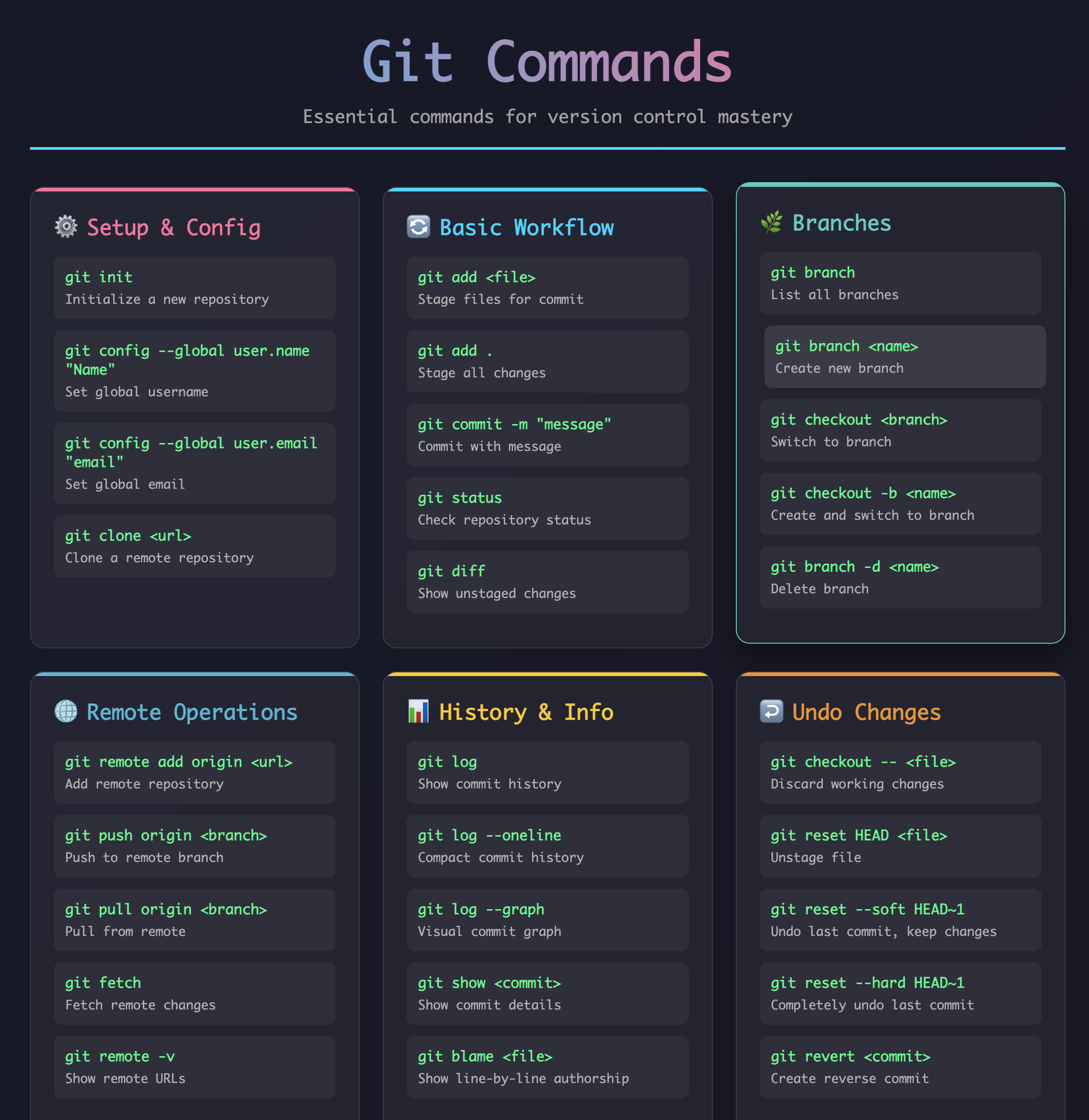
Overview
Git is the most widely used distributed version control system in modern software development. It tracks changes in source code during development, enables collaboration among multiple developers, and maintains a complete history of project modifications.
Understanding Git’s fundamental commands is essential for any developer. These commands form the backbone of daily development workflows, from initializing repositories to managing complex branching strategies.
This comprehensive guide covers the essential Git commands with practical examples, common workflows, and best practices. Whether you’re a beginner starting your Git journey or an experienced developer looking to refresh your knowledge, this guide provides the foundation for effective version control.
We’ll explore repository initialization, staging and committing changes, branch management, remote repository operations, and troubleshooting techniques that every developer should master.
Repository Initialization and Configuration
Before working with Git, you need to initialize a repository and configure your environment. These fundamental setup commands establish the foundation for all Git operations.
Initializing a Repository
Creating a new Git repository transforms any directory into a version-controlled project:
# Initialize a new Git repository in current directory
git init

# Initialize a new repository in a specific directory
git init my-project

# Initialize a bare repository (for servers)
git init --bare
Essential Configuration
Setting up your identity and preferences ensures proper attribution and optimal Git behavior:
# Set global user information
git config --global user.name "Your Name"
git config --global user.email "your.email@example.com"

# Set default branch name
git config --global init.defaultBranch main

# Configure default editor
git config --global core.editor "code --wait"

# View current configuration
git config --list
git config user.name
| Configuration Level | Scope | Flag | File Location |
|---|---|---|---|
| System | All users on the system | --system | /etc/gitconfig |
| Global | Current user | --global | ~/.gitconfig |
| Local | Current repository | --local | .git/config |
Core Workflow Commands
The Git workflow revolves around three main areas: working directory, staging area (index), and repository. Understanding how to move changes between these areas is fundamental to Git mastery.
Git's three-stage workflow: Working Directory → Staging Area → Repository → Remote Repository
Staging Changes
The staging area allows you to selectively choose which changes to include in your next commit:
# Add specific files to staging area
git add file1.txt file2.js

# Add all changes in current directory
git add .

# Add all changes in the repository
git add -A

# Add parts of a file interactively
git add -p filename.txt

# Remove file from staging area (keep in working directory)
git reset HEAD filename.txt
Committing Changes
Commits create snapshots of your staged changes with descriptive messages:
# Commit with inline message
git commit -m "Add user authentication feature"

# Commit with detailed message using editor
git commit

# Commit all tracked changes (skip staging)
git commit -am "Fix critical bug in payment processing"

# Amend the last commit
git commit --amend -m "Updated commit message"
Viewing Repository Status
Monitoring your repository state helps track changes and understand current workflow position:
# Show working tree status
git status

# Show status in short format
git status -s

# Show branch and tracking info
git status -b
Branch Management
Branches enable parallel development and feature isolation. Mastering branch operations is crucial for effective Git workflows.
Branch workflow showing feature development and integration
Creating and Switching Branches
Branch creation and navigation commands for managing parallel development:
# Create a new branch
git branch feature/new-dashboard

# Create and switch to new branch
git checkout -b feature/user-profile

# Switch to existing branch
git checkout main
git switch main  # Modern alternative

# Create branch from specific commit
git checkout -b hotfix/security-patch abc123f
Branch Information and Management
Commands for viewing and managing branch information:
# List all local branches
git branch

# List all branches (local and remote)
git branch -a

# List remote branches only
git branch -r

# Show branch with last commit info
git branch -v

# Delete local branch
git branch -d feature/completed-feature

# Force delete unmerged branch
git branch -D feature/abandoned-feature

# Rename current branch
git branch -m new-branch-name
Remote Repository Operations
Working with remote repositories enables collaboration and backup. These commands manage connections between local and remote repositories.
Collaborative workflow: Feature branch development with remote synchronization
Adding and Managing Remotes
Remote repository configuration for collaboration:
# Add a remote repository
git remote add origin https://github.com/username/repository.git

# List all remotes
git remote -v

# Show remote repository information
git remote show origin

# Rename a remote
git remote rename origin upstream

# Remove a remote
git remote remove old-origin
Pushing and Pulling Changes
Synchronizing changes between local and remote repositories:
# Push current branch to remote
git push origin main

# Push and set upstream tracking
git push -u origin feature/new-feature

# Push all branches
git push --all origin

# Pull changes from remote
git pull origin main

# Fetch without merging
git fetch origin

# Pull with rebase instead of merge
git pull --rebase origin main
Viewing History and Changes
Understanding project history and tracking changes is essential for debugging and code review.
Commit History
Commands for exploring repository history:
# Show commit history
git log

# Show compact one-line format
git log --oneline

# Show last 5 commits
git log -5

# Show commits with changes
git log --stat

# Show commits in graph format
git log --graph --oneline --all

# Show commits by specific author
git log --author="John Doe"

# Show commits in date range
git log --since="2 weeks ago" --until="1 week ago"
Examining Changes
Commands for viewing differences and changes:
# Show unstaged changes
git diff

# Show staged changes
git diff --staged

# Show changes between branches
git diff main feature/new-feature

# Show changes in specific file
git diff HEAD~1 HEAD filename.txt

# Show changes between commits
git diff abc123f def456g
Undoing Changes
Git provides multiple ways to undo changes depending on the situation. Understanding these commands prevents data loss and enables confident experimentation.
Reset vs Revert: Different approaches to undoing problematic commits
| Scenario | Command | Effect | Safety |
|---|---|---|---|
| Discard working changes | git checkout -- file.txt | Reverts file to last commit | ⚠️ Destructive |
| Unstage changes | git reset HEAD file.txt | Removes from staging area | ✅ Safe |
| Undo last commit | git reset --soft HEAD~1 | Keep changes staged | ✅ Safe |
| Completely undo commit | git reset --hard HEAD~1 | Removes commit and changes | ⚠️ Destructive |
| Create reverse commit | git revert abc123f | New commit that undoes changes | ✅ Safe |
Practical Undo Examples
Common scenarios and their solutions:
# Discard all working directory changes
git checkout .

# Undo specific file changes
git checkout HEAD -- filename.txt

# Unstage all files
git reset HEAD

# Soft reset - undo commit but keep changes staged
git reset --soft HEAD~1

# Mixed reset - undo commit and unstage changes
git reset HEAD~1

# Hard reset - completely remove commit and changes
git reset --hard HEAD~1

# Revert a specific commit (safe for shared repositories)
git revert abc123f

# Interactive revert for merge commits
git revert -m 1 merge-commit-hash
Essential Workflow Patterns
Combining Git commands into effective workflows improves development efficiency and code quality.
Complex workflow: Multiple feature branches and hotfix development
Feature Development Workflow
A complete feature development cycle:
Feature development: Complete cycle from branch creation to merge
# 1. Start with updated main branch
git checkout main
git pull origin main

# 2. Create feature branch
git checkout -b feature/user-dashboard

# 3. Make changes and commit regularly
git add components/Dashboard.js
git commit -m "Add user dashboard component"

git add styles/dashboard.css
git commit -m "Style user dashboard layout"

# 4. Push feature branch
git push -u origin feature/user-dashboard

# 5. Update with latest main (if needed)
git checkout main
git pull origin main
git checkout feature/user-dashboard
git rebase main

# 6. Final push and merge
git push origin feature/user-dashboard
# Create pull request via GitHub/GitLab interface
Hotfix Workflow
Quick fixes for production issues:
Hotfix workflow: Emergency fix deployed directly from main branch
# 1. Create hotfix from main
git checkout main
git pull origin main
git checkout -b hotfix/security-vulnerability

# 2. Apply fix
git add security/authentication.js
git commit -m "Fix authentication bypass vulnerability"

# 3. Deploy immediately
git push -u origin hotfix/security-vulnerability

# 4. Merge to main and develop
git checkout main
git merge hotfix/security-vulnerability
git push origin main

# 5. Clean up
git branch -d hotfix/security-vulnerability
git push origin --delete hotfix/security-vulnerability
Advanced Tips and Best Practices
Git Flow model: Structured branching strategy for larger projects
Commit Message Best Practices
Well-structured commit messages improve project maintainability:
# Good commit message structure
git commit -m "feat: add user authentication with JWT

- Implement login/logout functionality
- Add password hashing with bcrypt
- Create JWT token generation and validation
- Add user session management

Fixes #123"

# Use conventional commit format
git commit -m "fix: resolve memory leak in image processing"
git commit -m "docs: update API documentation for v2.0"
git commit -m "refactor: extract common utility functions"
Useful Aliases
Create shortcuts for frequently used commands:
# Set up useful aliases
git config --global alias.st status
git config --global alias.co checkout
git config --global alias.br branch
git config --global alias.cm commit
git config --global alias.lg "log --oneline --graph --all"
git config --global alias.unstage "reset HEAD --"
git config --global alias.last "log -1 HEAD"
git config --global alias.visual "!gitk"
Stashing Work in Progress
Temporarily save changes without committing:
# Stash current changes
git stash

# Stash with description
git stash save "Work in progress on login feature"

# List all stashes
git stash list

# Apply most recent stash
git stash apply

# Apply and remove stash
git stash pop

# Apply specific stash
git stash apply stash@{1}

# Drop a stash
git stash drop stash@{0}
Troubleshooting Common Issues
Resolving Merge Conflicts
When Git cannot automatically merge changes:
# When merge conflicts occur during pull/merge
git status  # Shows conflicted files

# Edit conflicted files (look for conflict markers)
# <<<<<<< HEAD
# Your changes
# =======
# Their changes
# >>>>>>> branch-name

# After resolving conflicts
git add conflicted-file.txt
git commit -m "Resolve merge conflict in conflicted-file.txt"
Recovering Lost Commits
Using Git’s reflog to recover seemingly lost work:
# Show reference log
git reflog

# Recover lost commit
git checkout abc123f

# Create branch from recovered commit
git checkout -b recovery-branch abc123f

# Or reset to recovered commit
git reset --hard abc123f
Conclusion
Mastering Git’s fundamental commands empowers developers to work confidently with version control, collaborate effectively, and maintain clean project histories.
The commands covered in this guide form the foundation of professional Git workflows. Regular practice with these operations builds muscle memory and helps avoid common pitfalls that can disrupt development productivity.
Remember that Git’s power lies not just in individual commands, but in combining them into effective workflows that match your team’s development process. Start with the basics, gradually incorporate advanced features, and always prioritize clear communication through meaningful commit messages.
Effective Git usage becomes second nature with practice. Focus on understanding the concepts behind each command rather than memorizing syntax, and you’ll be able to adapt to any Git workflow or challenge you encounter.


Comments