24 min to read
Building an On-Premises LLM System with Ollama + Open WebUI
Complete guide to deploying enterprise AI infrastructure with NVIDIA GPU acceleration, NFS storage, and Docker orchestration
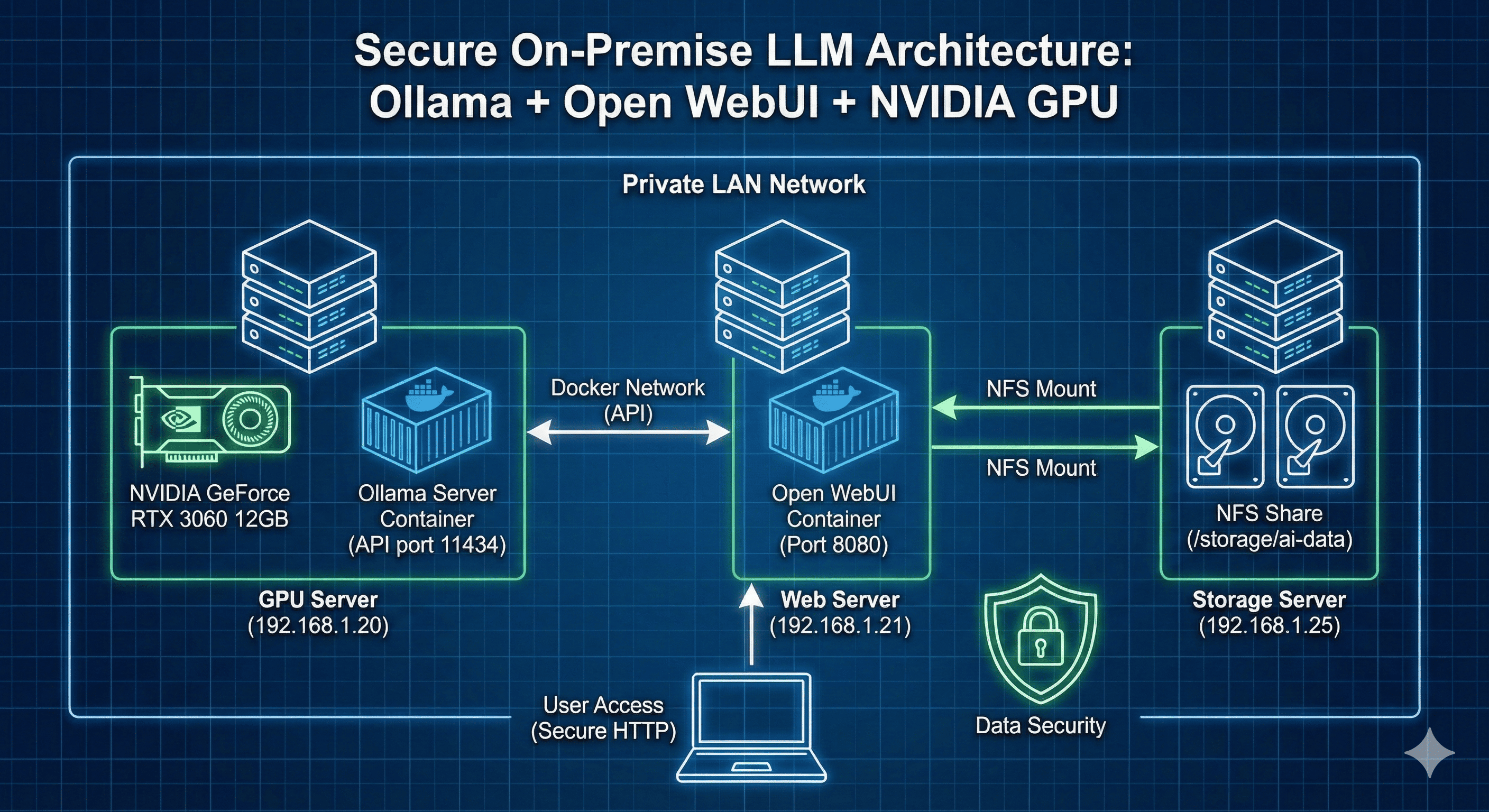
Table of Contents
- Overview
- System Architecture & Requirements
- Step 1: NVIDIA Driver Installation
- Step 2: Docker & NVIDIA Container Toolkit
- Step 3: NFS Storage Configuration
- Step 4: Docker Network Setup
- Step 5: Ollama Server Deployment
- Step 6: Open WebUI Installation
- Step 7: API Integration & Usage
- Step 8: Monitoring & Maintenance
- Troubleshooting Guide
- Security Considerations
- Performance Optimization
- Conclusion
- References
Overview
While commercial LLM services like ChatGPT and Claude have become mainstream, security-conscious enterprise environments often cannot transmit sensitive data to external APIs. Building an on-premises LLM infrastructure enables organizations to leverage AI capabilities while maintaining complete data sovereignty and security control.
This comprehensive guide covers the entire process of deploying a production-ready internal LLM system using Ollama for model serving and Open WebUI for the user interface. We’ll implement NFS-based storage management and Docker Compose orchestration, providing a complete solution ready for immediate enterprise deployment.
The architecture prioritizes security, cost efficiency, and operational simplicity, making it ideal for DevOps engineers and infrastructure teams building AI capabilities for their organizations.
Key Benefits: On-premises deployment eliminates API costs, ensures data privacy, provides unlimited usage, and maintains full infrastructure control while delivering ChatGPT-like user experience to internal teams.
System Architecture & Requirements
Hardware Environment
This implementation uses the following system specifications:
GPU Server (192.168.1.20)
| Component | Specification |
|---|---|
| CPU | Intel Xeon 6-core |
| RAM | 32GB |
| GPU | NVIDIA GeForce RTX 3060 12GB |
| OS | Ubuntu 24.04 LTS |
| Purpose | Ollama model inference server |
Web Server (192.168.1.21)
| Component | Specification |
|---|---|
| CPU | 4-core |
| RAM | 16GB |
| OS | Ubuntu 24.04 LTS |
| Purpose | Open WebUI frontend |
Storage Server (192.168.1.25)
| Component | Specification |
|---|---|
| NFS Export | /storage/ai-data (shared directory) |
| Purpose | Centralized model storage |
GPU Compatibility Verification
First, verify your installed GPU specifications:
lspci | grep -iE "vga|display|3d"
# Expected output:
# 01:00.0 VGA compatible controller: NVIDIA Corporation GA106 [GeForce RTX 3060]
RTX 3060 Key Specifications:
- Architecture: Ampere (GA106)
- CUDA Cores: 3,584
- VRAM: 12GB GDDR6
- Memory Bus: 192-bit
- CUDA Compute Capability: 8.6
- Recommended Driver: 525+ (535 stable)
- TDP: 170W
Architecture Diagram
┌─────────────────────────────────────────────────────────┐
│                   NFS Storage Server                     │
│                  (192.168.1.25)                          │
│         /storage/ai-data/{models,webui}                  │
└────────────────────┬────────────────────────────────────┘
                     │
        ┌────────────┴────────────┐
        │                         │
┌───────▼──────────┐     ┌───────▼──────────┐
│  GPU Server      │     │  Web Server      │
│  (192.168.1.20)  │     │  (192.168.1.21)  │
│                  │     │                  │
│  ┌────────────┐  │     │  ┌────────────┐  │
│  │  Ollama    │  │     │  │ Open WebUI │  │
│  │  Container │  │     │  │  Container │  │
│  │            │  │     │  │            │  │
│  │ RTX 3060   │  │     │  │  Port 8080 │  │
│  │ 12GB VRAM  │  │     │  └────────────┘  │
│  └────────────┘  │     │                  │
│  Port: 11434     │     │                  │
└──────────────────┘     └──────────────────┘
         │                        │
         └────────┬───────────────┘
                  │
          Docker Network: ai_network
Step 1: NVIDIA Driver Installation
Secure Boot Status Check
mokutil --sb-state
# Output will be either:
# SecureBoot disabled  → Direct installation possible
# SecureBoot enabled   → MOK (Machine Owner Key) enrollment required post-install
If Secure Boot is enabled, you’ll need to complete the MOK enrollment process after driver installation.
Available Driver Version Check
# Check available driver versions in repository
apt-cache search nvidia-driver

# View detailed information for specific version
apt-cache show nvidia-driver-535 | grep Version
# Example output:
# Version: 535.288.01-0ubuntu0.24.04.1
Alternatively, verify the latest version on NVIDIA’s official website:
- URL: https://www.nvidia.com/Download/index.aspx
- Product Type: GeForce
- Product Series: GeForce RTX 30 Series
- Product: GeForce RTX 3060
- Operating System: Linux 64-bit
Driver Installation Process
# Update system packages
sudo apt update

# Install NVIDIA driver
sudo apt install -y nvidia-driver-535

# Reboot system
sudo reboot
MOK Enrollment (If Secure Boot Enabled)
After reboot, if Secure Boot is enabled, a blue MOK management screen will appear:
- Select “Enroll MOK”
- Select “Continue”
- Enter the password you set during installation
- Select “Reboot”
Installation Verification
nvidia-smi
Expected output for successful installation:
Wed Feb  5 10:15:23 2026
+---------------------------------------------------------------------------------------+
| NVIDIA-SMI 535.288.01             Driver Version: 535.288.01   CUDA Version: 12.2     |
|-----------------------------------------+----------------------+----------------------+
| GPU  Name                 Persistence-M | Bus-Id        Disp.A | Volatile Uncorr. ECC |
| Fan  Temp   Perf          Pwr:Usage/Cap |         Memory-Usage | GPU-Util  Compute M. |
|=========================================+======================+======================|
|   0  NVIDIA GeForce RTX 3060        Off | 00000000:01:00.0 Off |                  N/A |
|  0%   35C    P8              15W / 170W |      0MiB / 12288MiB |      0%      Default |
+---------------------------------------------------------------------------------------+
Step 2: Docker & NVIDIA Container Toolkit
Docker Installation
# Verify Docker installation
docker --version

# If not installed, install Docker
sudo apt update
sudo apt install -y docker.io
sudo systemctl enable --now docker

# Optional: Add current user to docker group
sudo usermod -aG docker $USER
# Note: Logout and login required for group changes to take effect
NVIDIA Container Toolkit Installation
The NVIDIA Container Toolkit enables GPU access from within Docker containers, essential for running Ollama with GPU acceleration.
Docker Runtime Configuration
# Configure Docker to use NVIDIA runtime
sudo nvidia-ctk runtime configure --runtime=docker

# Restart Docker service
sudo systemctl restart docker
GPU Access Test
docker run --rm --gpus all nvidia/cuda:12.2.0-base-ubuntu22.04 nvidia-smi
If GPU information is displayed correctly, the setup is complete and GPU acceleration is available to containers.
Step 3: NFS Storage Configuration
Centralizing model files and data through NFS enables efficient storage sharing across multiple servers and simplifies backup management.
Client Installation & Mounting
# Install NFS client
sudo apt install -y nfs-common

# Create mount points
sudo mkdir -p /data/llm-models
sudo mkdir -p /data/webui-storage

# Mount NFS shares
sudo mount -t nfs4 192.168.1.25:/storage/ai-data/models /data/llm-models
sudo mount -t nfs4 192.168.1.25:/storage/ai-data/webui /data/webui-storage

# Verify mounts
df -h | grep nfs
Persistent Mount Configuration
Configure /etc/fstab for automatic mounting after reboots:
sudo nano /etc/fstab

# Add these lines:
192.168.1.25:/storage/ai-data/models  /data/llm-models     nfs4  defaults,_netdev,rw  0  0
192.168.1.25:/storage/ai-data/webui   /data/webui-storage  nfs4  defaults,_netdev,rw  0  0
Configuration parameters explained:
defaults: Use default NFS mount options_netdev: Wait for network before mountingrw: Read-write access0 0: No dump, no fsck
Verify configuration:
sudo mount -a
df -h | grep nfs
Permission Configuration
# Ollama data directory permissions
sudo chown -R root:root /data/llm-models
sudo chmod 755 /data/llm-models

# Open WebUI data directory permissions
sudo chown -R root:root /data/webui-storage
sudo chmod 755 /data/webui-storage
Step 4: Docker Network Setup
Create a shared Docker network to enable communication between Ollama and Open WebUI containers:
# Create Docker bridge network
docker network create ai_network

# Verify network creation
docker network ls
# Expected output should include:
# NETWORK ID     NAME         DRIVER    SCOPE
# abc123def456   ai_network   bridge    local
This dedicated network provides:
- Isolation: Containers communicate only within this network
- Service Discovery: Containers can reference each other by name
- Security: Network-level separation from other containers
Step 5: Ollama Server Deployment
Docker Compose Configuration
Create the Ollama service configuration with GPU acceleration and NFS storage:
mkdir -p /opt/ollama
cat > /opt/ollama/docker-compose.yml << 'EOF'
version: '3.8'

services:
  ollama:
    image: ollama/ollama:0.15.4
    container_name: ollama-server
    restart: unless-stopped
    runtime: nvidia

    ports:
      - "11434:11434"

    volumes:
      - /data/llm-models:/root/.ollama

    environment:
      # Model memory retention settings
      # -1: Keep loaded indefinitely (never unload, always in VRAM)
      # 0: Unload immediately after use (free VRAM instantly)
      # 5m: Unload after 5 minutes (default)
      # 30m: Unload after 30 minutes
      # 1h: Unload after 1 hour
      #
      # Setting to -1:
      #   Pros: Instant response after first load (no loading delay)
      #   Cons: Constant VRAM occupation (qwen2.5-coder:14b = ~8GB permanently)
      #
      # Recommendation: -1 for frequent use, 30m for occasional use
      - OLLAMA_KEEP_ALIVE=-1
      - NVIDIA_VISIBLE_DEVICES=all
      - OLLAMA_ORIGINS=*

    networks:
      - ai_network

networks:
  ai_network:
    name: ai_network
    external: true
EOF
Environment Variable Detailed Explanation
| Variable | Description |
|---|---|
| OLLAMA_KEEP_ALIVE | Controls model memory retention duration |
-1 |
Permanent retention (first load only, then instant responses) |
5m (default) |
5-minute retention (balances memory and responsiveness) |
30m |
30-minute retention (recommended for regular use) |
0 |
Immediate unload (maximum memory conservation) |
| NVIDIA_VISIBLE_DEVICES | Specifies which GPUs to use (all = all available GPUs) |
| OLLAMA_ORIGINS | CORS configuration (* = allow all origins) |
KEEP_ALIVE Configuration Guide
| Usage Pattern | Recommendation | Rationale |
|---|---|---|
| Frequent (10+ times/day) | -1 |
Fast responses justify VRAM occupation |
| Regular (3-10 times/day) | 30m or 1h |
Balance between speed and memory efficiency |
| Occasional (1-2 times/day) | 5m (default) |
Maximize memory availability |
Container Deployment
# Navigate to configuration directory
cd /opt/ollama

# Start container
docker-compose up -d

# Monitor logs
docker-compose logs -f

# Check container status
docker-compose ps
GPU Usage Verification
# Execute nvidia-smi inside container
docker exec -it ollama-server nvidia-smi

# Verify NFS mount
docker exec -it ollama-server df -h /root/.ollama
LLM Model Download
Ollama provides various models at https://ollama.com/library. Recommended models for RTX 3060 12GB:
1) DeepSeek-Coder-V2 16B (Coding Specialist, 10GB)
docker exec -it ollama-server ollama pull deepseek-coder-v2:16b
2) Qwen2.5-Coder 14B (Coding, 9.7GB)
docker exec -it ollama-server ollama pull qwen2.5-coder:14b
3) Qwen3 14B (General Purpose, 11GB)
docker exec -it ollama-server ollama pull qwen3:14b
4) Qwen2.5-Coder 32B (High Performance Coding, 21GB - CPU Offloading)
docker exec -it ollama-server ollama pull qwen2.5-coder:32b
Verify downloaded models:
ls -lh /data/llm-models/models/
Model Testing
# Test DeepSeek 16B
docker exec -it ollama-server ollama run deepseek-coder-v2:16b
>>> Write a Python function to reverse a string

# Exit: Ctrl+D or type /bye
Model Performance Comparison (RTX 3060 12GB)
DeepSeek-Coder-V2 16B (10GB)
docker exec -it ollama-server ollama ps

NAME                     ID              SIZE     PROCESSOR    CONTEXT
deepseek-coder-v2:16b    63fb193b3a9b    10 GB    100% GPU     4096
Memory Usage:
|   0  NVIDIA GeForce RTX 3060        Off | 00000000:01:00.0 Off |                  N/A |
|  0%   49C    P2              26W / 170W |   9898MiB / 12288MiB |      0%      Default |
Qwen2.5-Coder 14B (9.7GB)
NAME                 ID              SIZE      PROCESSOR    CONTEXT
qwen2.5-coder:14b    9ec8897f747e    9.7 GB    100% GPU     4096
Memory Usage:
|   0  NVIDIA GeForce RTX 3060        Off | 00000000:01:00.0 Off |                  N/A |
|  0%   50C    P2              44W / 170W |   9482MiB / 12288MiB |      0%      Default |
Qwen2.5-Coder 32B (21GB - CPU Offloading)
NAME                 ID              SIZE     PROCESSOR          CONTEXT
qwen2.5-coder:32b    b92d6a0bd47e    21 GB    45%/55% CPU/GPU    4096
Memory Usage:
|   0  NVIDIA GeForce RTX 3060        Off | 00000000:01:00.0 Off |                  N/A |
|  0%   60C    P2              60W / 170W |  11476MiB / 12288MiB |     17%      Default |
Performance Analysis & Recommendations
| Model | Size | VRAM | Processing | Speed | Best For |
|---|---|---|---|---|---|
| DeepSeek 16B | 10GB | 9.9GB | 100% GPU | ★★★★★ | Real-time coding (fastest) |
| Qwen2.5 14B | 9.7GB | 9.5GB | 100% GPU | ★★★★☆ | General coding tasks |
| Qwen3 14B | 11GB | 11GB | 100% GPU | ★★★★☆ | Complex reasoning/logic |
| Qwen2.5 32B | 21GB | 11.5GB | 45% CPU 55% GPU |
★★☆☆☆ | High quality needed (5× slower) |
Key Insights:
- VRAM ≤12GB models → 100% GPU processing → Fast response
- VRAM >12GB models → CPU offloading → Significantly slower
- Production recommendation: DeepSeek 16B (optimal speed/performance balance)
Model Management Commands
# Check running models
docker exec -it ollama-server ollama ps

# Unload models (free VRAM)
docker exec -it ollama-server ollama stop deepseek-coder-v2:16b
docker exec -it ollama-server ollama stop qwen2.5-coder:32b

# Delete models
docker exec -it ollama-server ollama rm qwen2.5-coder:32b

# List all installed models
docker exec -it ollama-server ollama list
Step 6: Open WebUI Installation
Open WebUI is an open-source project providing a ChatGPT-like web interface for Ollama models.
Docker Compose Configuration
mkdir -p /opt/open-webui
cat > /opt/open-webui/docker-compose.yml << 'EOF'
version: '3.8'

services:
  open-webui:
    image: ghcr.io/open-webui/open-webui:main
    container_name: open-webui
    restart: unless-stopped

    ports:
      - "8080:8080"

    volumes:
      - /data/webui-storage:/app/backend/data

    environment:
      - OLLAMA_BASE_URL=http://192.168.1.20:11434
      - WEBUI_SECRET_KEY=your-random-secret-key-change-this
      - WEBUI_NAME=Company AI Assistant
      - DEFAULT_MODELS=deepseek-coder-v2:16b,qwen2.5-coder:14b

    networks:
      - ai_network

networks:
  ai_network:
    name: ai_network
    external: true
EOF
Environment Variables Explained
| Variable | Description |
|---|---|
| OLLAMA_BASE_URL | Ollama server address (use service name for same network, IP for different servers) |
| WEBUI_SECRET_KEY | Session encryption key (must change to random string) |
| WEBUI_NAME | Web UI title/branding |
| DEFAULT_MODELS | Comma-separated list of models to display by default |
Important Notes:
- Within same Docker network: Use
http://ollama-server:11434 - Different physical servers: Use IP address
http://192.168.1.20:11434 - Always change
WEBUI_SECRET_KEYto a secure random string
Container Deployment
# Navigate to configuration directory
cd /opt/open-webui

# Start container
docker-compose up -d

# Monitor logs
docker-compose logs -f

# Check status
docker-compose ps
Web Interface Access
Access the web interface at http://192.168.1.21:8080
Initial Setup:
- Create account (first user becomes admin automatically)
- Navigate to Settings → Models → Verify Ollama connection
- Start chatting
Step 7: API Integration & Usage
Open WebUI provides OpenAI-compatible API endpoints for programmatic access.
API Key Generation
- Log in to Web UI
- Navigate to Settings → Account → API Keys
- Click “Create new secret key”
- Copy generated key (e.g.,
sk-abc123def456...)
API Usage Examples
cURL Test:
Python Example:
import requests
import json

API_URL = "http://192.168.1.21:8080/api/chat/completions"
API_KEY = "sk-abc123def456..."

headers = {
    "Authorization": f"Bearer {API_KEY}",
    "Content-Type": "application/json"
}

payload = {
    "model": "deepseek-coder-v2:16b",
    "messages": [
        {
            "role": "system",
            "content": "You are a Python coding expert assistant."
        },
        {
            "role": "user",
            "content": "Implement binary search algorithm"
        }
    ],
    "temperature": 0.7,
    "max_tokens": 2000
}

response = requests.post(API_URL, headers=headers, json=payload)
result = response.json()

print(result['choices'][0]['message']['content'])
Streaming Response Example:
import requests
import json

payload = {
    "model": "qwen2.5-coder:14b",
    "messages": [
        {"role": "user", "content": "Explain REST API architecture"}
    ],
    "stream": True
}

response = requests.post(
    API_URL,
    headers=headers,
    json=payload,
    stream=True
)

for line in response.iter_lines():
    if line:
        decoded = line.decode('utf-8')
        if decoded.startswith('data: '):
            data = json.loads(decoded[6:])
            if 'choices' in data:
                content = data['choices'][0]['delta'].get('content', '')
                print(content, end='', flush=True)
Step 8: Monitoring & Maintenance
GPU Monitoring
Real-time GPU usage:
watch -n 1 nvidia-smi
Log-based monitoring:
Docker Container Management
# Restart Ollama
cd /opt/ollama
docker-compose restart

# Restart Open WebUI
cd /opt/open-webui
docker-compose restart

# View recent logs (last 100 lines)
docker-compose logs --tail 100 ollama
docker-compose logs --tail 100 open-webui

# Monitor resource usage
docker stats
Backup Strategy
Model Files Backup:
# Backup NFS directory
sudo rsync -avz /data/llm-models/ /backup/llm-models-$(date +%Y%m%d)/
Open WebUI Data Backup:
# Backup user settings and chat history
sudo rsync -avz /data/webui-storage/ /backup/webui-storage-$(date +%Y%m%d)/
Automated Backup Script
cat > /usr/local/bin/backup-ai-system.sh << 'EOF'
#!/bin/bash

BACKUP_DIR="/backup/ai-system"
DATE=$(date +%Y%m%d_%H%M%S)

# Create backup directory
mkdir -p ${BACKUP_DIR}/${DATE}

# Model backup (using symbolic link)
ln -sf /data/llm-models ${BACKUP_DIR}/${DATE}/models

# WebUI data backup
rsync -az /data/webui-storage/ ${BACKUP_DIR}/${DATE}/webui/

# Delete backups older than 7 days
find ${BACKUP_DIR} -type d -mtime +7 -exec rm -rf {} +

echo "Backup completed: ${BACKUP_DIR}/${DATE}"
EOF

chmod +x /usr/local/bin/backup-ai-system.sh

# Schedule daily backup at 2 AM
(crontab -l 2>/dev/null; echo "0 2 * * * /usr/local/bin/backup-ai-system.sh >> /var/log/ai-backup.log 2>&1") | crontab -
Troubleshooting Guide
GPU Not Detected
Symptom: docker exec -it ollama-server nvidia-smi fails
Solution:
# Reinstall drivers
sudo apt purge -y nvidia-*
sudo apt install -y nvidia-driver-535
sudo reboot

# Reconfigure Container Toolkit
sudo nvidia-ctk runtime configure --runtime=docker
sudo systemctl restart docker
Slow Ollama Response (32B Model)
Symptom: Very slow responses, GPU memory insufficient
Solution: Use smaller model or upgrade GPU
# Switch to memory-efficient model
docker exec -it ollama-server ollama stop qwen2.5-coder:32b
docker exec -it ollama-server ollama run deepseek-coder-v2:16b
NFS Mount Failure
Symptom: mount.nfs4: Connection timed out
Solution:
# Verify NFS server
showmount -e 192.168.1.25

# Check firewall (on NFS server)
sudo ufw allow from 192.168.1.0/24 to any port nfs

# Remount
sudo umount /data/llm-models
sudo mount -a
Open WebUI Connection Error
Symptom: “Failed to connect to Ollama”
Solution:
# Test Ollama API
curl http://192.168.1.20:11434/api/tags

# Verify network
docker network inspect ai_network

# Update environment variable
cd /opt/open-webui
docker-compose down
# Edit docker-compose.yml to update OLLAMA_BASE_URL
docker-compose up -d
Long Model Loading Time
Symptom: First request takes 10-30 seconds
Solution: Adjust OLLAMA_KEEP_ALIVE setting
# Edit docker-compose.yml
environment:
  - OLLAMA_KEEP_ALIVE=-1  # Change to permanent retention

# Restart
cd /opt/ollama
docker-compose down
docker-compose up -d
Security Considerations
Firewall Configuration
# Enable UFW
sudo ufw enable

# Ollama API (internal network only)
sudo ufw allow from 192.168.1.0/24 to any port 11434

# Open WebUI (VPN users only if needed)
sudo ufw allow from 10.8.0.0/24 to any port 8080

# SSH (management)
sudo ufw allow 22/tcp
Reverse Proxy Setup (Nginx)
For external access, HTTPS is strongly recommended:
# /etc/nginx/sites-available/ai-assistant
server {
    listen 443 ssl http2;
    server_name ai.company.com;

    ssl_certificate /etc/letsencrypt/live/ai.company.com/fullchain.pem;
    ssl_certificate_key /etc/letsencrypt/live/ai.company.com/privkey.pem;

    location / {
        proxy_pass http://192.168.1.21:8080;
        proxy_http_version 1.1;
        proxy_set_header Upgrade $http_upgrade;
        proxy_set_header Connection 'upgrade';
        proxy_set_header Host $host;
        proxy_cache_bypass $http_upgrade;

        # WebSocket support
        proxy_set_header X-Real-IP $remote_addr;
        proxy_set_header X-Forwarded-For $proxy_add_x_forwarded_for;
        proxy_set_header X-Forwarded-Proto $scheme;
    }
}
User Access Control
Configure from Open WebUI admin page:
- Settings → Users → User Permissions
- Set per-user model access permissions
- Configure daily request limits
Performance Optimization
1. Model Preloading
Preload frequently used models into memory:
# Create systemd service
cat > /etc/systemd/system/ollama-preload.service << 'EOF'
[Unit]
Description=Ollama Model Preloader
After=docker.service
Requires=docker.service

[Service]
Type=oneshot
ExecStart=/usr/bin/docker exec ollama-server ollama run deepseek-coder-v2:16b ""
RemainAfterExit=yes

[Install]
WantedBy=multi-user.target
EOF

sudo systemctl enable ollama-preload
sudo systemctl start ollama-preload
2. Context Window Adjustment
Prevent performance degradation in long conversations:
# Limit max_tokens in API calls
payload = {
    "model": "deepseek-coder-v2:16b",
    "messages": messages,
    "max_tokens": 1024,  # Limit appropriately
    "temperature": 0.7
}
3. Batch Processing
For handling multiple simultaneous requests:
# Add to docker-compose.yml environment section
environment:
  - OLLAMA_NUM_PARALLEL=2
  - OLLAMA_MAX_LOADED_MODELS=2
4. KEEP_ALIVE Optimization Strategy
Configure based on usage patterns:
Scenario 1: Development Team (All-day usage)
environment:
  - OLLAMA_KEEP_ALIVE=-1  # Permanent retention
Scenario 2: Department Sharing (Business hours only)
environment:
  - OLLAMA_KEEP_ALIVE=1h  # 1-hour retention
Scenario 3: Occasional Use (Sporadic usage)
environment:
  - OLLAMA_KEEP_ALIVE=5m  # Default value
Conclusion
This guide covered the complete process of building an on-premises LLM system using Ollama and Open WebUI, from NVIDIA GPU driver installation through Docker Compose container orchestration, NFS storage integration, to production-ready monitoring and backup strategies.
Key Takeaways
- RTX 3060 12GB Optimization: DeepSeek 16B provides optimal speed/performance balance
- Docker Compose Advantage: Declarative container management simplifies maintenance
- KEEP_ALIVE Flexibility: Choose -1, 30m, or 5m based on usage patterns
- NFS Efficiency: Centralized storage maximizes resource utilization across servers
- OpenAI-Compatible API: Seamlessly integrates with existing workflows
Strategic Benefits
For security-critical industries like finance, healthcare, and government, on-premises LLM deployment offers critical advantages:
- Data Sovereignty: No data transmitted to external services
- Cost Predictability: Eliminate per-token API charges
- Unlimited Usage: No rate limits or quotas
- Customization: Full control over models and configurations
- Compliance: Meet regulatory requirements for data handling
While initial infrastructure investment is required, long-term benefits include API cost elimination and complete data control, making it a strategic win for organizations prioritizing security and autonomy.
Future Roadmap
Upcoming topics in this series will cover:
- Model Fine-tuning: Customizing models for specific domains
- RAG Integration: Retrieval-Augmented Generation for knowledge bases
- Kubernetes Deployment: Scalable orchestration for enterprise environments
- Advanced Monitoring: Prometheus/Grafana integration
- Multi-GPU Configuration: Scaling to handle larger models
References
- Ollama Official Documentation
- Open WebUI Official Repository
- NVIDIA Container Toolkit
- Docker Compose Reference
- NFS Configuration Guide
Questions or feedback? Feel free to leave comments on the blog, and I’ll respond promptly. Thank you for reading!
Comments